
Appearance
Tasks
Tasks helps your team track work — assign owners, set due dates, filter overdue items, and export CSV reports.
In Beentara:
- Path: Team → Tasks (
/tasks) - Alternate UI:
/tasks-2(some accounts) - Permission:
tasks.read
Staff users
Staff see tasks assigned to them. Admins can assign and bulk-manage team work. See Staff onboarding.
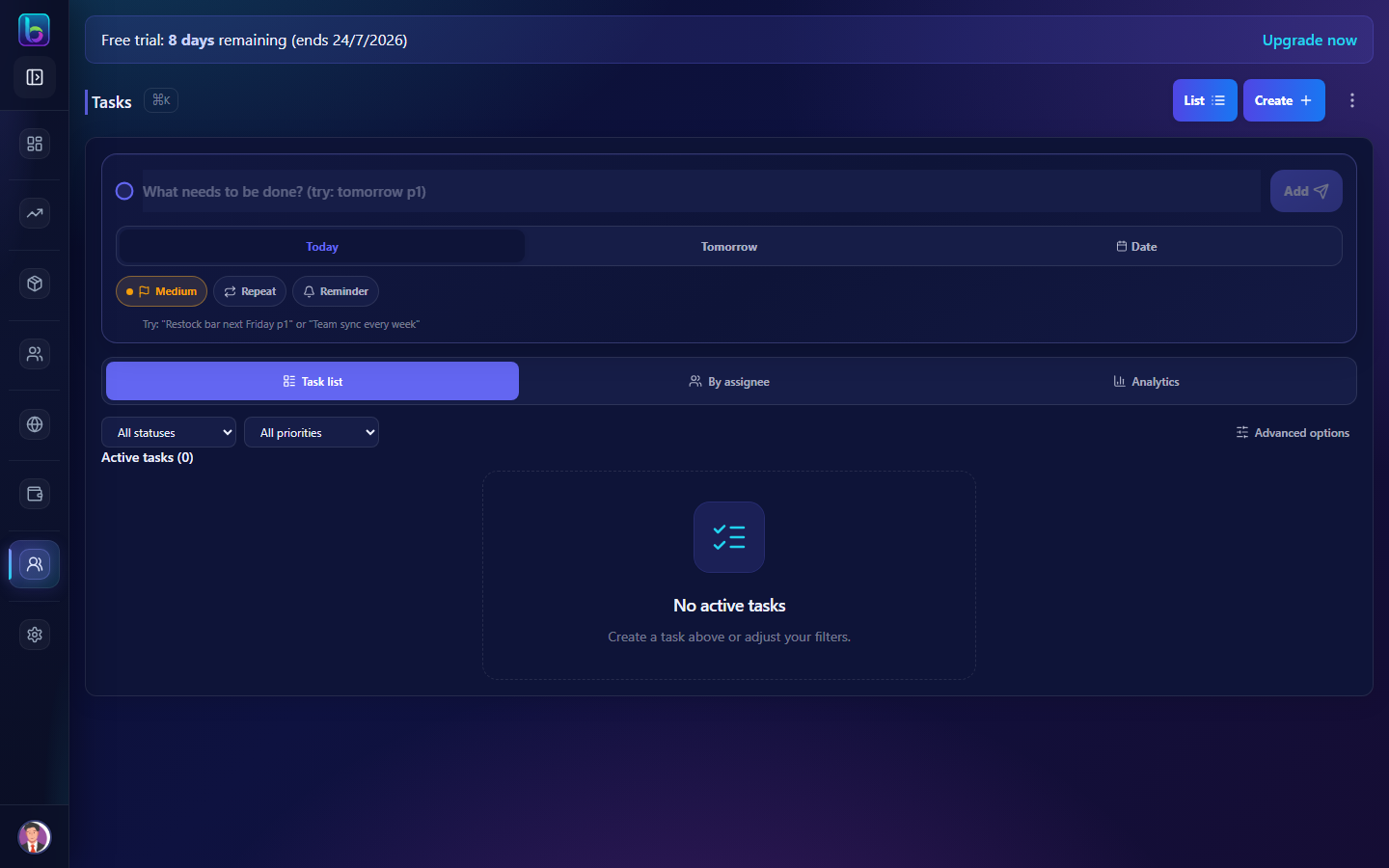 Tasks — filters, list, quick-add, and assign
Opening the page
- Open Team → Tasks.
- Or go to
/tasks.
Page layout
| Area | What it does |
|---|---|
| Filters | Today, overdue, active, completed |
| Task list | Drag-reorderable tasks with assignee and due date |
| Quick-add | Fast task entry from toolbar |
| Advanced modal | Full fields — priority, reminders, assignees |
| Bulk bar | Assign or delete selected tasks |
Create a task
Quick-add: type title and press enter or save.
Advanced:
- Open the full task modal.
- Set title, description, due date, priority.
- Choose Assign to staff member(s).
- Optional reminder datetime.
- Save.
Filter daily work
| Filter | Use when |
|---|---|
| Today | Morning standup |
| Overdue | Catch up on missed deadlines |
| Active | All open work |
Dashboard Team tasks card links here with counts.
Bulk assign and export
- Select task checkboxes.
- Bulk assign to reallocate work.
- Export CSV for weekly reports.
URL deep links
| Query | Opens |
|---|---|
?openTask=true | New task modal |
?taskId= | Specific task detail |
?filter= | Pre-set filter |
Related guides
| Feature | Guide |
|---|---|
| Team Directory | Team Directory |
| Staff onboarding | Staff onboarding |
| Daily routine | Daily admin routine |
Frequently asked questions
How do I assign a task in Beentara?
Create or edit a task and select assignee from the Assign to field in the task modal.
Where do staff see their tasks?
Team → Tasks — filter Today and Overdue at start of shift.