
Appearance
Settings
The Settings page is your business control center — profile, payments, tax, notifications, and security in one accordion.
Also known as: Profile menu → Settings (not under the Settings sidebar group)
In Beentara:
- Path: Profile menu (avatar) → Settings (
/setting) - Permission:
settings.read
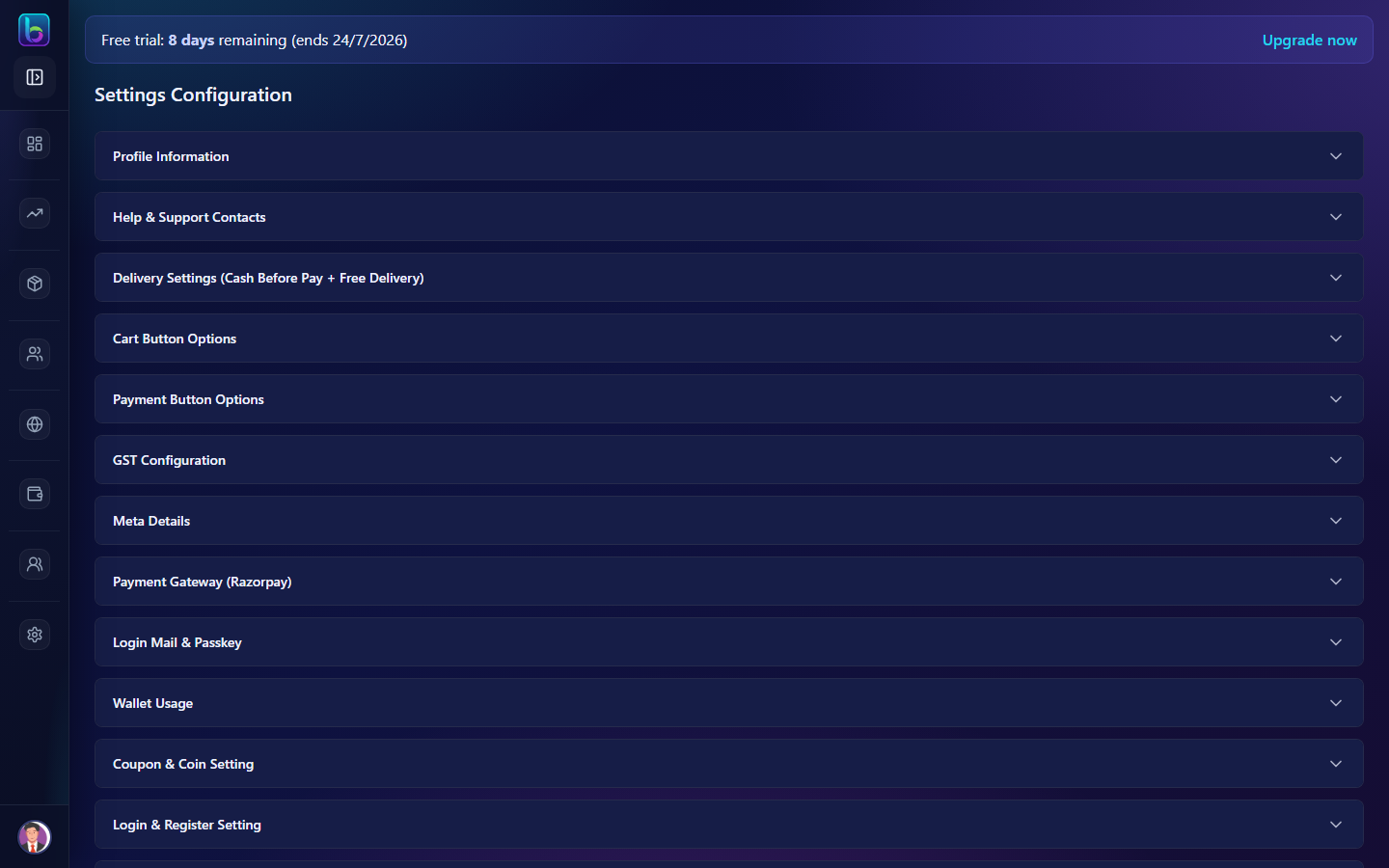 Settings Configuration — accordion sections for each area
Before billing or storefront launch
Configure SMTP email, Razorpay, and GST here first. See Troubleshooting if invoices fail to send.
Opening Settings
- Click your profile menu (top-right avatar).
- Choose Settings.
- Or go directly to
/setting.
You need settings.read permission.
Settings sections
Expand each accordion to view and edit:
| Section | Purpose |
|---|---|
| Profile Information | Business name, logo, address, contact |
| Help & Support Contacts | Support phone/email shown to customers |
| Delivery Settings | Cash-before-pay, free delivery rules |
| Cart Button Options | Storefront cart button labels/behavior |
| Payment Button Options | Checkout payment button configuration |
| GST Configuration | Default GST percentage |
| Meta Details | SEO meta for storefront |
| Payment Gateway (Razorpay) | Key ID, secret, branding for pay links |
| Login Mail & Passkey | SMTP for invoice/quote emails |
| Wallet Usage | Coin and wallet behavior |
| Coupon & Coin Setting | Enable coupons/coins at checkout |
| Login & Register Setting | Email vs phone registration |
| SMS Setting | SMS provider configuration |
| WhatsApp (AiSensy) — Billing | WhatsApp delivery for invoices/quotes |
| Bank Details & Authorised Signatory | Bank info on PDF documents |
| Login Banner | Banner on login pages |
| 2-Step Verification | Account 2FA |
Related standalone pages: Delivery Settings, Pincode, Themes.
Profile Information
Update legal business name, logo, and contact details. These appear on invoices, quotes, and your storefront footer.
Payment Gateway (Razorpay)
Required for online pay links on published invoices.
- Expand Payment Gateway (Razorpay).
- Enter Key ID and Key Secret from Razorpay dashboard.
- Set company name/color for checkout branding.
- Save.
Test: Publish a small invoice and open the pay link.
Troubleshooting: Payment link not working
Login Mail & Passkey (SMTP)
Required for email delivery of invoices, quotes, and receipts.
Configure SMTP host, port, username, and password. Without SMTP, publish toasts may show SMTP not configured.
Troubleshooting: Email not sending
WhatsApp (AiSensy) — Billing
Separate from CRM WhatsApp messaging. Paste your AiSensy API key, account email, and Live API campaign names so Beentara can send invoices, quotes, receipts, and credit notes on WhatsApp.
Full walkthrough: WhatsApp (AiSensy) — Billing — copy from AiSensy, paste into this accordion, then test with Publish.
GST Configuration
Set default GST rate applied on new line items. Adjust per product or invoice as needed.
Coupon & Coin Setting
Toggle whether customers can apply coupons and wallet coins at storefront checkout. Works with Coupons and Wallet.
2-Step Verification
Enable 2FA for admin login security. Staff accounts follow your organization's policy.
Before you start boxes
| If you want to… | Configure first |
|---|---|
| Send invoices by email | SMTP in Login Mail & Passkey |
| Accept online payments | Razorpay keys |
| Send WhatsApp invoices | AiSensy — Billing |
| Launch storefront checkout | Razorpay + Coupon & Coin + Themes |
Common mistakes
| Mistake | Fix |
|---|---|
| Pay link missing on invoice | Add Razorpay keys and Publish (not draft) |
| Email sent but no PDF | Check SMTP credentials; test with resend |
| WhatsApp works in CRM but not billing | Billing uses AiSensy — Billing section separately |
| Changes not on storefront | Save each accordion; clear cache on storefront |
Related guides
| Feature | Guide |
|---|---|
| Delivery bands | Delivery Settings |
| Serviceable areas | Pincode Settings |
| Subscription | Subscription |
| Google Ads → CRM | Google Ads |
| WhatsApp billing | WhatsApp (AiSensy) |
| Help | Help & Support |
Frequently asked questions
Where are Beentara payment settings?
Open /setting and expand Payment Gateway (Razorpay) in the settings accordion.
Why are my invoices not emailed?
Configure SMTP under Login Mail & Passkey. Draft invoices are never emailed — use Publish.
Where is GST configured?
Settings → GST Configuration accordion on /setting.