
Appearance
Orders
The Orders page is where you manage every customer order — from new website checkouts to orders you create manually in the admin panel. Track fulfillment, assign staff, add notes, and export reports.
In Beentara: open Sales → Orders from the sidebar (staff users see Orders directly), or go to /orders.
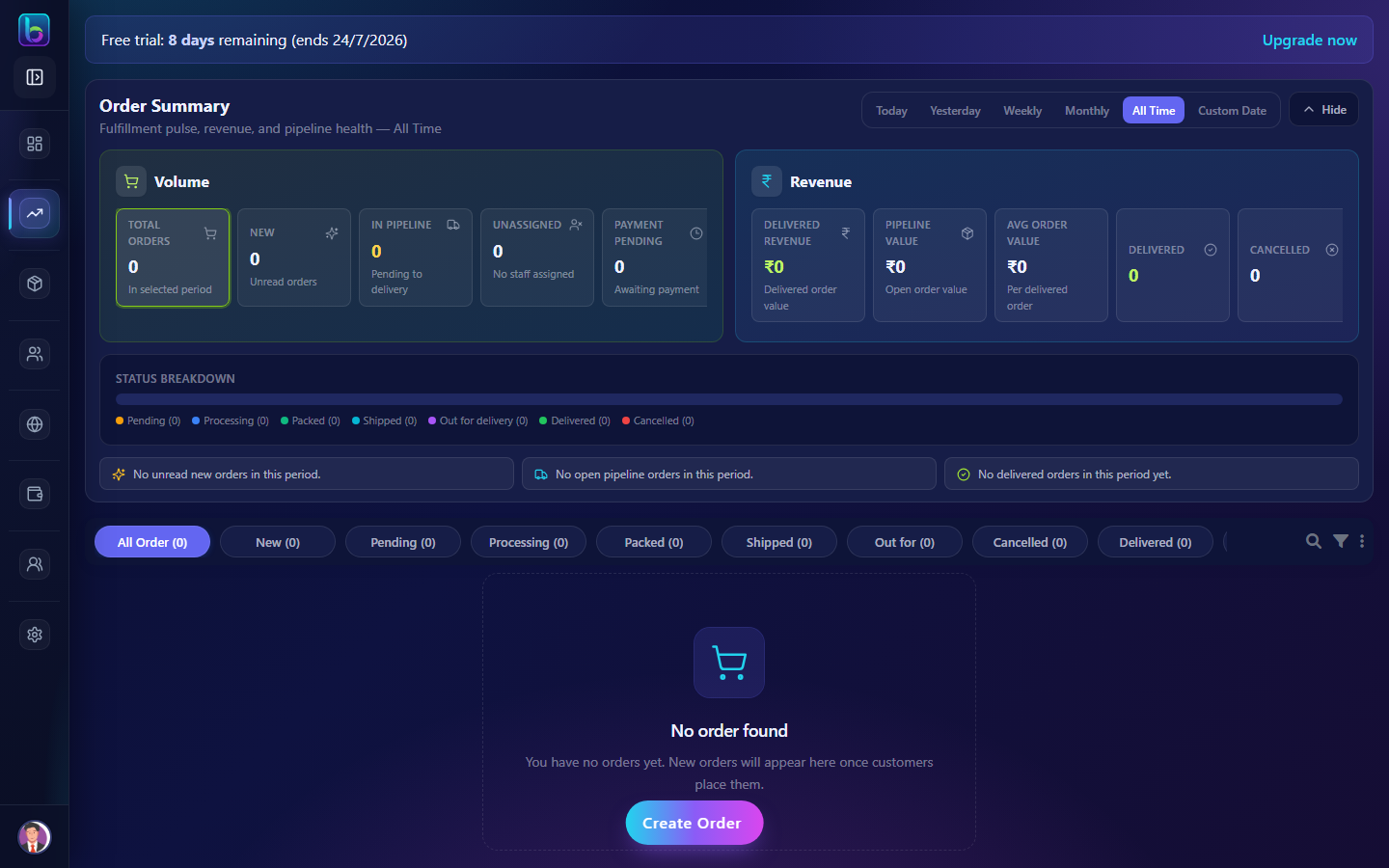
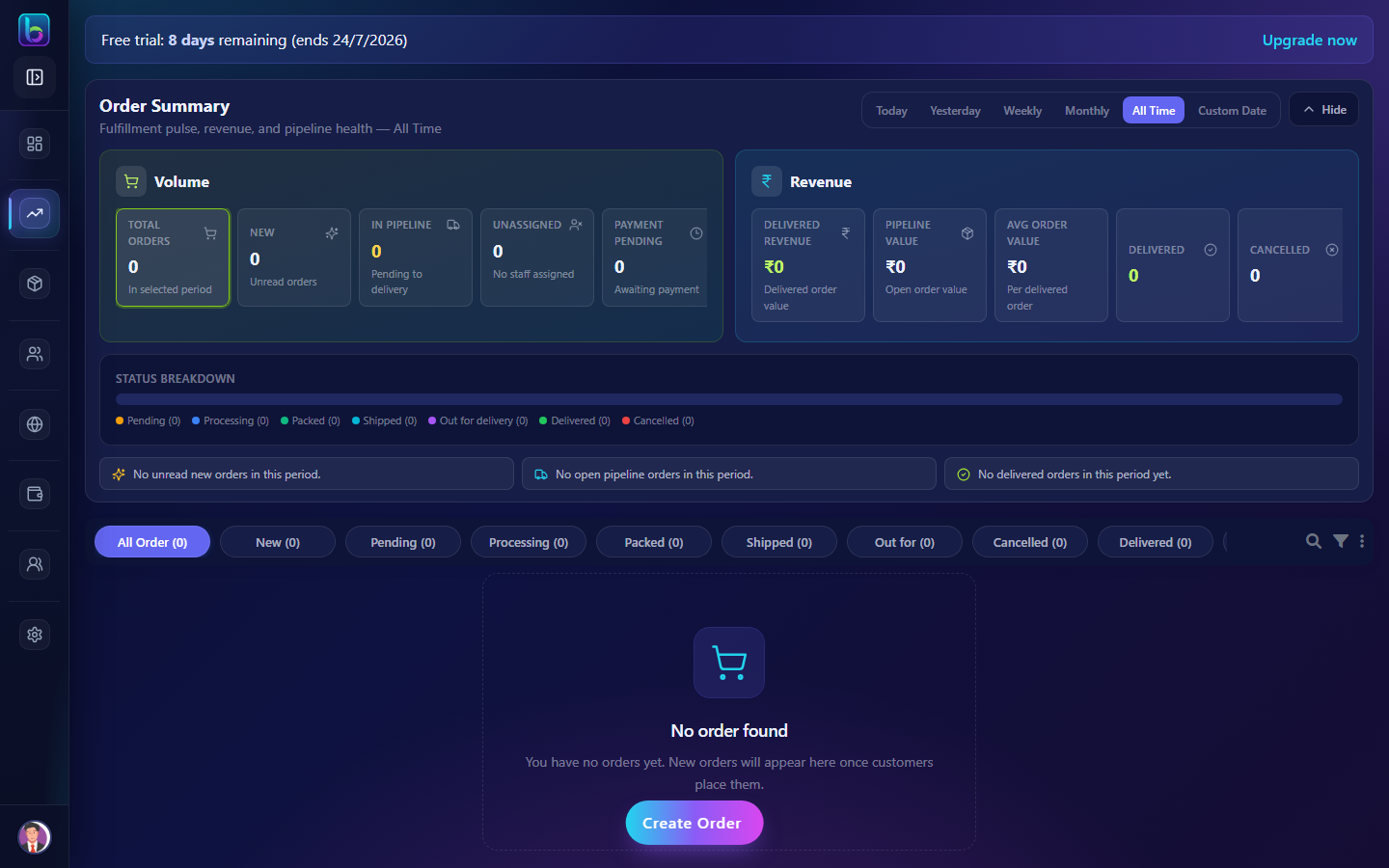 Order Summary at the top, status tabs, order cards, and Create Order button
Opening the Orders page
- Log in to Beentara admin.
- Click Orders in the sidebar:
- Admin: under Sales → Orders (a badge shows new orders when present).
- Staff: Orders appears as a top-level menu item if you have access.
- You can also jump here from the Dashboard via View Orders in the Daily Business Snapshot.
Page layout
| Area | What it does |
|---|---|
| Order Summary | Metrics, revenue, pipeline value, and status breakdown for a date range |
| Status tabs | Filter the list by fulfillment stage (New, Pending, Delivered, etc.) |
| Toolbar | Search, advanced filters, and bulk-action menu |
| Order cards | One card per order with customer info and actions |
| Pagination | Choose how many orders to show per page (20–1000) |
| Create Order | Fixed button at the bottom to add an order manually |
Order Summary
At the top, the Order Summary gives a business pulse for the selected period — similar to the dashboard snapshot but focused on orders only.
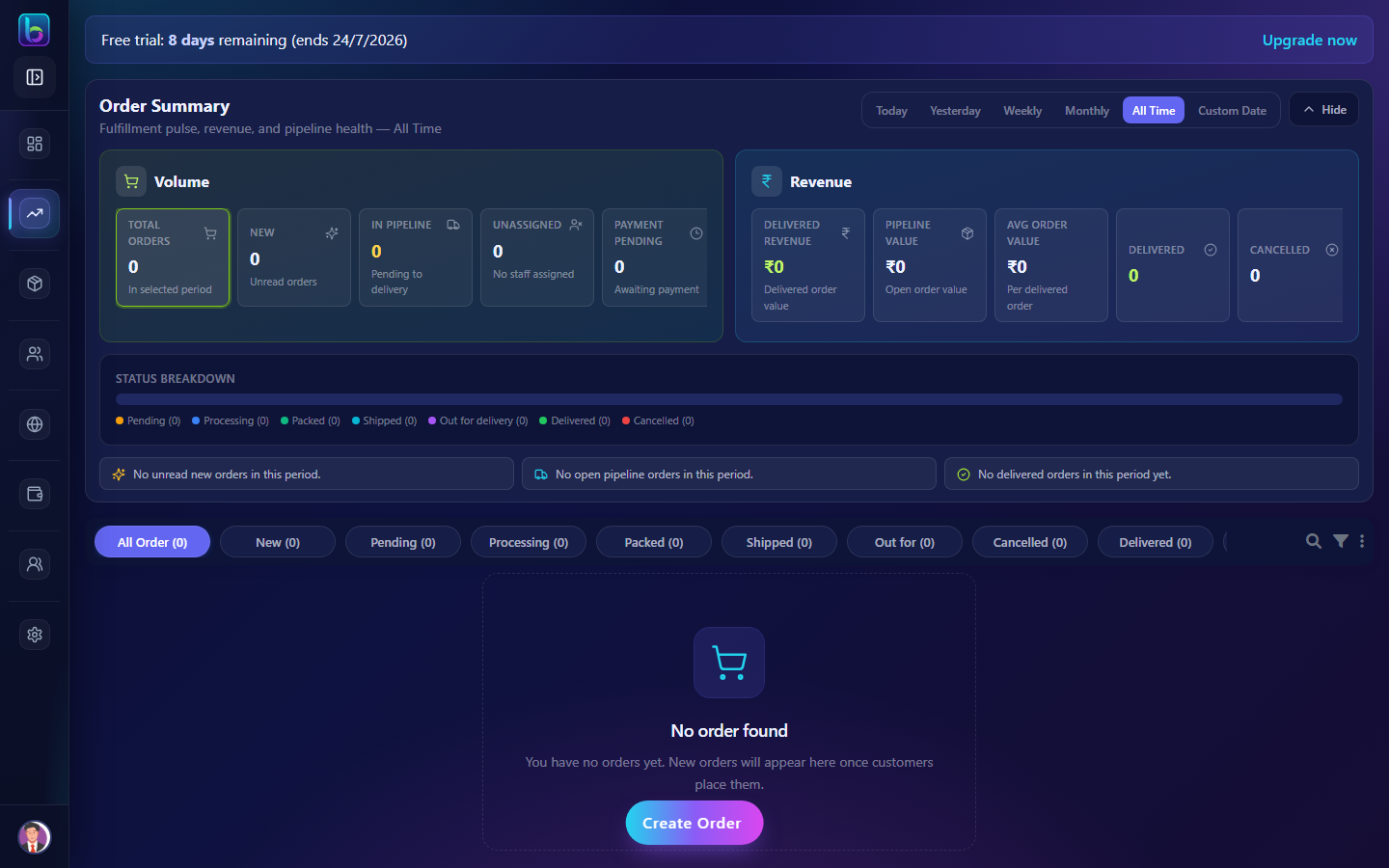 Date filters, volume metrics, revenue, and colored status breakdown bar
Date filters
| Filter | Shows data for |
|---|---|
| Today | Current day |
| Yesterday | Previous day |
| Weekly | Last 7 days |
| Monthly | Current calendar month |
| All Time | All non-archived orders |
| Custom Date | Pick From and To, then Apply |
Key metrics
| Metric | Meaning |
|---|---|
| Total Orders | Orders in the selected period |
| New | Orders not yet marked as read |
| In Pipeline | Orders between Pending and Out for delivery |
| Delivered Revenue | Total value of delivered orders |
| Pipeline Value | Value of orders still being fulfilled |
| Avg Order Value | Average delivered order amount |
| Delivered / Cancelled | Counts for completed or cancelled orders |
Click a metric or a segment in the status breakdown bar to switch the list below to that tab.
Tip: Use Hide on the summary to collapse it if you need more screen space. Click Show to bring it back — your preference is saved per account.
Status tabs
Below the summary, horizontal tabs filter which orders appear in the list:
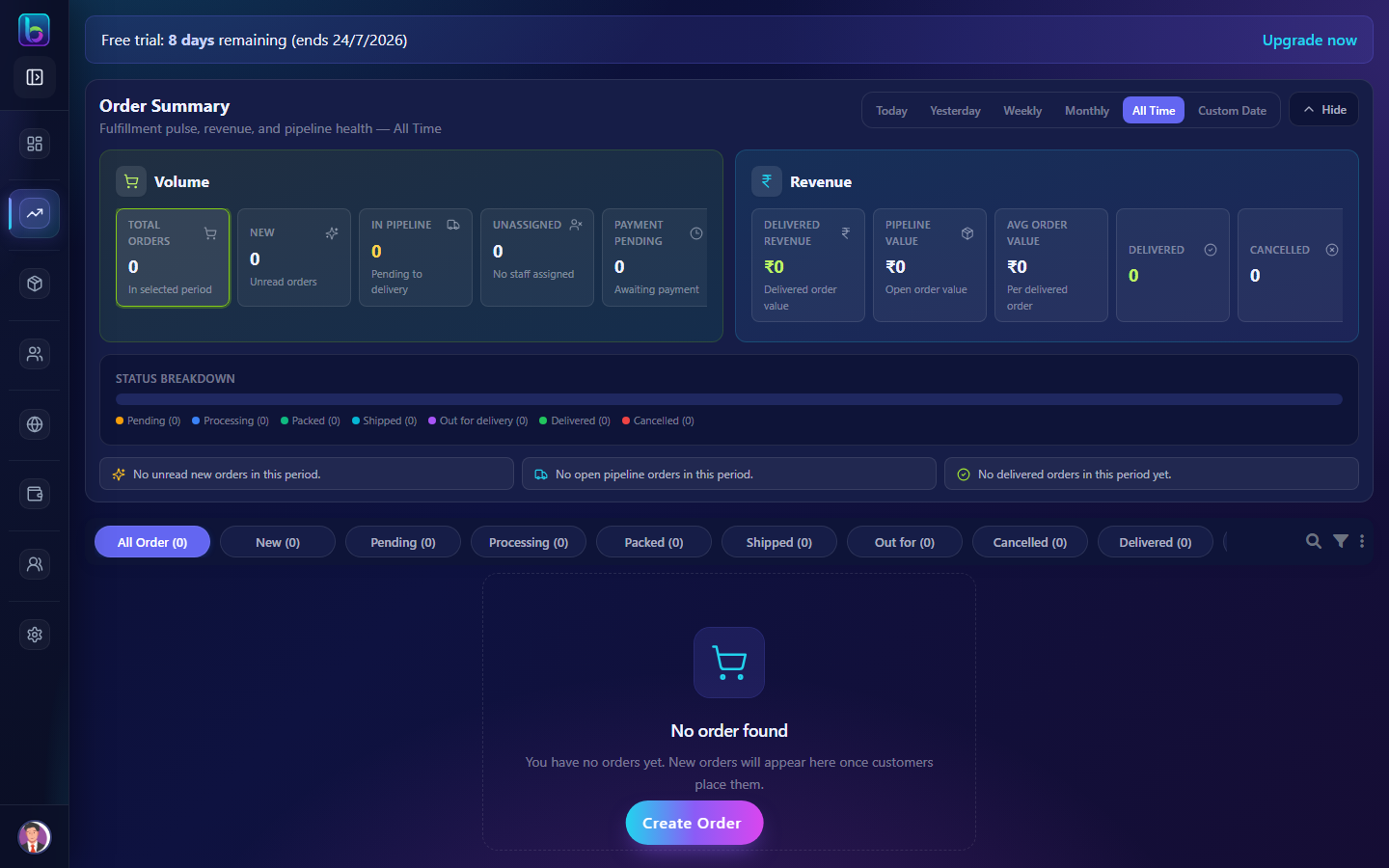 Tabs for All Order, New, Pending, Processing, and more
| Tab | Shows |
|---|---|
| All Order | Every non-archived order |
| New | Unread orders (mark = New) |
| Pending | Awaiting processing |
| Processing | Being prepared |
| Packed | Packed and ready to ship |
| Shipped | Handed to courier |
| Out for | Out for delivery |
| Cancelled | Cancelled orders |
| Delivered | Completed deliveries |
| Archive | Archived orders |
Each tab shows a count in parentheses. Click a tab to filter instantly.
Search and filters
Quick search
Click the magnifying glass icon to open a search bar. Beentara searches across order fields (customer name, order ID, address, etc.).
Filter drawer
Click the filter icon to open the filter panel.
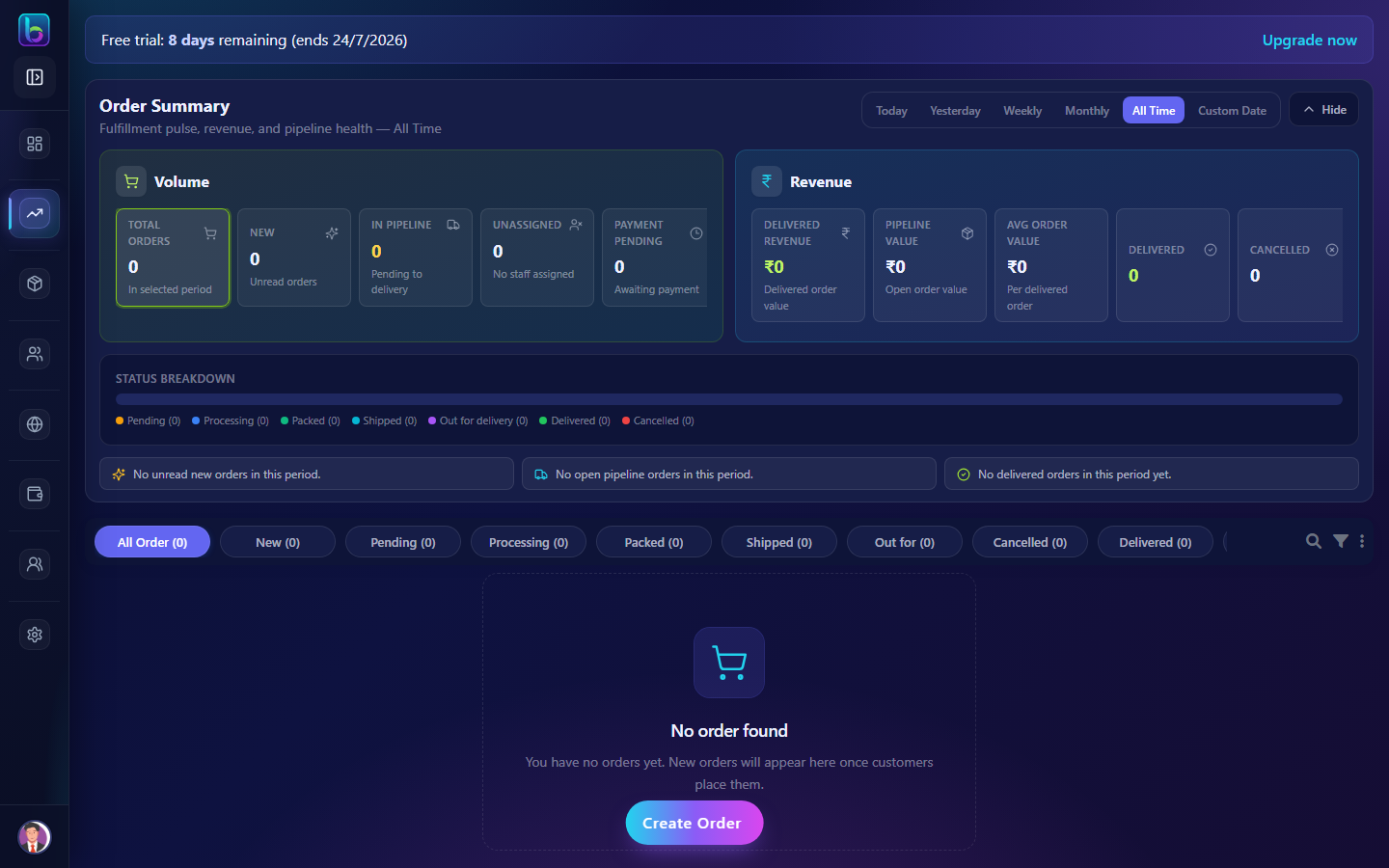 Filter by date, notes, and fulfillment status
| Option | Purpose |
|---|---|
| Date | Today, Yesterday, or Custom Date range |
| With Notes | Only orders that have notes attached |
| Filter by Type | Check one or more statuses (Pending, Processing, Packed, etc.) |
| Apply Filter | Apply your selections |
| Clear | Reset all filters |
Order cards
Each order appears as an expandable card with customer details and action buttons.
 Customer info, payment status, status dropdown, and action buttons
What you see on a card
| Field | Description |
|---|---|
| New / Read badge | Unread orders show New; clicking the card marks them Read |
| Timestamp | When the order was placed |
| Customer name & ID | Who placed the order |
| Address | Shipping / billing details |
| Reference ID / Order ID | Internal order identifiers |
| Payment Status | Payment state (separate from fulfillment status) |
| Assigned staff | Team members assigned to this order |
| Customer message | Note left by the customer at checkout |
Contact shortcuts
Use the icons on the right side of the card header:
- Phone — call the customer
- Email — email the customer
- WhatsApp — open WhatsApp chat
- Eye — open full order details in a modal
Card actions
| Button | What it does |
|---|---|
| Products | View line items (images, prices, quantities, variations) |
| Status dropdown | Change fulfillment status (Pending → Processing → … → Delivered) |
| Notes | Add or view internal notes on the order |
| Customer History | Open /customer-history/:id for all orders from that customer |
| Delete | Remove the order (confirmation required) |
Fulfillment statuses
When you change status on a card, Beentara records the date automatically for key stages:
| Status | Typical meaning |
|---|---|
| Order Placed | Just received |
| Pending | Awaiting action |
| Processing | Being prepared |
| Packed | Ready to ship |
| Shipped | With courier |
| Out for delivery | On the way to customer |
| Delivered | Completed |
| Cancelled | Order cancelled |
Bulk actions (three-dot menu)
Click the ⋮ menu in the toolbar for team-wide actions:
| Action | Purpose |
|---|---|
| Assign Order | Select orders and assign them to staff members |
| Check assign | View orders by assigned employee; unassign if needed |
| Archive | Move orders to Archive tab (or unarchive) |
| Bulk delete | Delete multiple selected orders |
| Download Excel | Export filtered orders to Excel |
| Support | Email support |
For assign, archive, and bulk delete: use the checkbox on each order card to select orders first.
Create Order
Tap the Create Order button at the bottom of the page to manually enter an order (phone orders, walk-ins, etc.).
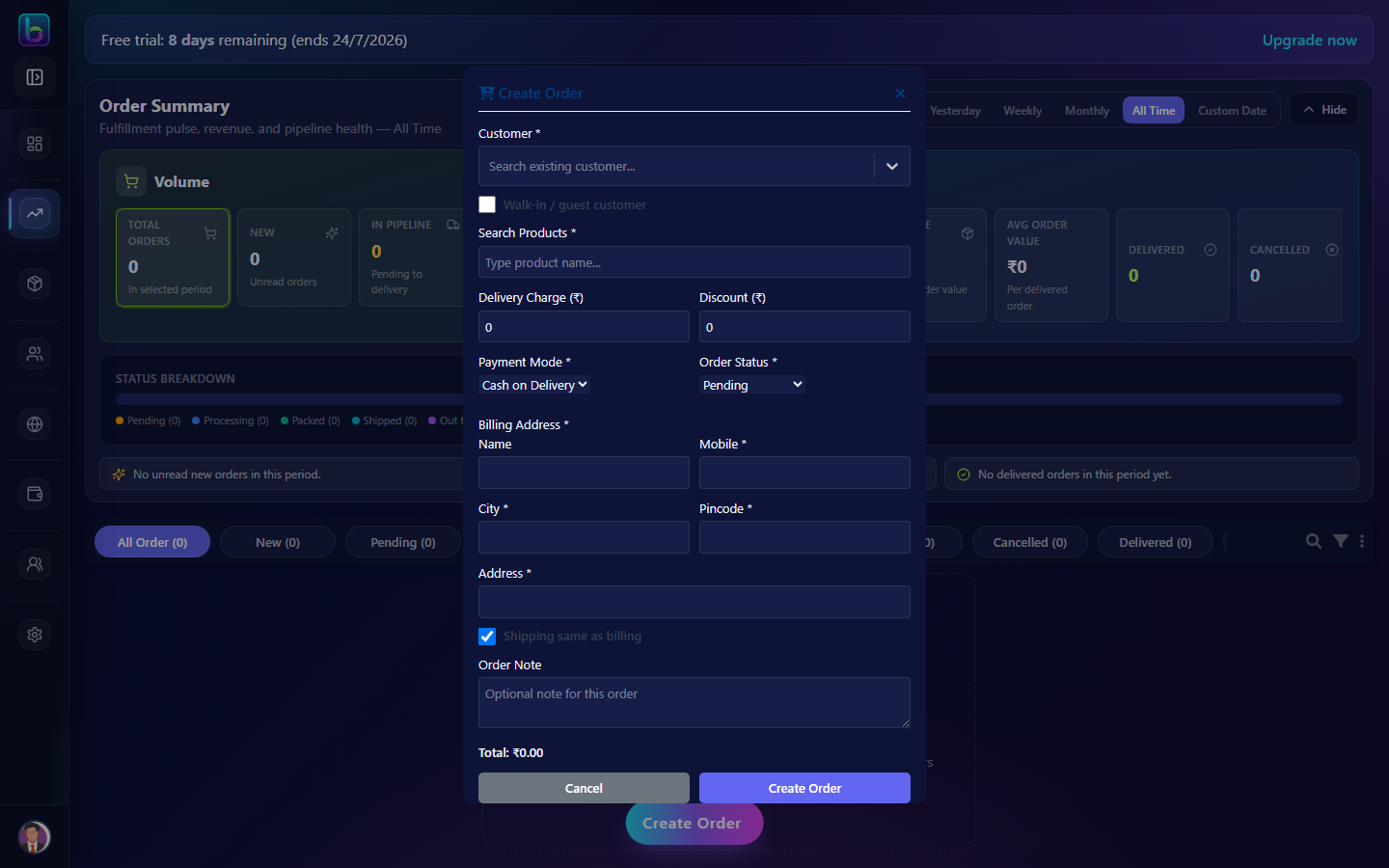 Customer, products, addresses, payment, and initial status
Steps
- Click Create Order.
- Select customer — pick an existing customer or choose Walk-in / guest.
- Add products — search your catalog and set quantities.
- Addresses — fill billing and shipping (use same-as-billing if applicable).
- Charges — set delivery charge and discount if needed.
- Payment mode — Cash on Delivery, Admin Manual, or Pay Online.
- Order status — set the starting fulfillment status.
- Customer note — optional message from the customer.
- Submit — the order appears in your list immediately.
Customer History
From any order card, click Customer History to open a dedicated page showing all past orders for that customer. You can filter and update statuses from there as well.
Pagination
At the top and bottom of the list:
- Entries — show 20, 50, 100, 500, or 1000 orders per page.
- Page controls — move between pages with the arrow buttons.
Daily workflow tips
- Start on the New tab each morning — mark orders as read as you review them.
- Move statuses forward as you pack and ship (Pending → Processing → Packed → Shipped → Delivered).
- Use Assign Order so each team member knows what they own.
- Add Notes when something unusual happens (partial shipment, customer request, etc.).
- Download Excel at end of day for accounting or reconciliation.
- Archive old completed orders to keep the active list clean.
Related guides
| Feature | Guide |
|---|---|
| Dashboard | How to use the Dashboard |
| Quotes | How to use Quotes |
| Invoices | How to use Invoices |
| CRM | How to use CRM |
| Products | How to use Products |