
Appearance
Admission Form Builder
Design the public admission form your academy shares online — sections, field types, required rules, and conditional visibility.
Skates businesses only
Available for Skates accounts with students.read. Complete Centers and Plans first.
In Beentara:
- Path: Students → Form Builder (
/admission-form-builder)
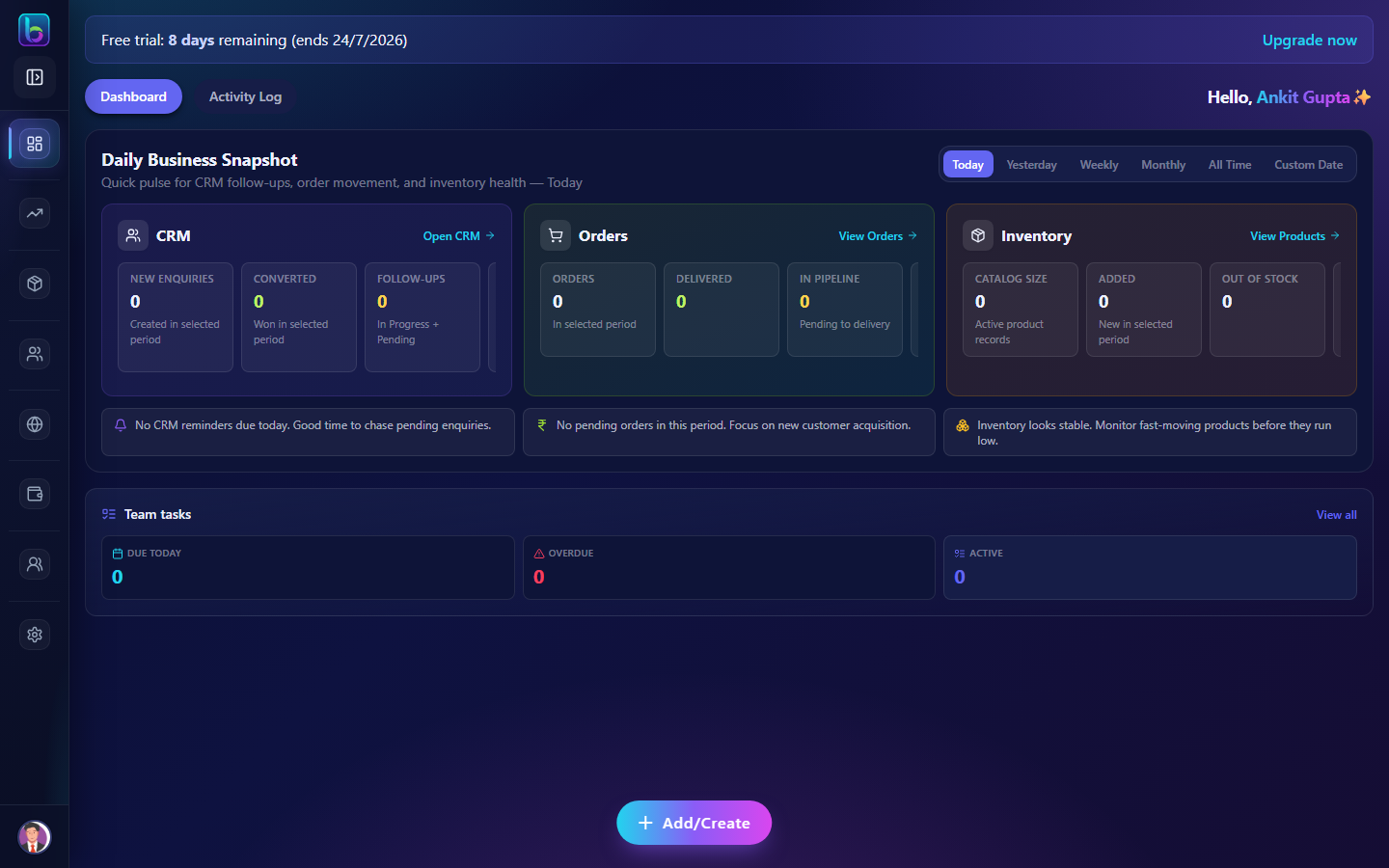 Form Builder — sections, fields, and save
Opening the page
- Open Students → Form Builder.
- Or go to
/admission-form-builder.
Page layout
| Area | What it does |
|---|---|
| Sections | Group related fields (Personal, Parent, Medical, etc.) |
| Field list | Fields within each section |
| Add field | Choose type — text, dropdown, file, date, etc. |
| Logic rules | Show/hide fields based on answers |
| Save / Reset | Publish or revert form configuration |
Build the form
- Add section — e.g. Student Details, Contact, Plan Selection.
- Add fields — map to data you need on Admission list.
- Mark required fields for validation.
- Link plan, center, and batch pickers to configured settings.
- Save — public form uses this configuration immediately.
Field types (typical)
| Type | Use for |
|---|---|
| Text / Number | Names, age, IDs |
| Dropdown | Center, batch, plan selection |
| File upload | Documents, photos |
| Date | DOB, start date |
| Checkbox | Consent, terms |
Conditional logic
Show fields only when relevant — e.g. display Guardian name when student age is under 18.
Test the public form after saving to catch missing required fields.
Setup order
text
Centers → Batches → Plans → Form Builder → Admission listGuide: Admission setup
Related guides
| Feature | Guide |
|---|---|
| Admission list | Admission |
| Plans | Admission Plans |
| Centers | Centers |
Frequently asked questions
When should I configure the form builder?
After centers, batches, and plans exist — pickers need those options.
Can I reset the form?
Use Reset to revert — confirm before resetting production forms with live submissions.