
Appearance
Expenses
The Expenses page tracks business spending — categorize costs, attach receipts, link customers, and export reports.
In Beentara:
- Path: Finance → Expenses (
/expense) - Permission:
finance.read
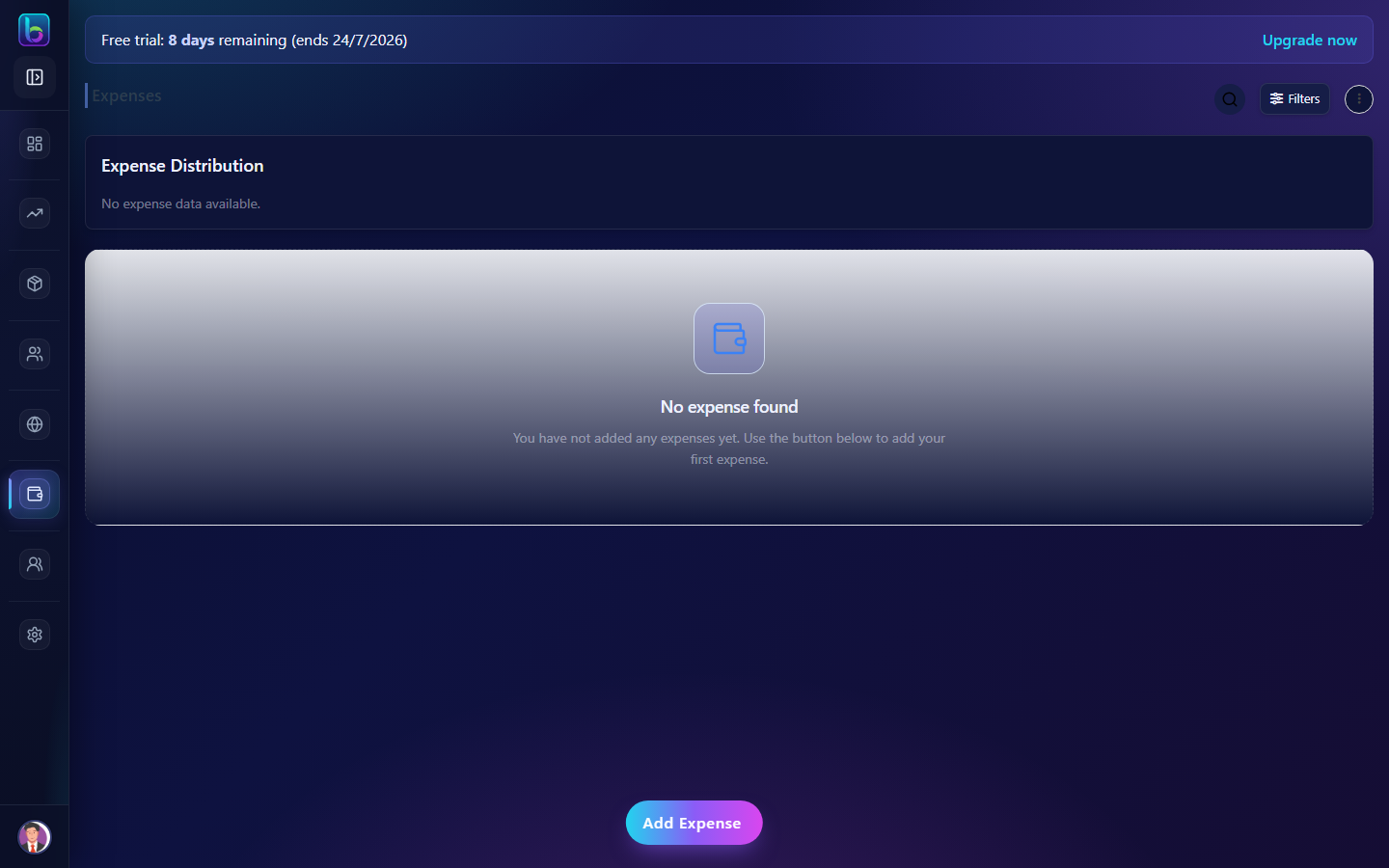 Expenses — summary metrics, list, and Add expense
Opening the page
- Open Finance → Expenses.
- Or go to
/expense.
Page layout
| Area | What it does |
|---|---|
| Summary metrics | Totals by period — click to filter |
| Toolbar | Search, date filter, overflow menu |
| Expense list | Rows with amount, category, date, actions |
| Add expense | Create new expense records |
Add an expense
- Click Add expense.
- Enter type, date, amount, and category.
- Optionally link a customer and upload a receipt image.
- Save.
Filter, search, and export
| Control | Purpose |
|---|---|
| Date filter | Limit list to a period |
| Search | Find by description or category |
| Overflow menu | Import/export Excel, refresh |
Use summary cards for quick totals — e.g. month-to-date spending.
Bulk actions
Select multiple expenses to bulk delete where permitted. Confirm before removing historical records.
End-of-day routine
Record cash and UPI business expenses the same day for accurate finance reporting. Pair with Daily admin routine.
Related guides
| Feature | Guide |
|---|---|
| Wallet | Wallet |
| Dashboard | Dashboard |
Frequently asked questions
How do I track expenses in Beentara?
Open /expense, click Add expense, fill date, category, amount, and save — use summary cards for totals.
Can I export expenses?
Yes — use the overflow menu Export option to download Excel data.