Appearance
Dashboard
The Dashboard is your home screen after you log in to Beentara. It gives you a quick pulse of your business — CRM follow-ups, orders, inventory, and team tasks — without opening each module separately.
In Beentara: open Dashboard from the sidebar, or go to /dashboard.
Staff users see a different home
If you log in as a staff member, you see shortcut cards (Attendance, Tasks, CRM, Orders) instead of the admin analytics below. Jump to the staff dashboard section.
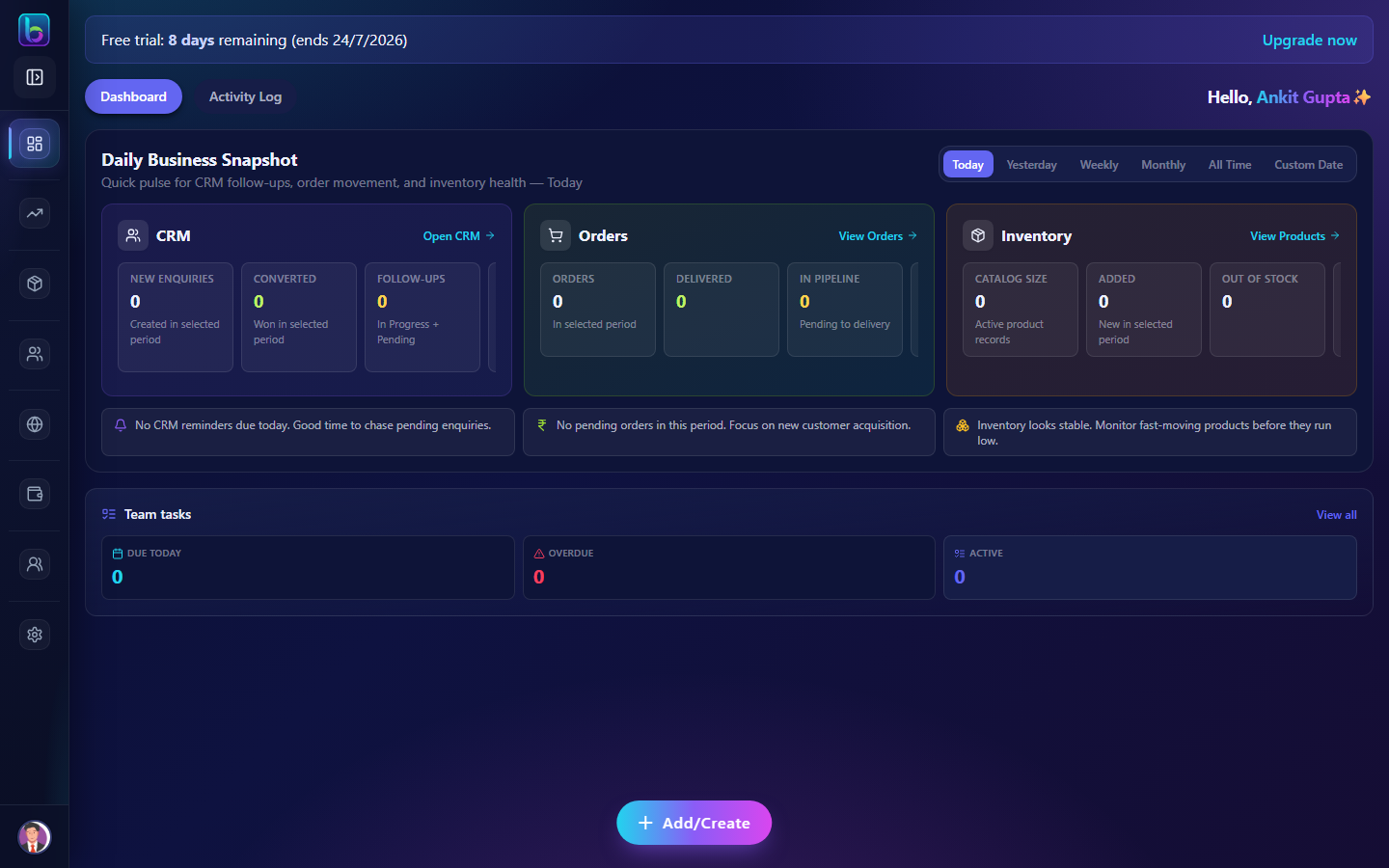 Staff users land on shortcut cards, not the admin analytics dashboard
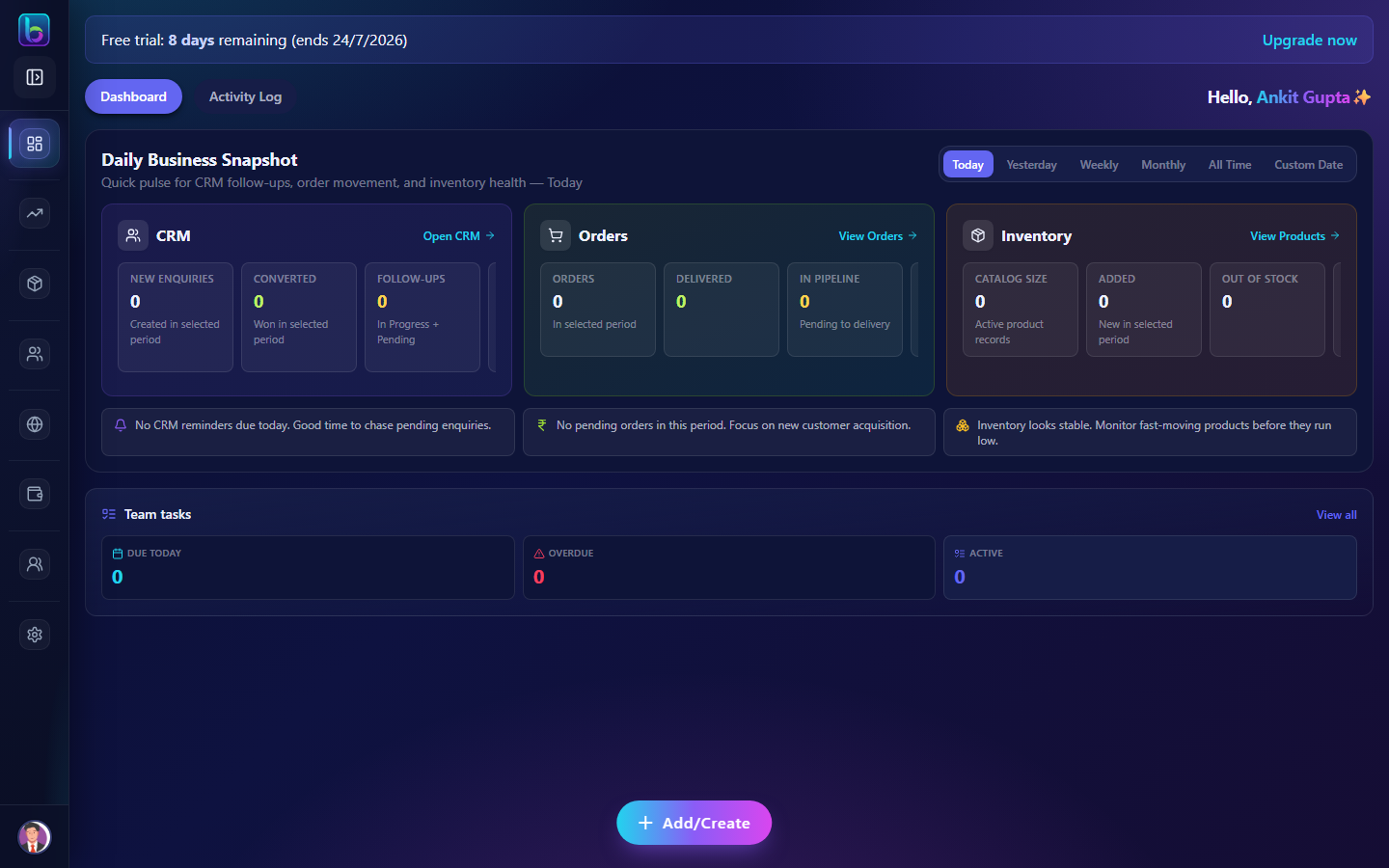 Admin dashboard — tabs, greeting, Daily Business Snapshot, tasks, and quick-create button
Opening the dashboard
- Log in to your Beentara admin account.
- Click Dashboard in the left sidebar (or go to
/dashboard). - After login, Beentara also redirects you here automatically.
Page layout
The admin dashboard has these main areas:
| Area | What it does |
|---|---|
| Tabs | Switch between Dashboard and Activity Log |
| Greeting | Shows “Hello, [your name]” on desktop |
| Daily Business Snapshot | CRM, Orders, and Inventory metrics for a chosen date range |
| Skates Academy (if enabled) | Admission and attendance summary for academy businesses |
| Team tasks | Due today, overdue, and active task counts |
| Quick-create button | Floating + button to add products, leads, invoices, and more |
| Activity Log tab | Full history of actions in your account |
Dashboard vs Activity Log tabs
At the top of the page you will see two pill-shaped tabs:
- Dashboard — live summaries and shortcuts (default view).
- Activity Log — a detailed log of who did what and when across your account.
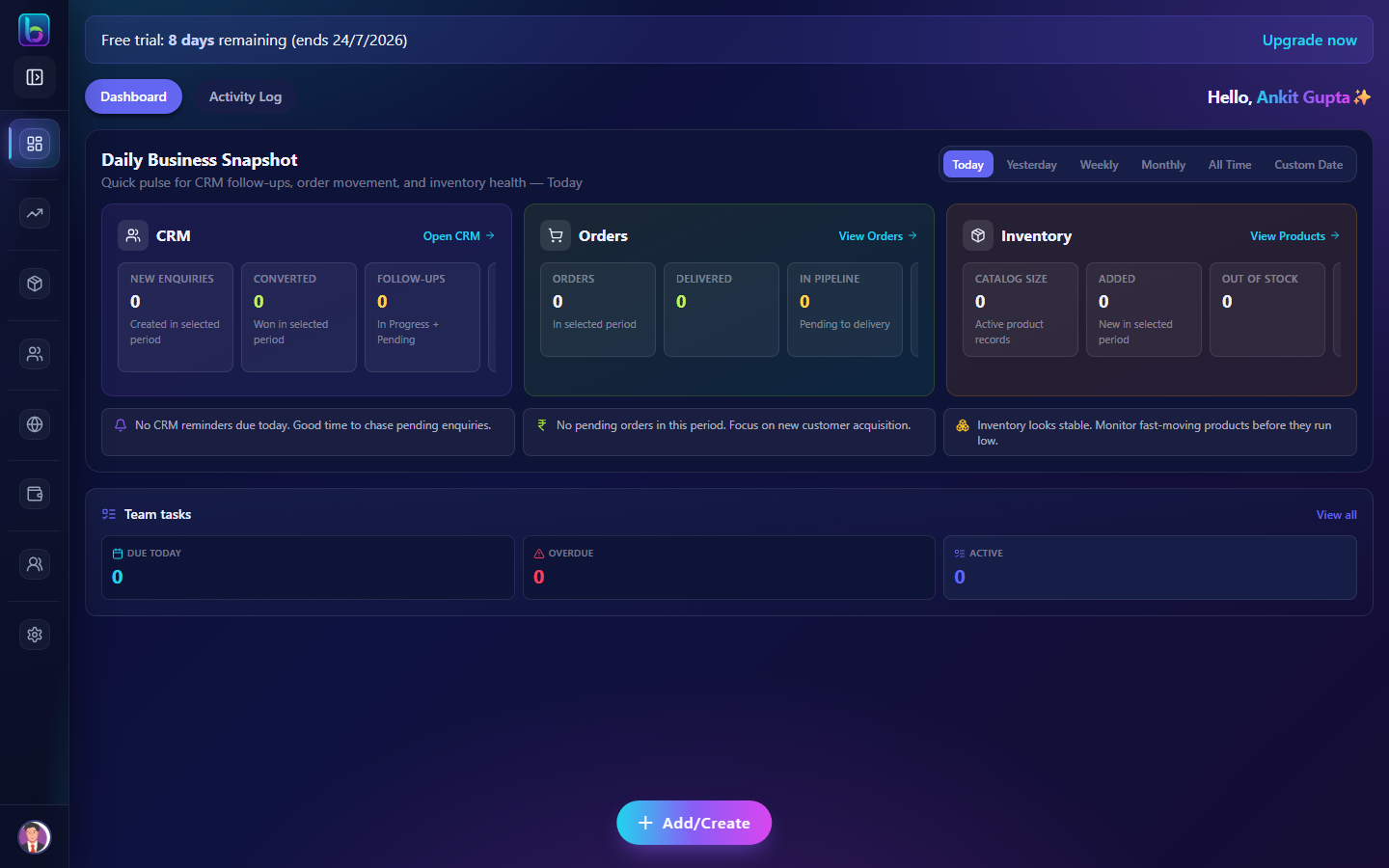 Use the tabs to switch between summaries and the activity log
Tip: Use Activity Log when you need to audit changes or trace when something was created or updated.
Daily Business Snapshot
The Daily Business Snapshot is the main analytics block on your dashboard. It answers: “How is my business doing for this period?”
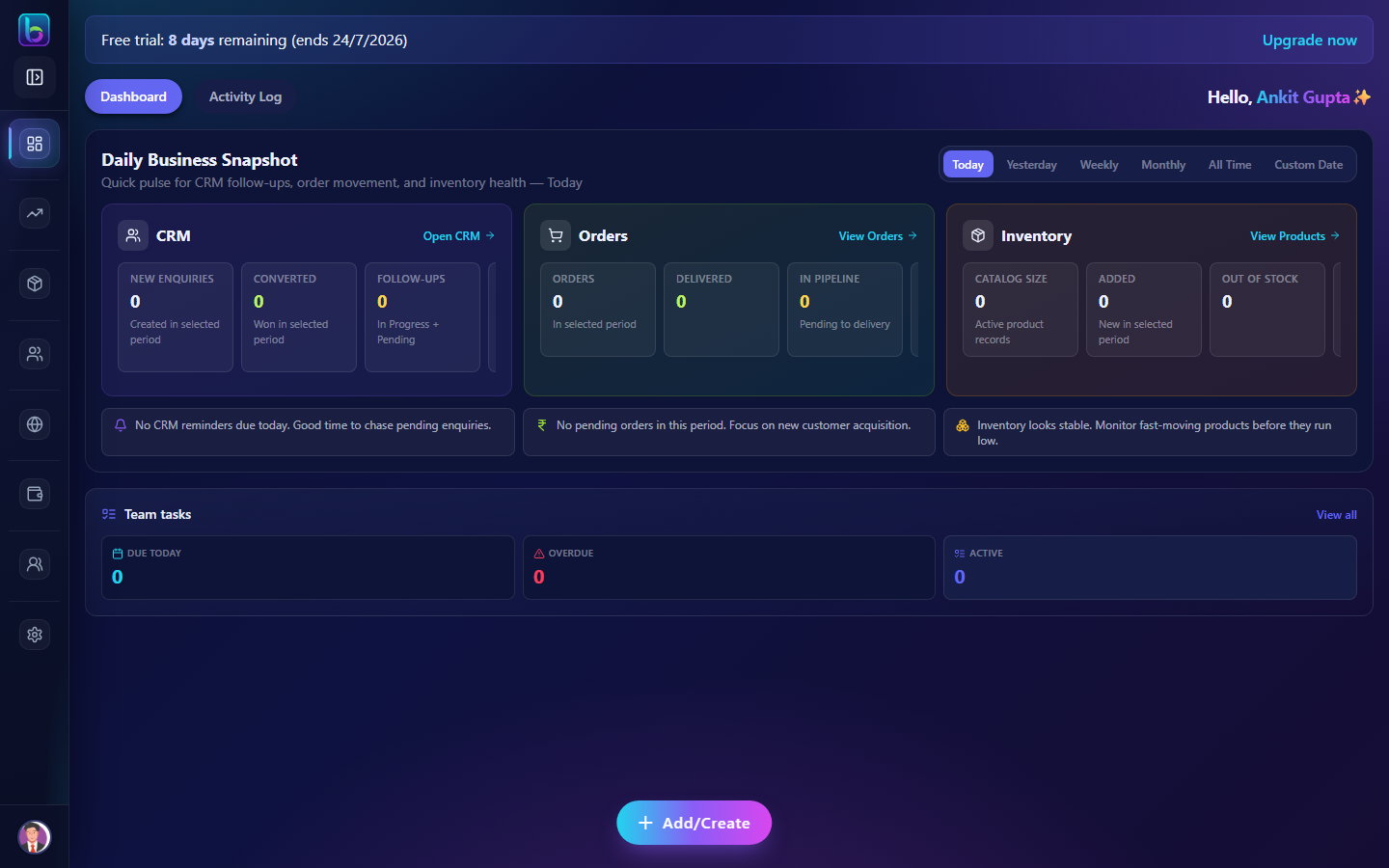 Date filters at the top; CRM, Orders, and Inventory columns below
Date filters
Use the filter bar to change the time period:
| Filter | Shows data for |
|---|---|
| Today | Current day (IST) |
| Yesterday | Previous day |
| Weekly | Last 7 days |
| Monthly | Current calendar month |
| All Time | Everything in your account |
| Custom Date | Pick a From and To date, then click Apply |
All metrics in the three columns update when you change the filter.
CRM column
Tracks your sales pipeline for the selected period:
| Metric | Meaning |
|---|---|
| New Enquiries | Leads created in the period |
| Converted | Leads marked as converted (won) |
| Follow-ups | Leads in In Progress or Pending |
| Not Contacted | Leads still marked New |
| Reminders Today | CRM reminders due today — act on these first |
Click Open CRM to go to the full CRM module (/crm).
Orders column
Shows order movement and revenue:
| Metric | Meaning |
|---|---|
| Orders | Total orders in the period |
| Delivered | Orders with Delivered status |
| In Pipeline | Orders not yet delivered or cancelled |
| Revenue | Total value of delivered orders (₹) |
| Cancelled | Cancelled orders in the period |
Click View Orders to open the orders list (/orders).
Inventory column
Monitors your product catalog:
| Metric | Meaning |
|---|---|
| Catalog Size | Total product records |
| Added | Products created in the period |
| Out of Stock | SKUs with zero stock |
| Low Stock | SKUs with fewer than 10 units |
Click View Products to manage inventory (/products).
Action hints
Below the three columns, Beentara shows short tips based on your data — for example, reminders due today, orders still in pipeline, or SKUs that need replenishment. Use these as your daily to-do list.
Team tasks
The Team tasks card shows task counts for your organization:
| Metric | Link |
|---|---|
| Due today | Opens tasks filtered to today |
| Overdue | Opens overdue tasks |
| Active | Opens all active tasks |
Click View all to open the full Tasks module (/tasks).
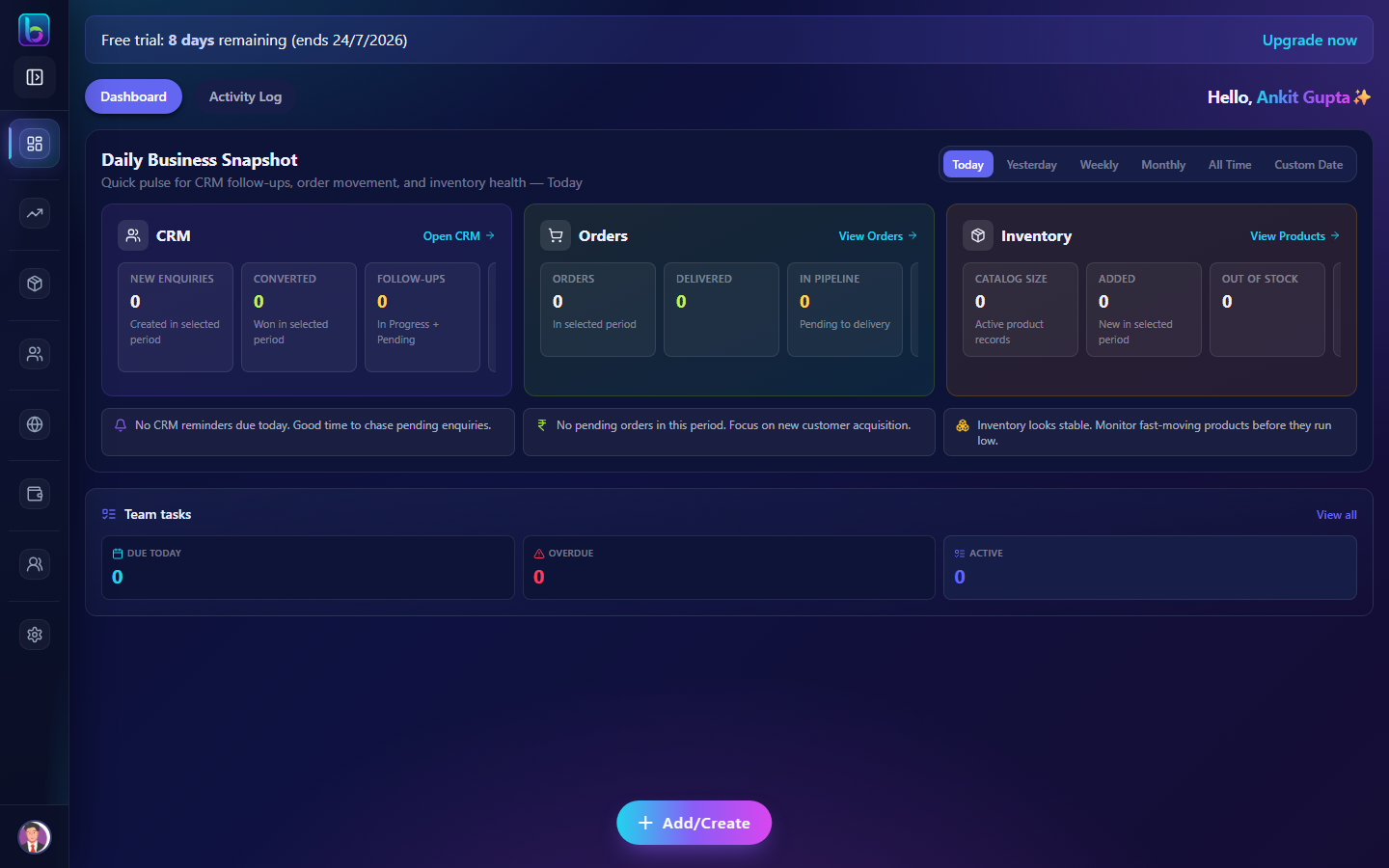 Quick counts with links into the Tasks module
Quick-create button (+)
A floating + button sits at the bottom-right of the dashboard. Tap it to open a menu of common actions:
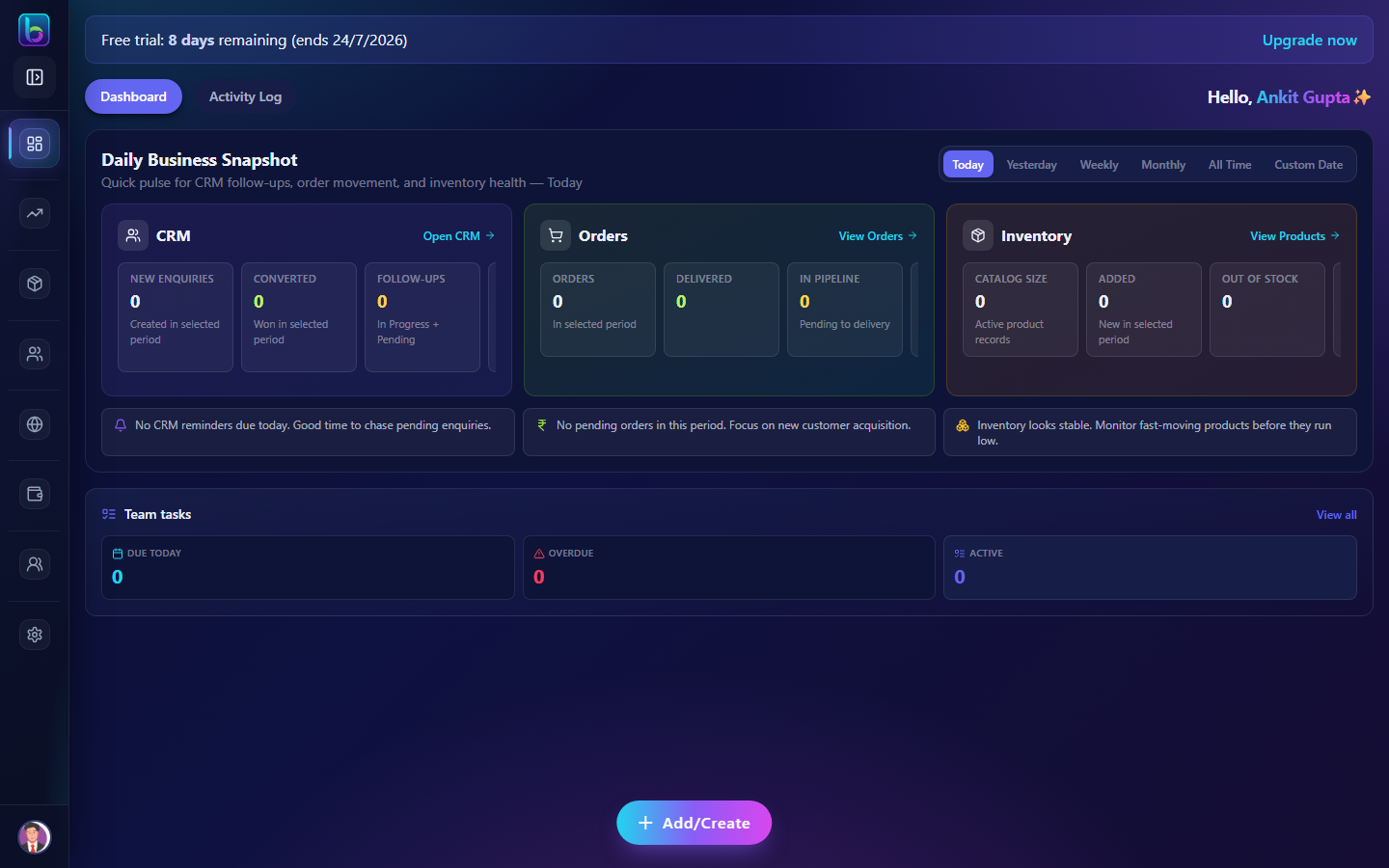 Create products, leads, invoices, receipts, and more from one place
| Option | Opens |
|---|---|
| Product | Products (/products) |
| Lead | CRM with new enquiry (/crm) |
| Customer | Add customer |
| Invoice | New invoice |
| Receipt | Receipts |
| Expense | Expenses |
| Slider / Home Section / Offer / Headline / Menu | Website content modules |
| Referral / Wallet / Brand | Marketing & branding |
| Task / Job / Team Member | Operations & HR |
Select an item to jump straight into that create flow.
Skates Academy summary
If your business uses the Skates Academy module, an extra block appears between the business snapshot and team tasks. It summarizes:
- Admissions — enrollments, active students, batches, payments
- Attendance — today’s present/absent/late counts and unmarked batches
Use the links inside that section to open Admission or Student Attendance.
Staff dashboard
Staff accounts see a simplified home with four shortcut cards instead of admin analytics:
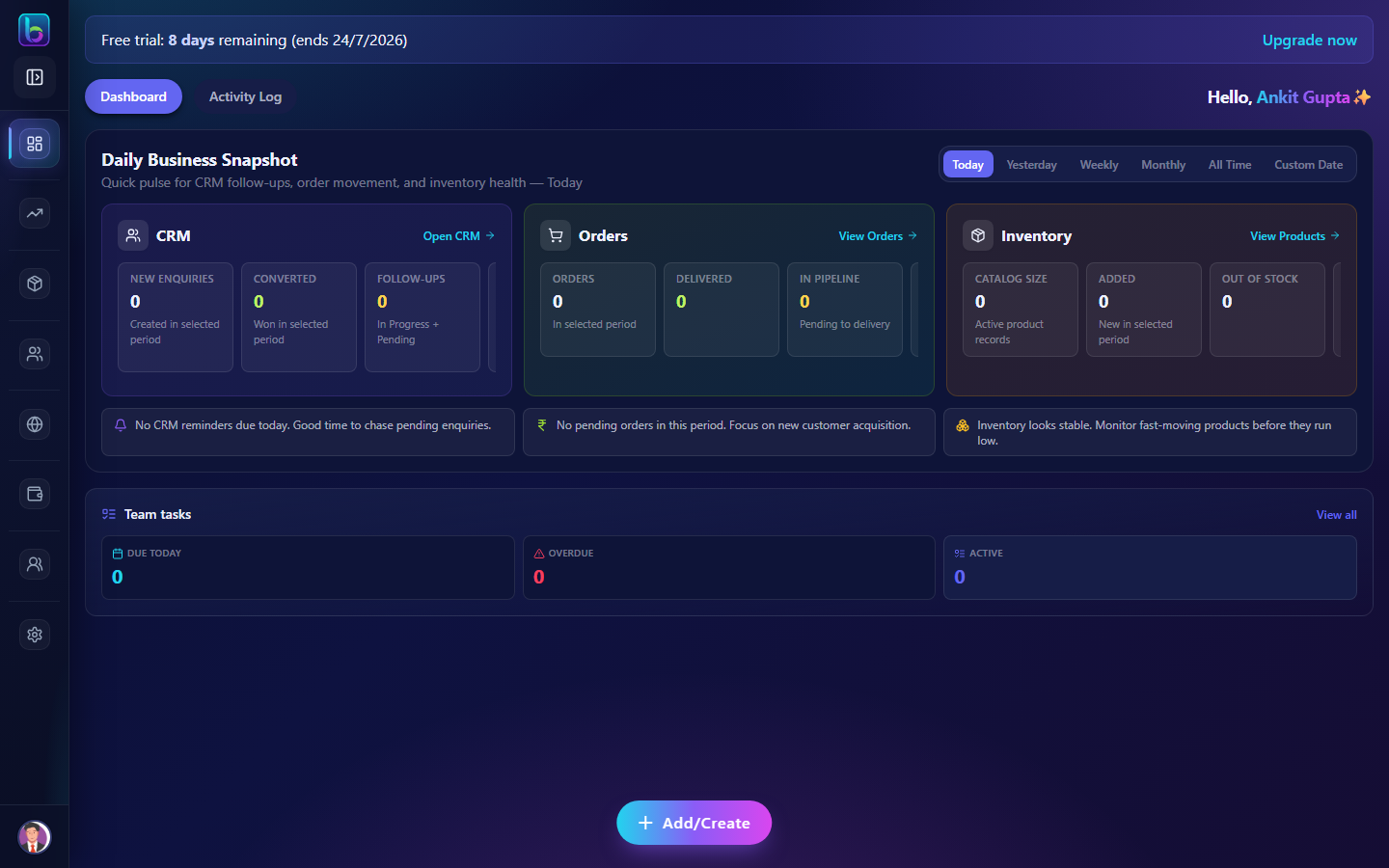 Staff home — Attendance, Tasks, CRM, and Orders
| Card | Purpose |
|---|---|
| Attendance | Mark and review attendance |
| Tasks | Your assigned tasks (badge shows overdue/due today) |
| CRM | Leads and enquiries |
| Orders | Order fulfilment |
Click Open on any card to go to that module.
Tips for daily use
- Start with Reminders Today in the CRM column — clear follow-ups before they slip.
- Check In Pipeline under Orders — chase packing and delivery on pending orders.
- Watch Out of Stock / Low Stock — restock before you lose sales.
- Use the + button when you need to quickly add a lead, invoice, or product without hunting through the sidebar.
- Switch to Activity Log when you need to verify who changed something.
Related guides
More feature guides will be added here as they are published. Each Beentara screen will link to its matching page with How to use.
| Feature | Guide |
|---|---|
| Dashboard | How to use the Dashboard |
| Orders | How to use Orders |
| Quotes | How to use Quotes |
| Auto-billing | How to use Auto-billing |
| Invoices | How to use Invoices |
| CRM | How to use CRM |
| Products | How to use Products |
| Tasks | Coming soon |