
Appearance
Receipts
The Receipts page is where you record money received from customers. Each receipt can be linked to an invoice so pending balances stay accurate. You can email or WhatsApp a PDF receipt after saving.
In Beentara:
- Receipt list: Sales → Receipts (
/receipt) - Create receipt: Create Receipt button (opens a modal)
- Customer receipts: Click a receipt card →
/individual-receipt/:customerId
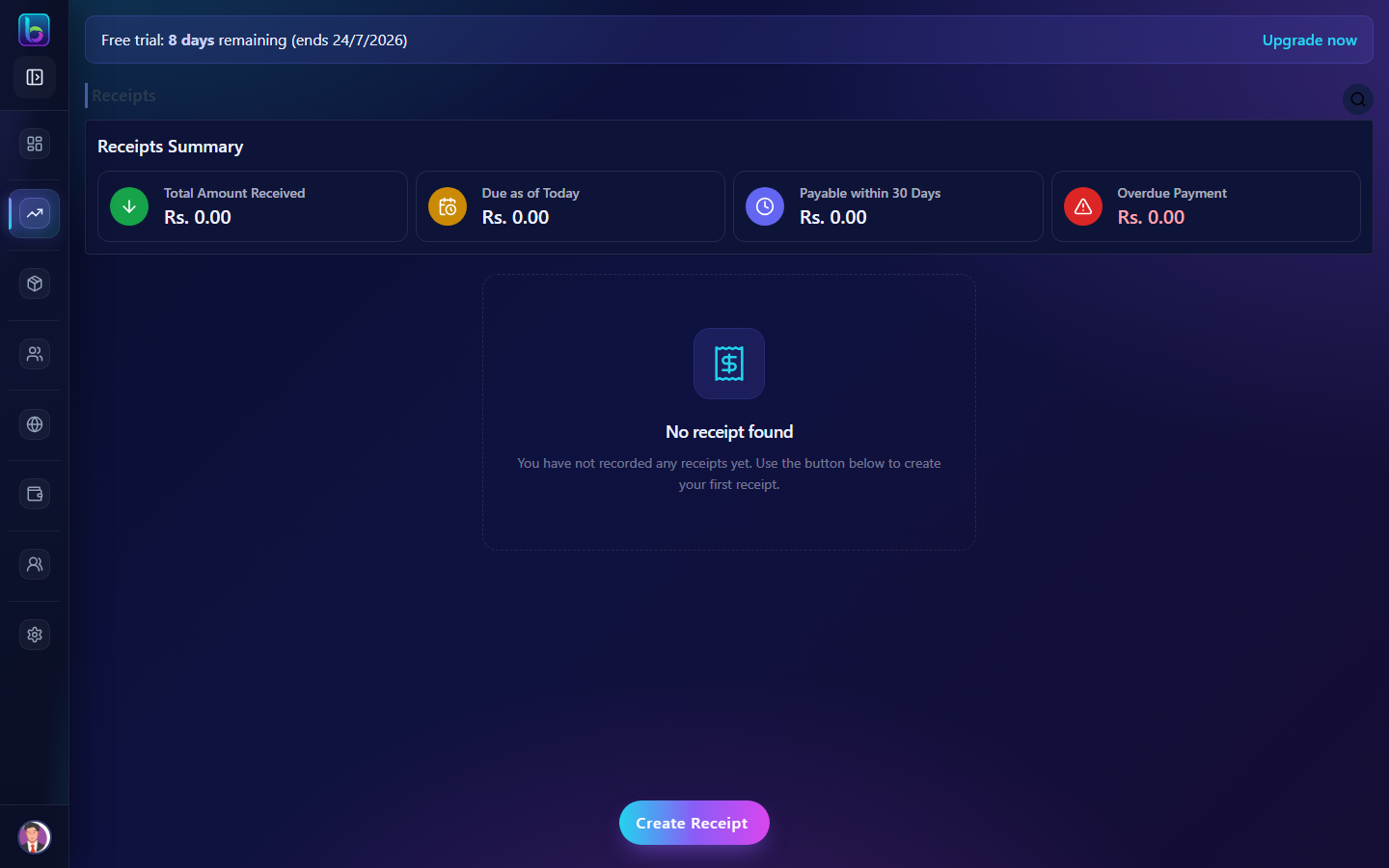 Receipts Summary, payment method breakdown, receipt cards, and Create Receipt button
Opening the Receipts page
- Open the sidebar under Sales → Receipts.
- Or go to
/receipt. - You can also reach it from Invoices → overflow menu → Receipts, or from Record payment on an invoice detail page.
You need billing.read permission (admins always have access).
Page layout
| Area | What it does |
|---|---|
| Receipts Summary | Total received, amounts due today, payable in 30 days, and overdue |
| Payment method breakdown | Current-month totals by cash, UPI, card, bank transfer, cheque, or other |
| Receipt cards | One card per receipt — grouped view with customer and amount |
| Toolbar | Search and bulk delete |
| Create Receipt | Fixed button at the bottom to open the receipt modal |
Receipts Summary
At the top, Receipts Summary shows how collections and outstanding invoices look right now.
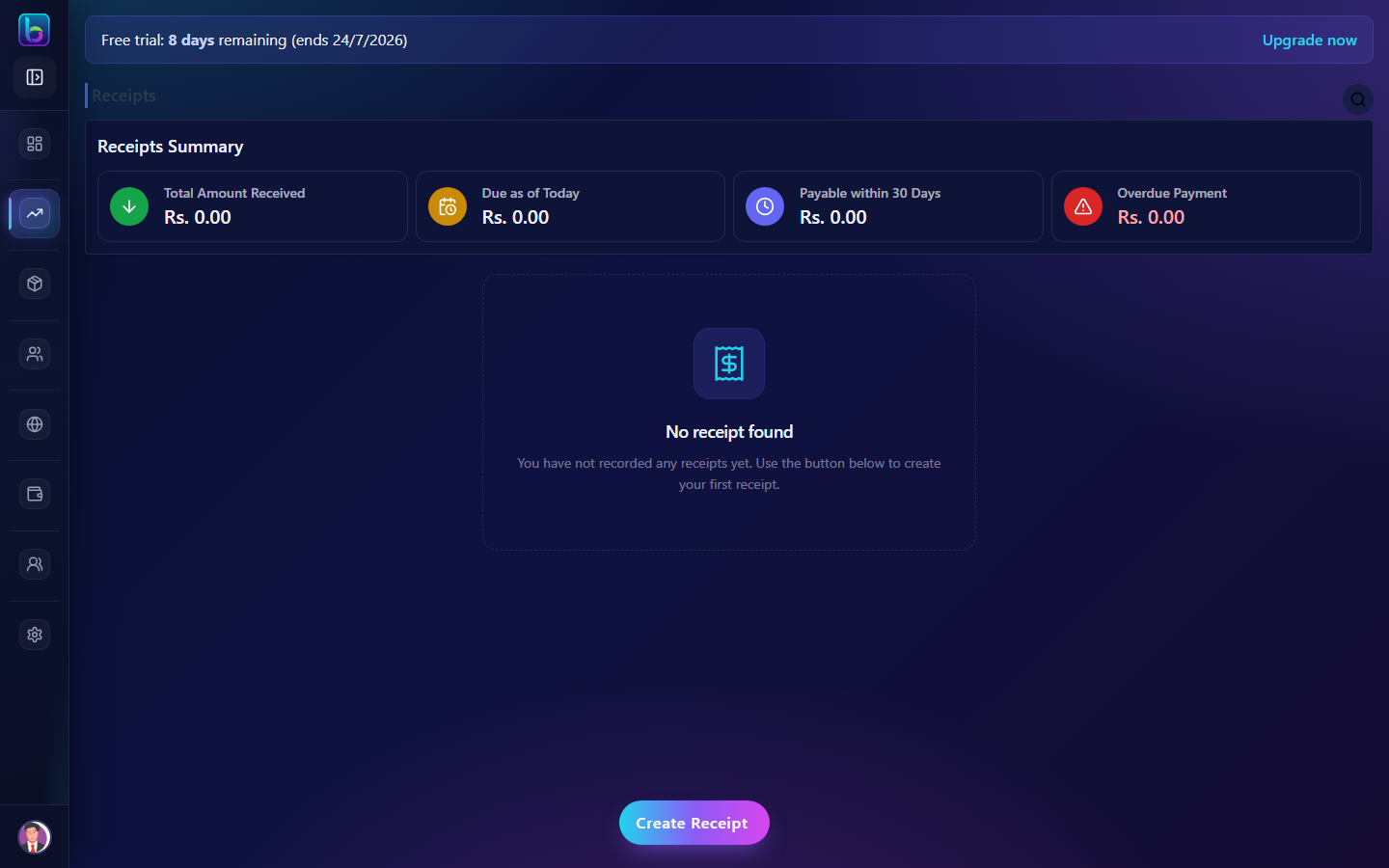 Total received, due today, payable within 30 days, and overdue payment
| Metric | Meaning |
|---|---|
| Total Amount Received | Sum of all recorded receipt amounts |
| Due as of Today | Pending invoice balance with due date today |
| Payable within 30 Days | Pending balance on invoices due in the next 30 days |
| Overdue Payment | Pending balance on invoices past their due date |
These metrics help you see cash collected versus what is still outstanding.
This month by payment method
Below the summary, Beentara shows how much you collected this calendar month, broken down by payment method (Cash, UPI, Card, Bank transfer, Cheque, Other).
Use this to reconcile daily collections or compare channels like UPI vs bank transfer.
Receipt cards
Each card shows:
| Field | Description |
|---|---|
| Receipt date | When the payment was recorded |
| Customer name | Who paid — click View Customer to open their profile |
| Amount | Payment amount in Rs. |
| Payment method | How the customer paid, plus reference if entered |
Click a card to open that customer's receipt table at /individual-receipt/:customerId.
Bulk delete
- Select checkboxes on one or more cards (or Select all on this page).
- Click Delete selected in the header.
- Confirm — receipts are removed and linked invoice balances recalculate.
Search and pagination
- Search (header icon): Filter by customer name, invoice number, amount, or date.
- Pagination: 10 receipt cards per page with Previous / Next and page numbers.
Create a receipt
There is no separate /new-receipt page. Creating and editing both use the Receipt modal.
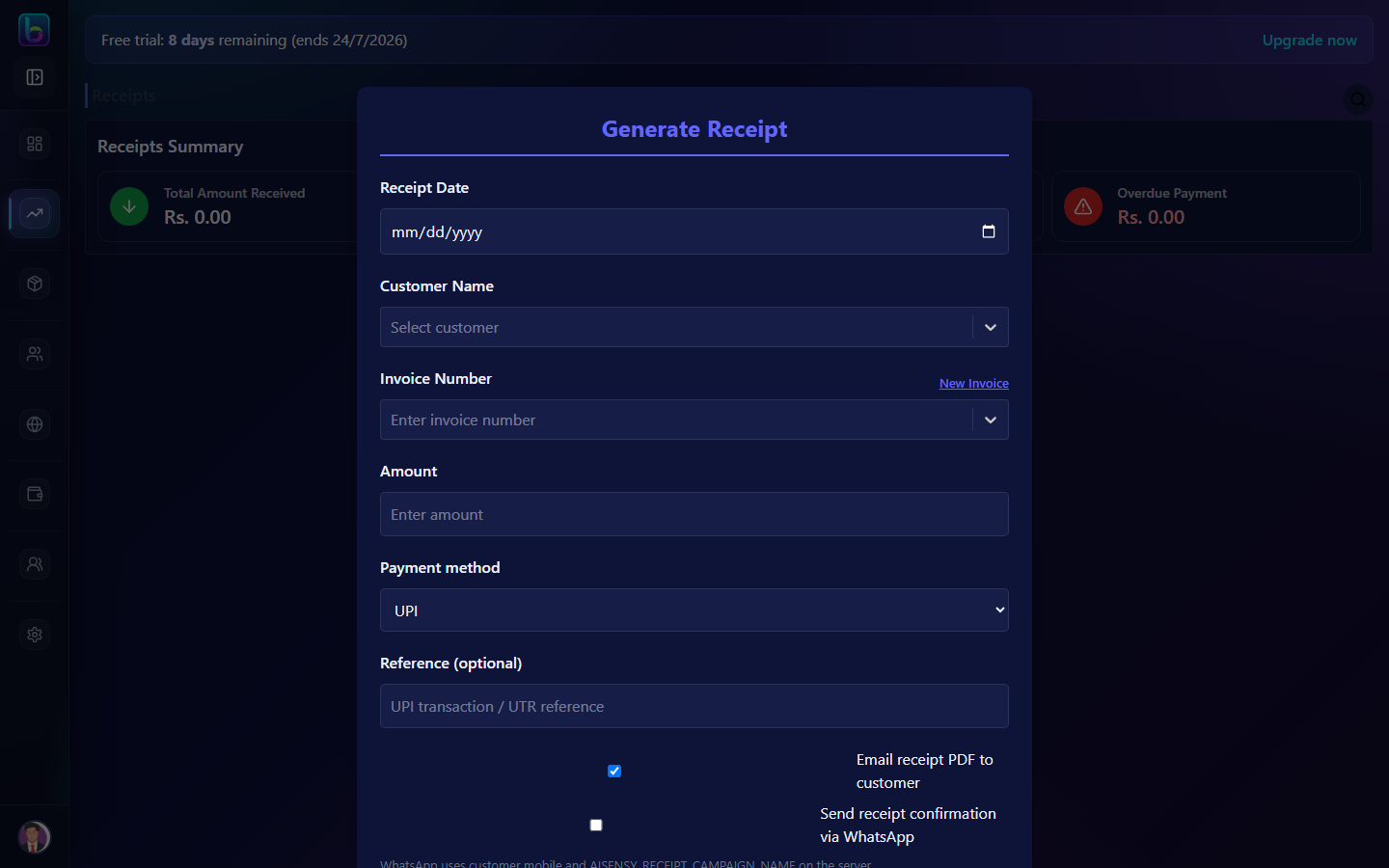 Customer, invoice, amount, payment method, reference, and delivery options
Opening the modal
| From | How |
|---|---|
| Receipts list | Click Create Receipt (fixed bottom button) |
| Individual receipt page | Click Create Receipt for that customer |
| Invoice detail | Click Record payment — customer, invoice, and amount are prefilled |
Form fields
| Field | Notes |
|---|---|
| Receipt date | Date the payment was received |
| Customer | Select from your customer list |
| Invoice | Only unpaid invoices for the selected customer appear |
| Amount | Cannot exceed the invoice pending balance |
| Payment method | Cash, UPI, Card, Bank transfer, Cheque, or Other |
| Reference | UTR, cheque number, auth code, or optional note (hint changes by method) |
| Email PDF | Send receipt PDF to the customer email (when SMTP is configured) |
| Send receipt via WhatsApp (when configured) |
New Invoice inline
If the customer has no unpaid invoice yet, you can create a New Invoice inside the modal, then record the receipt against it — without leaving the Receipts page.
After saving
- The receipt appears on the list and on the customer's individual receipt page.
- The linked invoice pending balance updates automatically.
- You can download or view a PDF receipt from the individual receipt table.
Individual receipt page (/individual-receipt/:customerId)
When you open a customer from a receipt card, you see a table view of every receipt for that customer.
 Receipt date, invoice, amount, PDF actions, edit, and delete
| Column | Action |
|---|---|
| Receipt Date | When payment was recorded |
| Customer Name | Customer for this page (hover view customer to open profile) |
| Invoice Number | Linked invoice |
| Amount | Payment amount |
| Receipt | Download or View PDF |
| Action | Edit (opens modal) or Delete |
The page shows the same Receipts Summary metrics as the main list, scoped to your overall billing picture.
Record a payment
When a customer pays outside an online payment link:
- Open Invoices and click View on the invoice.
- On invoice detail, click Record payment.
- Beentara opens Receipts with the modal prefilled (customer, invoice, amount).
- Choose payment method and reference, then save.
- The invoice pending balance updates immediately.
Staff with billing access use the same Record payment flow from the staff app (Sales → Invoices → invoice detail).
PDF receipts
Saved receipts can be downloaded or emailed as PDF. The layout matches tax invoices: line items, amount paid, pending balance, bank details, and customer notes (plain dark text for readability on paper).
Customer portal
Customers with portal access can view receipts read-only at /portal/receipts and download PDFs. Staff and admins create receipts in admin or staff apps.
You can also land on /receipt?openReceipt=true&customerId=...&invoiceNumber=... when linked from elsewhere in the app.
Daily workflow tips
- Record payment as soon as money arrives — keeps invoice tabs (Active, Overdue, Paid) accurate.
- Always pick the correct payment method and reference for easier reconciliation.
- Use Email PDF or WhatsApp so customers get instant confirmation.
- Check This month by payment method when closing daily or weekly collections.
- Use Overdue Payment in the summary to prioritize follow-ups on unpaid invoices.
Related billing features
| Feature | Guide | Path |
|---|---|---|
| Invoices | Invoices guide | /invoice — create and send invoices |
| Quotes | Quotes guide | /quotes — convert approved quotes to invoices |
| Auto-billing | Auto-billing guide | /recurring-invoices — automatic recurring invoices |
| Credit notes | Credit notes guide | /credit-notes — issue from invoice detail |
Related guides
| Feature | Guide |
|---|---|
| Invoices | How to use Invoices |
| Quotes | How to use Quotes |
| Auto-billing | How to use Auto-billing |
| Dashboard | How to use the Dashboard |
| WhatsApp billing | WhatsApp (AiSensy) |
| Orders | How to use Orders |