
Appearance
Customers
The Customers page is your customer database — search, filter, import/export, and open full profiles with invoices, receipts, and contact actions.
In Beentara:
- Customer list: Customers → Customers (
/customer) - Add customer: floating Add Customer button →
/add-customer - Customer detail: click a row →
/customer-detail/:id - Permission:
customers.read
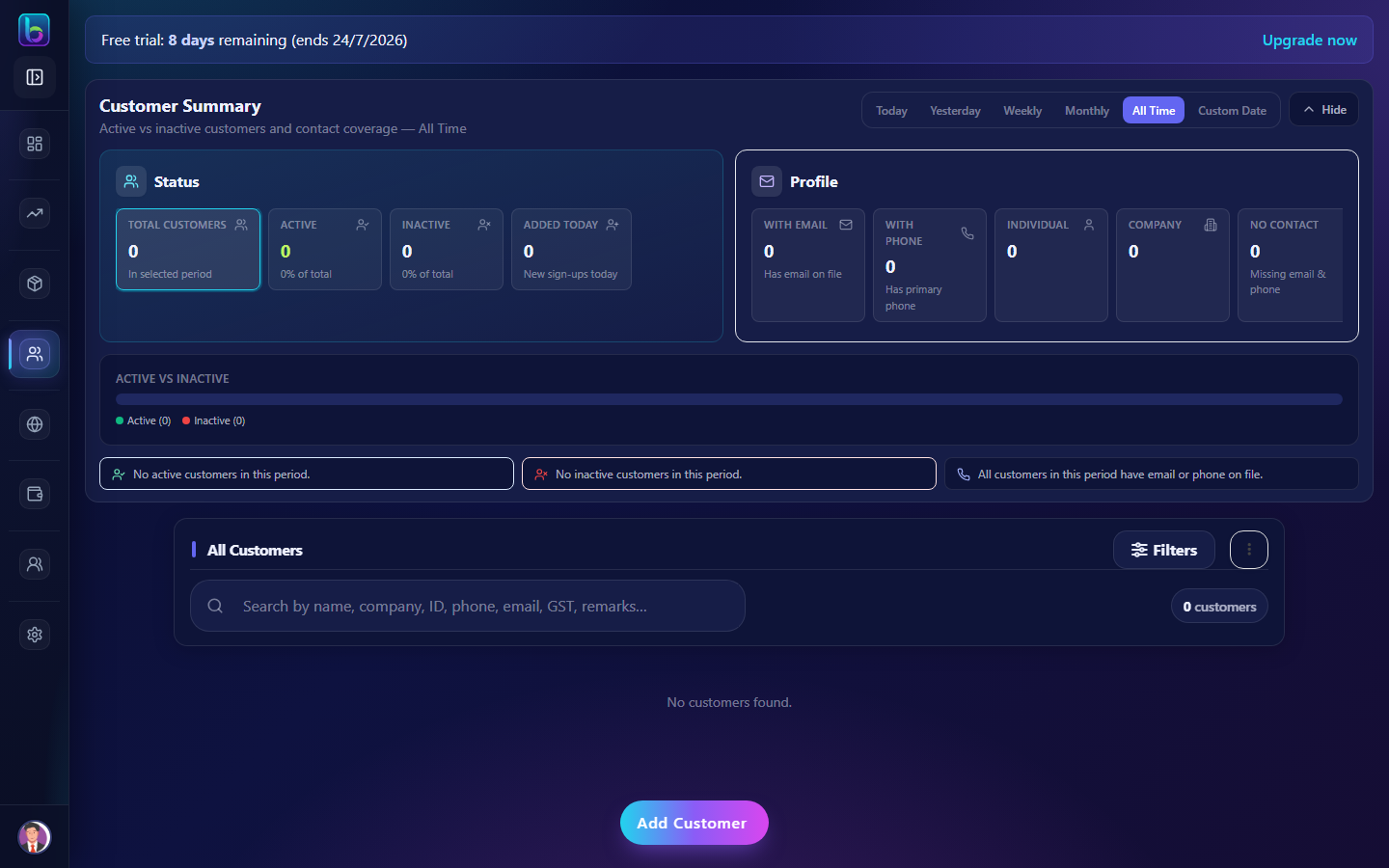 All Customers — summary metrics, search, table, and Add Customer
Opening the Customers page
- Open the sidebar: Customers → Customers.
- Or go to
/customer.
You need customers.read permission.
Page layout
| Area | What it does |
|---|---|
| Customer Summary | KPI cards — total, active, inactive, receivables |
| Toolbar | Search, filter drawer, bulk select, overflow menu |
| Customer table | Name, contact, status, balance hints, actions |
| Add Customer | Fixed button to create a new customer |
| Pagination | Navigate large customer lists |
Click a summary metric to filter the list by that segment.
Customer Summary metrics
| Metric | Filters to |
|---|---|
| Total Customers | All records |
| Active / Inactive | Status toggle |
| Receivables | Customers with outstanding balance |
| Added This Month | Recently created customers |
Search and filters
- Search bar — name, email, phone, company
- Filter drawer — entries per page, sort order, custom date range
- Global header search also filters this page when active
Add a customer (/add-customer)
- Click Add Customer at the bottom of the list.
- Enter name, contact, billing/shipping addresses, and tax details.
- Save — use the customer on invoices, quotes, orders, and CRM.
Customer detail (/customer-detail/:id)
Click any customer row to open the profile:
| Section | Contents |
|---|---|
| Header | Name, edit, delete |
| Quick actions | Call, WhatsApp, email, copy contact |
| Finance summary | Total invoiced, paid, pending, last invoice date |
| Invoices & receipts | Linked billing history |
| Orders | Order history where applicable |
| Documents | Uploaded files (e.g. PDF) |
From detail you can jump to Create invoice or contact the customer directly.
Import and export
| Action | Path |
|---|---|
| Import Customers | Overflow menu (⋮) → upload Excel |
| Export | Overflow menu → download customer data |
Use the sample file from the import dialog for correct columns.
Bulk delete
- Enable Select mode and check customer rows.
- Click Delete selected.
Delete blocked
Customers linked to invoices, receipts, or orders may be protected — Beentara shows a blocked message. Deactivate (Inactive) instead of delete when possible.
Troubleshooting: Bulk delete blocked
Link to billing and CRM
| From customer | Go to |
|---|---|
| Create invoice | Invoices → Create Invoice (select customer) |
| Record payment | Invoice detail → Record payment |
| CRM enquiry | CRM → Add Enquiry (link or match customer) |
Common mistakes
| Mistake | Fix |
|---|---|
| Customer not in invoice dropdown | Save customer as Active; refresh invoice form |
| Import failed | Match Excel columns to sample file |
| Cannot delete customer | Remove or reassign linked invoices first |
| Wrong phone on WhatsApp invoice | Update customer record before Resend |
Related guides
| Feature | Guide |
|---|---|
| CRM | CRM |
| Invoices | Invoices |
| Quote to cash | Quote to cash |
| Portal | Customer portal |
Frequently asked questions
How do I import customers into Beentara?
On the Customers page, open the overflow menu and choose Import Customers, then upload your Excel file.
How do I delete multiple customers?
Use bulk select checkboxes and Delete selected — customers linked to invoices may be protected.
Where do I see a customer's outstanding balance?
Open customer detail — the finance summary shows pending amounts and invoice history.