
Appearance
Setup Your Storefront
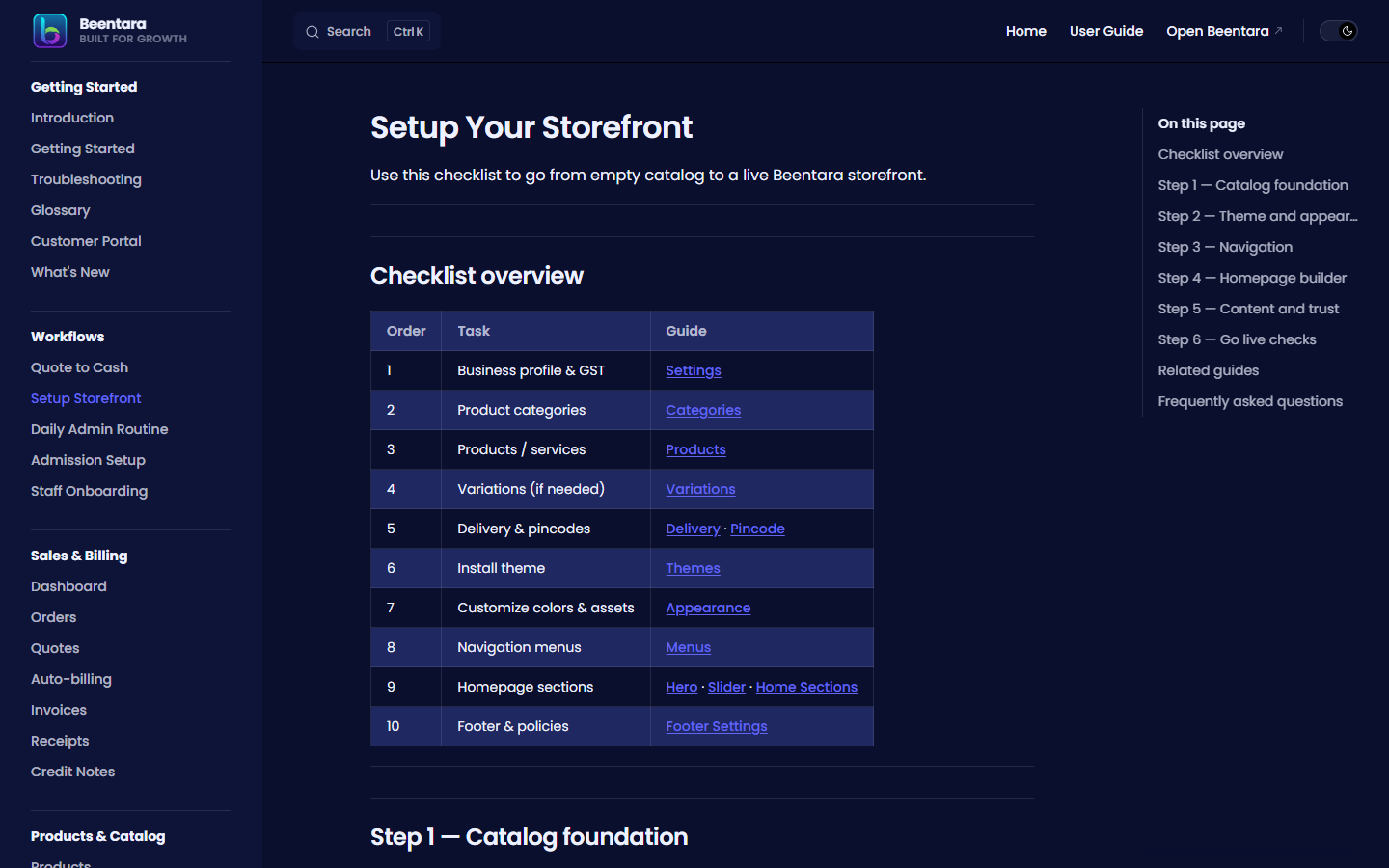 setup-storefront guide
Use this checklist to go from empty catalog to a live Beentara storefront.
Checklist overview
| Order | Task | Guide |
|---|---|---|
| 1 | Business profile & GST | Settings |
| 2 | Product categories | Categories |
| 3 | Products / services | Products |
| 4 | Variations (if needed) | Variations |
| 5 | Delivery & pincodes | Delivery · Pincode |
| 6 | Install theme | Themes |
| 7 | Customize colors & assets | Appearance |
| 8 | Navigation menus | Menus |
| 9 | Homepage sections | Hero · Slider · Home Sections |
| 10 | Footer & policies | Footer Settings |
Step 1 — Catalog foundation
- Create categories first — products require a category.
- Add simple products for single-SKU items; use variable products when you need size/color (Variations).
- Set products Active and verify stock levels.
- Optional: Coupons for launch promotions (Coupons).
Step 2 — Theme and appearance
- Settings → Themes (
/appearance/themes) — browse and install a theme. - Complete DNS verification if prompted.
- Activate the theme, then open Appearance (
/appearance/customize) to edit colors, text, and images.
Step 3 — Navigation
- Website / App → Menus (
/menus). - Add links to categories, pages, and custom URLs.
- Configure mega menus for large catalogs.
Step 4 — Homepage builder
Build your homepage in this suggested order:
| Block | Path | Purpose |
|---|---|---|
| Hero Section | /herosection | Main headline and featured products |
| Slider | /slider | Banner carousel |
| Home Sections | /newarrival | Curated product rows |
| Headlines | /headline | Scrolling marquee (sidebar: CTA Sections) |
| CTA 1 / CTA 2 | /calltoactionfirst | Call-to-action blocks |
| Testimonials | /testimonial | Social proof |
Drag rows to reorder — order saves automatically on most builder pages.
Step 5 — Content and trust
- FAQ (
/faq) — help customers before they contact you - Blog (
/blog) — SEO and announcements - Reviews (
/review) — moderate storefront reviews - Brand Assets (
/brand) — brand profiles if you sell multiple brands
Step 6 — Go live checks
- [ ] Razorpay configured for checkout (Settings)
- [ ] At least one Active product with image
- [ ] Theme activated
- [ ] Menu links to shop/categories work
- [ ] Footer contact info correct (Footer Settings)
Related guides
- Getting Started
- Media Library — upload images once, reuse everywhere
- Troubleshooting — Storefront not updating
Frequently asked questions
Why are my products not visible on the website?
Check product Active status, stock, and that your theme is activated.
What is the difference between product categories and catalog categories?
Product categories organize sellable SKUs. Catalog categories (/catlog-catgeory) group PDF brochure entries — see Catalog.
Where do I change homepage banner order?
Use Sliders and Home Sections — drag rows to reorder.