
Appearance
Quotes & Proforma
Use Quotes to send price estimates to customers before they pay. When a customer approves, convert the quote into a full invoice — without re-entering line items.
In Beentara:
- Quotes list: Sales → Quotes (
/quotes) - Create quote: New Quote (
/new-quote) or New quote on the list page - Edit quote: Edit on a row →
/edit-quote/:id
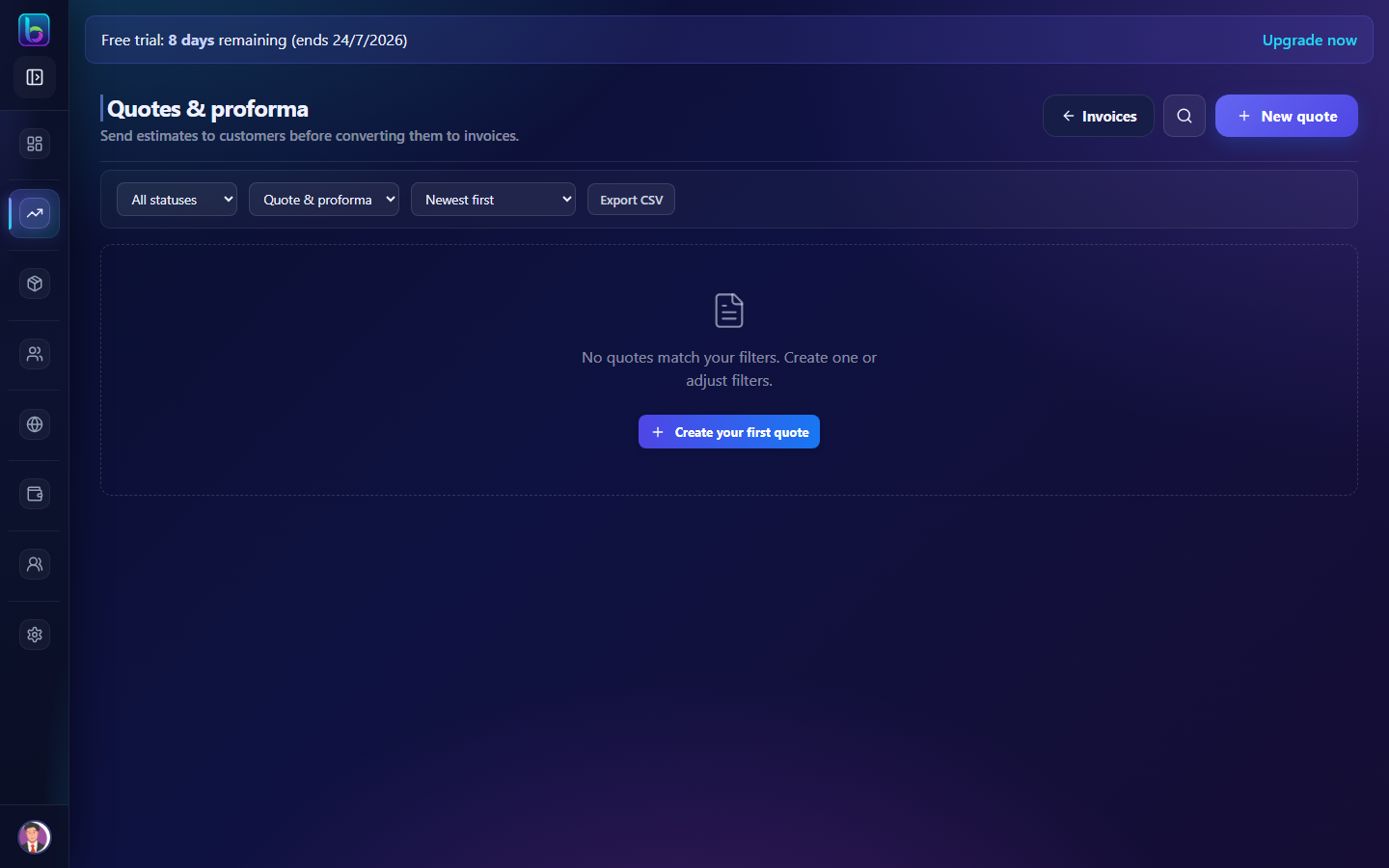 Quotes and proforma list with filters, table, and New quote button
Quotes list (/quotes)
The quotes page is your hub for every estimate you have sent or are still drafting.
Opening the page
- Open the sidebar under Sales → Quotes.
- Or go directly to
/quotes.
You need billing.read permission (admins always have access).
Page header
| Action | Purpose |
|---|---|
| Invoices | Go back to the main invoices list (/invoice) |
| Search | Find quotes by number or customer name |
| New quote | Open the create form at /new-quote |
Filters and sorting
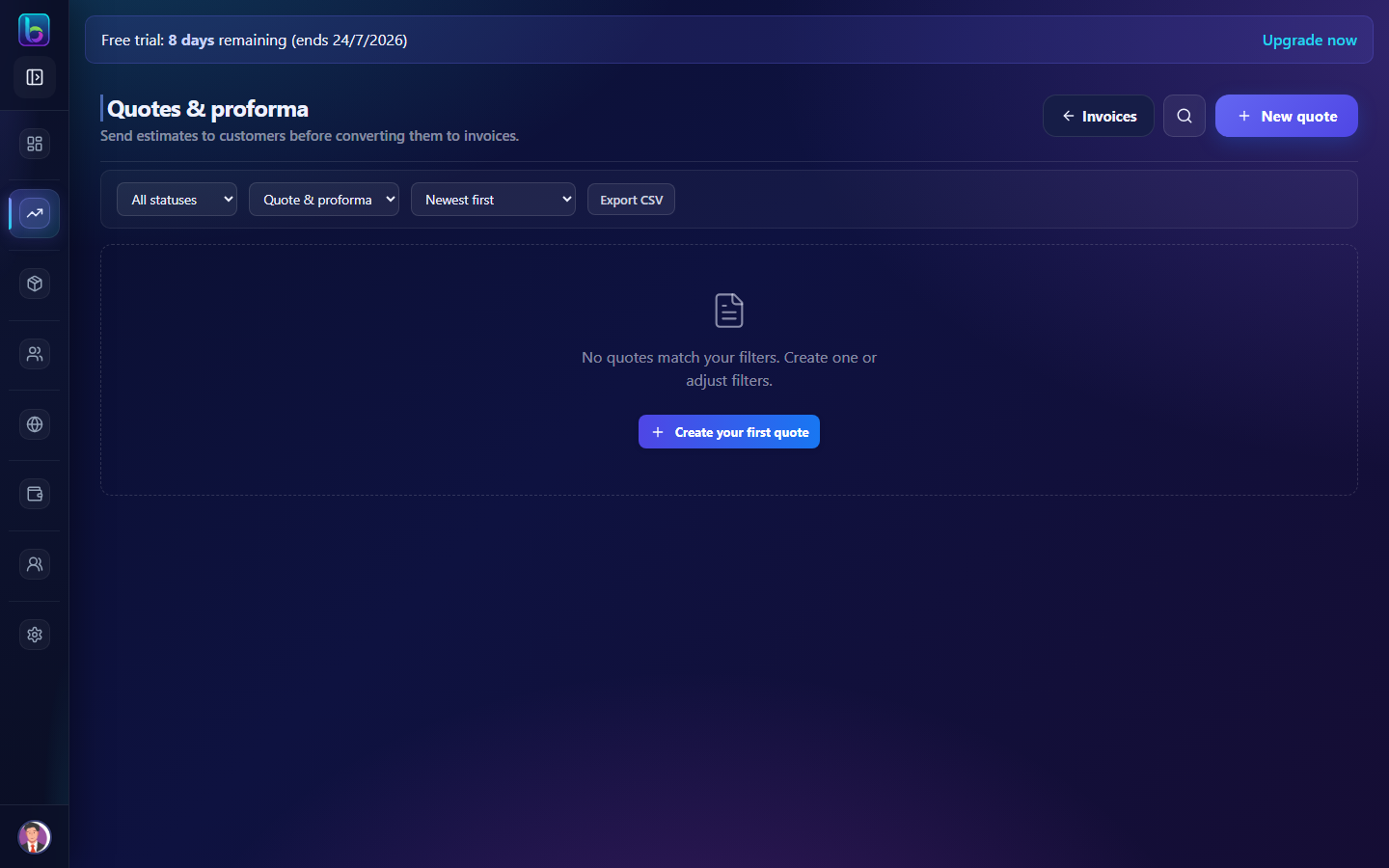 Status filter, document type, sort order, and Export CSV
| Control | Options |
|---|---|
| Status | All, Draft, Sent, Expiring soon, Expired, Converted |
| Document type | Quote & proforma, Quotes only, Proforma only |
| Sort | Newest/oldest, valid-until date, amount, customer A-Z |
| Export CSV | Download the current list (or selected rows) |
Quote statuses
| Status | Meaning |
|---|---|
| Draft | Saved but not sent to the customer |
| Sent | Published and shared with the customer |
| Expiring soon | Sent and valid-until date is within 7 days |
| Expired | Past the valid-until date |
| Converted | Already turned into an invoice |
Table columns
| Column | Description |
|---|---|
| Quote # | Quotation number (prefix QUO) |
| Type | Quote or Proforma |
| Customer | Customer or CRM lead name |
| Date | Quotation date |
| Valid until | Expiry date (shows days left if expiring soon) |
| Amount | Grand total |
| Status | Lifecycle badge |
| Actions | View, PDF, Edit, Resend, Duplicate, Convert, etc. |
Row actions
| Action | When available | What it does |
|---|---|---|
| View | Always | Open quote detail (/invoice-detail/:id) |
| Always | Download PDF from detail page | |
| Edit | Not converted | Open /edit-quote/:id |
| Resend | Sent or expired | Email and/or WhatsApp the quote again (registers delivery email for portal OTP) |
| Duplicate | Not converted | Copy into a new quote at /new-quote |
| Convert | Not converted | Turn into an invoice (optional email/WhatsApp) |
| View invoice | Converted | Open the linked invoice |
Bulk actions
Select rows with the checkbox column, then:
- Delete drafts — remove selected draft quotes
- Resend selected — resend sent/expired quotes in bulk
- Clear selection
Create a quote (/new-quote)
Use this page to build a new quotation or proforma invoice from scratch.
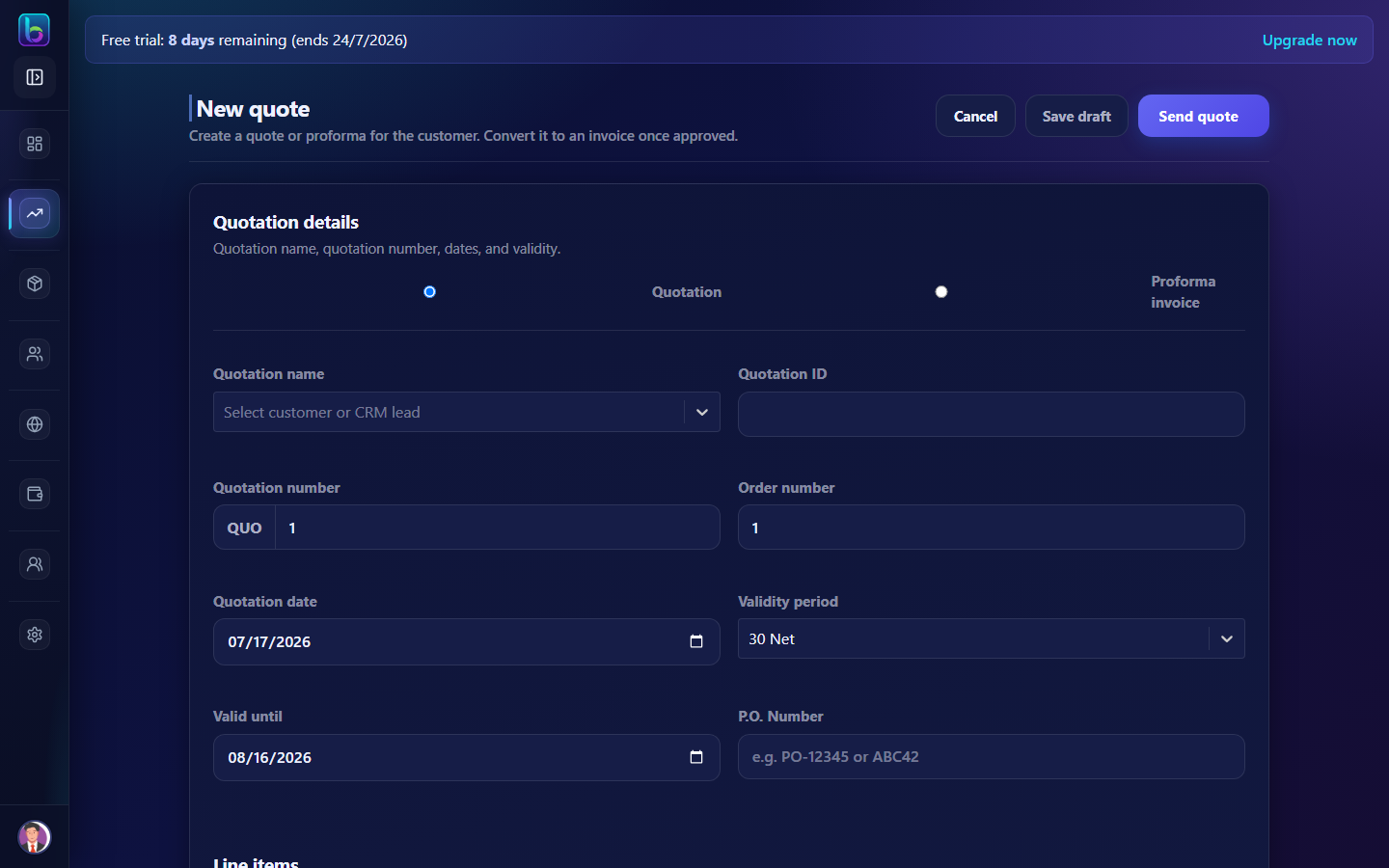 Quotation details, line items, notes, and Send quote button
Opening the form
| Entry point | Path |
|---|---|
| Sidebar New Quote | /new-quote |
| List page New quote | /new-quote |
| Empty state Create your first quote | /new-quote |
| Duplicate on a row | /new-quote (pre-filled copy) |
| CRM lead (with lead context) | /new-quote?leadId={id} |
You need billing.create permission.
Header actions
| Button | Purpose |
|---|---|
| Cancel | Return to /quotes without saving |
| Save draft | Save as Draft — not sent yet |
| Send quote | Publish and optionally email/WhatsApp the customer |
When editing, Send quote becomes Update.
1. Quotation details
| Field | Description |
|---|---|
| Document type | Quotation or Proforma invoice |
| Quotation name | Select a customer, CRM lead, or add a new customer |
| Quotation number | Auto-generated (QUO prefix + number) |
| Quotation date | Date on the document |
| Validity period | Presets like 15-net, 30-net, end of month |
| Valid until | Expiry date (required when sending) |
| P.O. number | Optional purchase order reference |
2. Line items
- Add products or services with quantity, rate, discount, and tax.
- In quote mode, AI suggestions may appear based on CRM lead context — tap suggestions to add lines quickly.
Package options on quotes
Use line kinds when the customer should pick packages instead of paying for every alternative:
| Kind | Behavior |
|---|---|
| Standard | Always included in the quote total |
| Alternative | Same option group — customer picks one (e.g. Package A vs B) |
| Optional add-on | Customer can include or exclude from total |
On the quote:
- Set option group label (shown in portal as “Option 1”, etc.).
- Mark which alternative is the default in group for first send.
- Grand total counts standard lines + selected alternative per group + optional lines marked included — not every alternative row.
When the quote is published and shared:
- Email can include Choose options online → customer portal quote page.
- Customer Save my choices updates totals and notifies your team.
- Download PDF from admin or portal shows only lines in the customer’s package (after selections).
Portal guide: Customer portal — Quotes
3. Notes & totals
- Customer note — message shown on the quote.
- Shipping charge — added to the total.
- Review subtotal, tax, and grand total.
4. Delivery options (when sending)
When you click Send quote, you can:
- Email the quote PDF to the customer
- Send the quote via WhatsApp (includes the customer portal quote link; PDF stays on email)
Beentara validates that the customer has email/phone when those options are checked.
After saving
| Scenario | Redirect |
|---|---|
| Normal save | Back to /quotes |
Quote linked to CRM lead (?leadId=) | /crm-message?id={leadId} |
Edit a quote (/edit-quote/:id)
Same form as New quote, but loaded with existing data.
- On
/quotes, click Edit on a row (not available for converted quotes). - Update line items, dates, or notes.
- Save draft or Update (republish/send).
Convert quote to invoice
When the customer approves:
 Confirm conversion and choose how to notify the customer
- On
/quotes, click Convert on the row (or use Convert to invoice on the detail page). - Choose whether to email/WhatsApp the new invoice.
- Beentara creates the invoice and marks the quote Converted.
- Use View invoice to open the new invoice.
Line items, customer, and amounts carry over — no duplicate data entry.
Resend a quote
For quotes already sent or expired:
- Click Resend on the row.
- Choose Email and/or WhatsApp.
- Confirm — the customer receives the quote again.
Works for single quotes or bulk-selected rows.
Document types
| Type | Use when |
|---|---|
| Quotation | Standard price estimate |
| Proforma invoice | Formal proforma before payment |
Both appear on /quotes and follow the same create/edit/convert flow.
CRM integration
When you create a quote from a CRM lead (/new-quote?leadId=...):
- The lead is pre-selected as Quotation name.
- Lead notes feed AI quote suggestions.
- After save, you return to the CRM message view for that lead.
Quotes for a lead also appear in the CRM billing panel.
Daily workflow tips
- Draft first — save as draft while you confirm prices, then Send quote when ready.
- Watch Expiring soon — follow up before quotes expire.
- Duplicate similar quotes instead of starting from scratch.
- Convert as soon as the customer confirms — keeps billing in sync.
- Export CSV for reporting or sharing with your accountant.
Related guides
| Feature | Guide |
|---|---|
| Dashboard | How to use the Dashboard |
| Orders | How to use Orders |
| Auto-billing | How to use Auto-billing |
| Invoices | How to use Invoices |
| WhatsApp billing | WhatsApp (AiSensy) |
| Customer portal | Customer portal |