
Appearance
Getting Started
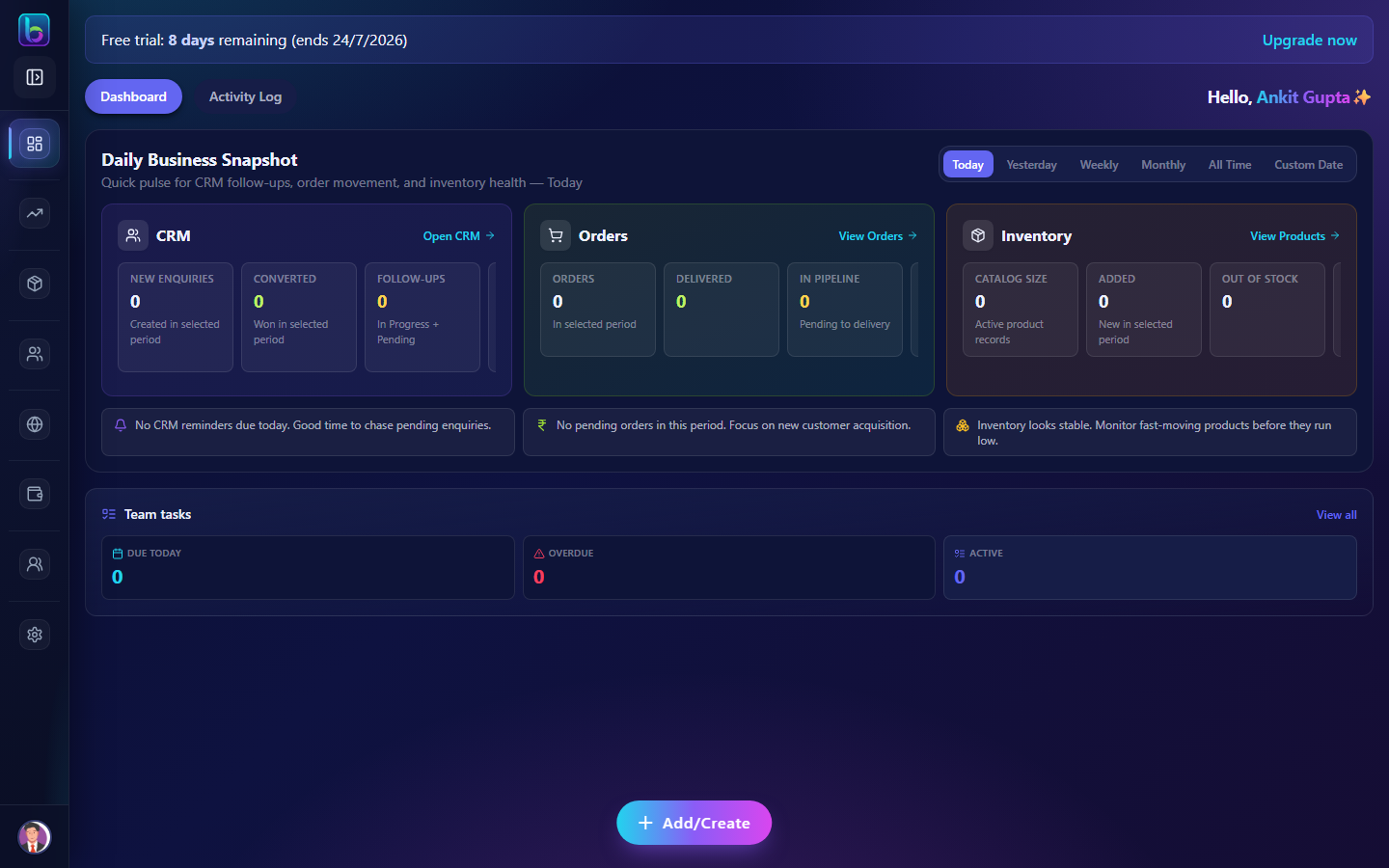 getting-started guide
Welcome to Beentara. This guide helps you orient in the admin panel before you dive into feature-specific tutorials.
Open Beentara admin: beentara.com
Log in
- Go to beentara.com (or your business subdomain if configured).
- Enter your email and password.
- Complete 2-step verification if your account has it enabled (Settings → 2-Step Verification).
- After login, Beentara redirects you to the Dashboard (
/dashboard).
Staff vs Admin login
Business owners and admins use the main admin login. Staff members may use a dedicated staff portal link provided by your admin — staff see a simplified home with shortcuts (Attendance, Tasks, CRM, Orders) instead of full analytics.
Admin vs Staff — what you see
| Role | Home screen | Typical access |
|---|---|---|
| Admin / Owner | Full dashboard with Daily Business Snapshot, CRM metrics, orders, inventory, team tasks | All modules your plan includes |
| Staff | Shortcut cards — Attendance, Tasks, CRM, Orders | Only modules granted by permissions |
Staff CRM shows assigned leads only (/leads/assigned), not the full company pipeline. Admins see all leads at /crm.
See the Dashboard guide for screenshots of both views.
How the sidebar is organized
The left sidebar groups features the same way these docs are organized:
| Sidebar section | What it covers | Example paths |
|---|---|---|
| Sales | Orders, quotes, billing | /orders, /quotes, /invoice, /receipt |
| Products | Catalog, categories, coupons | /products, /category, /coupon |
| Customers | Customer database and CRM | /customer, /crm |
| Website / App | Storefront CMS, blog, media | /slider, /blog, /menus |
| Finance | Expenses and wallet | /expense, /wallet-target |
| Team | Departments, directory, tasks | /team-directory, /tasks |
| Students (Skates only) | Admissions and attendance | /admission, /student-attendance |
| Settings | Subscription, delivery, themes, users | /setting, /delivery, /appearance/themes |
Skates / academy businesses
If your account category is Skates, you also get the Students section for admissions, batches, plans, and student attendance. Other business types do not see this section.
Profile menu (top-right avatar) includes Settings (/setting) and Help & Support (/help-support).
Permissions — why a page may be hidden
Beentara uses permission keys like billing.read, crm.read, and products.read. Each sidebar item requires a minimum read permission.
| Permission | Unlocks |
|---|---|
dashboard.read | Dashboard |
billing.read | Quotes, invoices, receipts, credit notes, auto-billing |
customers.read | Customer list |
crm.read | CRM enquiries |
products.read | Products, categories, variations, coupons, catalog |
website.read | Website CMS, blog, sliders, menus |
settings.read | Settings page and delivery/pincode/appearance |
students.read | Admission and student modules (Skates) |
staff_management.read | Team directory |
Admins typically have full access. Staff see only what your admin assigned in user permissions.
If you see permission denied or a missing menu item, ask your account admin to grant the required permission. See Troubleshooting.
How to use docs from inside Beentara
On many admin pages you will see a How to use link. It opens the matching guide on docs.beentara.com in a new tab.
- List pages (Invoices, CRM, Products, etc.) usually have this link in the page header.
- Sub-flows link to anchors — e.g. Create Invoice opens
/guide/invoice#create-an-invoice.
Use Ctrl+K (or ⌘+K on Mac) in these docs to search all guides.
First-week checklist
Complete these steps in order for a typical retail or services business:
| Step | Action | Guide |
|---|---|---|
| 1 | Complete business profile, GST, and payment settings | Settings |
| 2 | Add product categories, then products | Categories → Products |
| 3 | Add customers (or import from Excel) | Customers |
| 4 | Create a quote or invoice and publish | Quotes or Invoices |
| 5 | Record payment when money arrives | Receipts |
| 6 | Optional: set up storefront theme and homepage | Setup storefront workflow |
Services / B2B: prioritize CRM and Quote to cash.
Skates / academies: follow Admission setup instead of products-first.
Staff-only users: start with Staff onboarding and Daily admin routine.
Help & Support
Inside Beentara:
- Click your profile menu (top-right).
- Choose Help & Support (
/help-support). - Contact Beentara via WhatsApp or email links on that page.
Docs: Help & Support guide
Where to go next
| I want to… | Start here |
|---|---|
| Run billing end-to-end | Quote to cash |
| Launch my website | Setup storefront |
| Fix email, payments, or permissions | Troubleshooting |
| Look up app terms | Glossary |
| Browse every feature | User Guide index |
Frequently asked questions
Where do I log in to Beentara admin?
Use beentara.com with your business account email and password.
Why does my staff member see a different dashboard?
Staff accounts use a simplified home with shortcuts. Full analytics require an admin account with dashboard.read.
What should I set up first?
Configure Settings (profile, Razorpay, email/WhatsApp), then add products and customers, then create your first invoice or quote.