Appearance
WhatsApp (AiSensy) — Billing
Use this guide to connect your own AiSensy account so Beentara can send WhatsApp messages for quotes, invoices, auto-billing (recurring invoices), receipts, and credit notes. You copy a few values from AiSensy and paste them into Settings — that is the whole setup.
In Beentara:
- Path: Profile menu (avatar) → Settings (
/setting) → expand WhatsApp (AiSensy) — Billing - Permission:
settings.read
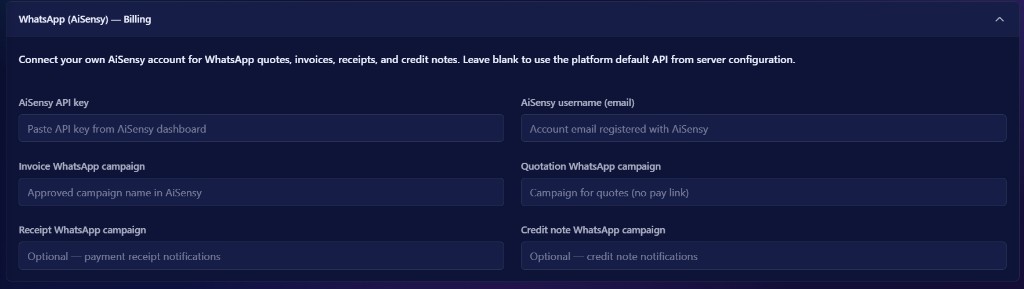 WhatsApp (AiSensy) — Billing accordion on Settings (
/setting)
Leave fields blank?
If you leave this section empty, Beentara uses the platform default WhatsApp API from server configuration. Fill these fields only when you want messages to go from your AiSensy project.
What this section does
When you Publish (or Resend) a billing document with WhatsApp enabled — including invoices created by Auto-billing — Beentara calls AiSensy with:
- Your API key (authenticates the request)
- Your username / email (AiSensy account identity)
- The campaign name that matches the document type (invoice, quote, receipt, or credit note)
The customer receives an approved WhatsApp template on the phone number saved on their customer record. 4 is a short customer portal link (not a PDF). They log in with email OTP, view the document, download the PDF, and pay invoices there. Email still carries the PDF attachment.
Beentara also personalizes the message: 1 is the first name, 3 includes amount plus due status (for example ₹4,500.00 · due in 5 days), and AiSensy tags / attributes / source are set so you can retarget the same contact later.
This is separate from CRM WhatsApp. CRM messaging does not use these billing fields.
Before you start
Complete these in AiSensy first. Beentara cannot send WhatsApp until they are done.
| Requirement | Why it matters |
|---|---|
| AiSensy account and project | You need a live project to copy the API key and campaign names |
| WhatsApp Business API live on that project | Templates and API campaigns only send after the number is live |
| At least one approved WhatsApp template | Create a TEXT template (see Step 3) before the API campaign |
| Customer phone number in Beentara | WhatsApp is sent to the number on the customer record |
| Customer email in Beentara | Portal login uses email OTP. Without an email, they cannot open the portal from WhatsApp |
Open AiSensy: app.aisensy.com
Official help: How to set up WhatsApp API campaigns
Step 1 — Copy your API key from AiSensy
- Log in to app.aisensy.com.
- Open the project that owns your WhatsApp number.
- Go to Manage (or Developer) → API Key.
- Copy the API campaign key and keep it private.
Treat the API key like a password
Anyone with this key can send campaigns from your AiSensy project. Paste it only into Beentara Settings. If it leaks, regenerate the key in AiSensy and paste the new one.
You will paste this into AiSensy API key in Beentara.
Step 2 — Note your AiSensy username (email)
Use the account email you registered with AiSensy (the email you log in with).
You will paste this into AiSensy username (email) in Beentara.
Step 3 — Create WhatsApp templates in AiSensy
Create (and get approved) a template before you launch the API campaign. In AiSensy go to Templates → Create template (wording may vary slightly by dashboard version).
You need one template per document type you want to send (invoice, quote, and optionally receipt and credit note).
Template name — no spaces
AiSensy / WhatsApp does not allow spaces in the template name. Use lowercase letters, numbers, and underscores only.
| Use | Do not use |
|---|---|
beentara_invoice | Beentara Invoice |
beentara_quote | Beentara Quote |
beentara_receipt | beentara receipt |
beentara_credit_note | credit note |
This is the template name. The API campaign name you paste into Beentara Settings is a separate field — copy that campaign name later, exactly as shown.
Template Type — select TEXT
Under Template Type (Your template type should fall under one of these categories), open Select message type and choose TEXT.
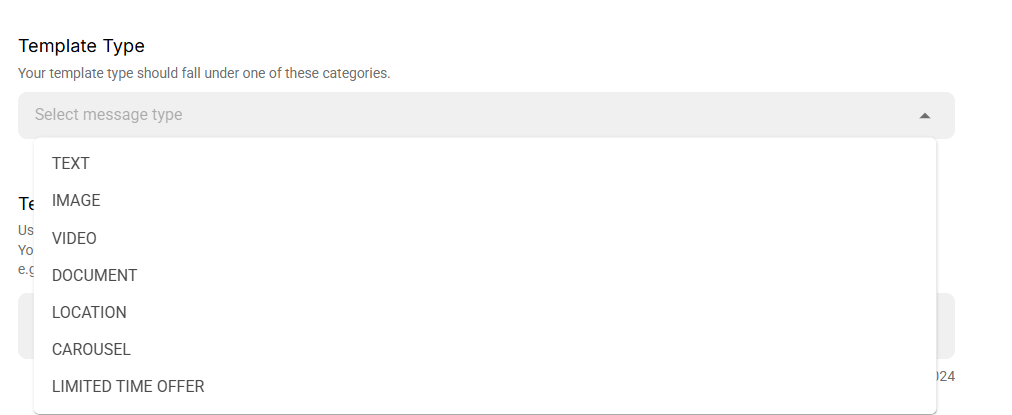 AiSensy — Template Type. Select TEXT for Beentara billing messages.
| Option in the dropdown | Use with Beentara billing? |
|---|---|
| TEXT | Yes — always select this (default Beentara path) |
| IMAGE | No — Beentara does not send an image header |
| VIDEO | No |
| DOCUMENT | Only if your host enables PDF-on-WhatsApp (AISENSY_WHATSAPP_PDF_MEDIA). Default sends are TEXT and retry without a file |
| LOCATION | No |
| CAROUSEL | No — WhatsApp carousels need Cloud API product cards, not this AiSensy TEXT campaign |
| LIMITED TIME OFFER | No — that category is marketing, not billing |
Beentara fills text variables in the message body (and optional CRM tags). Keep Template Type: TEXT unless your operator has turned on PDF media for DOCUMENT campaigns.
What Beentara fills in (smarter than a static blast)
WhatsApp still requires a pre-approved template. Beentara cannot invent a free-form ChatGPT message on the thread — Meta would reject it. Instead the five variables are filled with current, useful values:
| Slot | What the customer sees |
|---|---|
1 | First name (first word of the customer name) — reads like a conversation, not a mail merge |
2 | Document number |
3 | Amount plus live status: due in N days, due today, N days overdue, paid in full; quotes add “choose options in portal” when package options exist |
4 | Short branded portal link (https://api.beentara.com/wa/…) that redirects to login or the quote. Expires after a few weeks; not a public bit.ly shortener (Meta often rejects those) |
5 | Your business name |
Behind the tap, Beentara also sends AiSensy source (Beentara Invoice, …), tags (beentara, billing, overdue, due-soon, …), and attributes (Email, DocumentType, DocumentNumber, AmountDue, DueStatus, PortalUrl, PayUrl). Tags and attributes that you have not created in AiSensy are ignored; create them once if you want segments and retargeting.
Optional host flags (off by default so existing five-variable TEXT campaigns keep working):
| Flag | Effect |
|---|---|
AISENSY_WHATSAPP_PDF_MEDIA=1 | Adds a public PDF URL in the AiSensy media object. TEXT campaigns that reject media are retried without the file |
AISENSY_WHATSAPP_URL_BUTTON=1 | Sends the portal URL again as 6 for a dynamic URL button. Only turn this on after every Live campaign has a matching extra parameter |
AISENSY_WHATSAPP_AI_COPY=1 | Uses Groq to shorten the due-status words in 3 (the rupee amount stays). Leave off if you want the exact phrases in this guide |
Utility category. Submit billing templates as Utility, not Marketing. Mixing offers or “limited time” language can get the template recategorized and billed as marketing.
Static buttons (recommended upgrade, no extra variables). You may set Interactive Actions to Call to Actions and add a static URL (your customer portal login) and a static Phone Number (support). Those do not need 6. Do not add a dynamic URL suffix unless AISENSY_WHATSAPP_URL_BUTTON is on and the campaign expects six params.
Template Format — message body
Template Format is the main WhatsApp body (up to 1024 characters).
Use 1, 2, 3, 4, 5 for values Beentara fills at send time. Formatting:
*bold*_italic_~strikethrough~
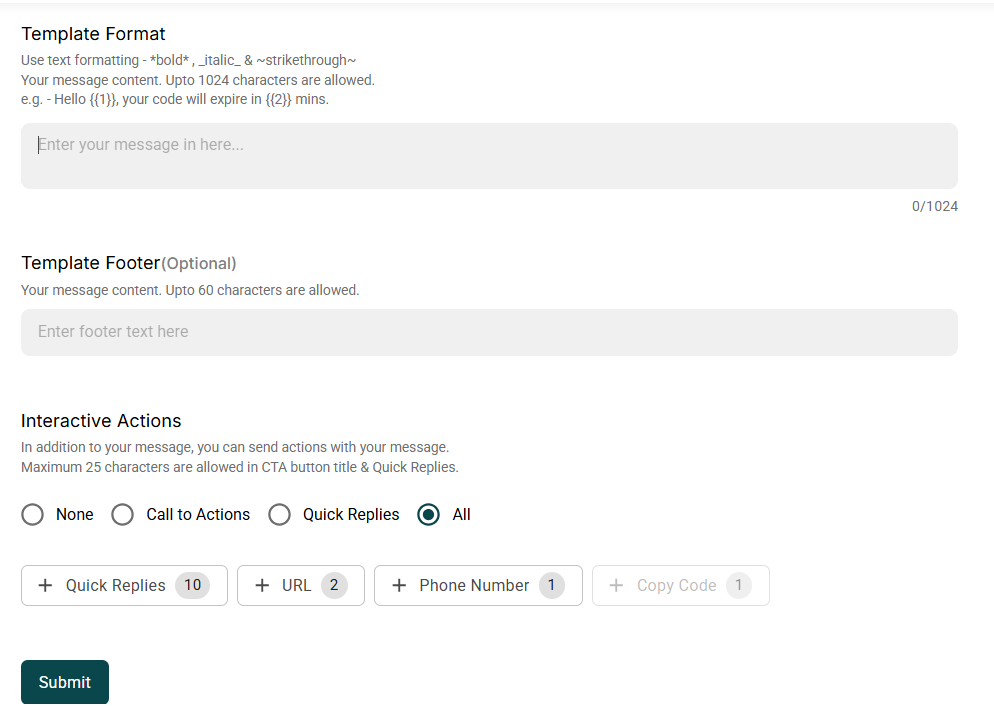 AiSensy — Template Format (body), Template Footer, Interactive Actions, then Submit
Paste one of the bodies below into Enter your message in here.... Use exactly five variables, in this order. A different count can cause AiSensy to reject the send.
Template Format cannot start or end with a parameter
AiSensy rejects the body if the first or last token is a variable such as 1 or 5. Always start with normal text (for example Hello) and end with normal text after the last variable. Do not put 5 alone on the last line.
Too many variable parameters relative to message length
WhatsApp rejects short bodies that use five variables. Do not shorten the samples below. Keep the extra sentences. You cannot drop variables — Beentara always sends five values — so the body must stay long enough (well over a few lines).
Invoice template body
| Variable | Beentara fills in |
|---|---|
1 | Customer first name |
2 | Invoice number |
3 | Amount due and status (example: ₹4,500.00 · due in 5 days) |
4 | Short customer portal link (tap → login / view invoice; pay and download PDF there) |
5 | Your business name |
Hello {{1}}, this is a billing update from our accounts team regarding your latest tax document. We have generated tax invoice number {{2}} for the goods or services recorded on your account with us. The amount currently due on this invoice is {{3}}. Open your customer portal to view the invoice, download the PDF, and pay online using this link {{4}}. Sign in with the email we have on file; you will receive a one-time code. Please match the details with your purchase and write back if any line looks incorrect. We appreciate your business with {{5}} and thank you for your prompt attention to this invoice.Quotation template body
| Variable | Beentara fills in |
|---|---|
1 | Customer first name |
2 | Quote number |
3 | Quote amount and next step (review, or choose package options) |
4 | Short portal link (opens this quotation after login) |
5 | Your business name |
Quotes do not include a Razorpay pay link. The PDF stays on email; WhatsApp sends the portal link so they can review options and download the quote.
Hello {{1}}, this is a quotation update from our sales team regarding the prices you requested. Please review quotation number {{2}} prepared for the items and services discussed with you. The quoted total for this proposal is {{3}}. Open the quotation in your customer portal using this link {{4}}. Sign in with the email we have on file to view the details, choose package options if offered, and download or print the PDF. Reply on WhatsApp if you would like a revision before you confirm. Thank you for considering this quotation from {{5}} and we will be happy to help with the next step.Receipt template body (optional)
| Variable | Beentara fills in |
|---|---|
1 | Customer first name |
2 | Invoice number |
3 | Amount received |
4 | Remaining balance |
5 | Your business name |
Hello {{1}}, this is a payment confirmation from our accounts team. We have recorded a receipt against invoice number {{2}} on your account. The amount received in this payment is {{3}}. After applying that receipt, the remaining balance on the same invoice is {{4}}. Please keep this confirmation for your books and compare it with your bank statement. Write to us if the figures do not match. Thank you for the payment and for your continued business with {{5}}. We appreciate your trust.Credit note template body (optional)
| Variable | Beentara fills in |
|---|---|
1 | Customer first name |
2 | Credit note number |
3 | Credit amount |
4 | Original invoice number |
5 | Your business name |
Hello {{1}}, this is a credit note update from our accounts team. We have issued credit note number {{2}} to adjust charges on your account. The credit amount applied in this note is {{3}}. This credit is linked to original invoice number {{4}} and will reduce what remains payable on that invoice. Please retain this WhatsApp message for your records and reply if you need a copy of the document. Thank you for your patience and for your business with {{5}}. We are here if you have any questions.Template Footer (optional)
Template Footer (Optional) is a short static line under the body (up to 60 characters). Placeholder: Enter footer text here.
| Do | Don't |
|---|---|
| Leave it empty, or add a fixed line such as your legal business name | Put 1 / 2 variables here — Beentara only fills body variables |
| Keep it under 60 characters | Repeat the whole invoice message in the footer |
Example: HBTEA · Tax invoice
Interactive Actions
Interactive Actions adds buttons or quick replies. AiSensy shows:
- None
- Call to Actions
- Quick Replies
- All
And buttons: + Quick Replies (10), + URL (2), + Phone Number (1), + Copy Code (1). Button titles are max 25 characters.
Use None, or static Call to Actions only.
Beentara puts the customer portal URL in body variable 4 (short link → invoice login or quote deep link). It does not send a PDF on the default TEXT path, and it does not send dynamic URL / copy-code / quick-reply payloads unless your host turns on the extra-param flag.
Static buttons are the 2025-style upgrade that still works with five body variables:
| Choice | For Beentara billing |
|---|---|
| None | Safe default |
| Call to Actions | Optional: add a static URL (your portal login page) titled View portal, and/or a static Phone Number for support. Do not add a dynamic URL with 6 unless every campaign is rebuilt for six params |
| Quick Replies | Skip — Beentara does not send reply payloads |
| All | Skip unless you only added static CTA buttons |
Copy Code is for OTP authentication templates, not invoice numbers — do not use it here.
Then click Submit and wait until Meta marks the template approved.
Step 4 — Create Live API campaigns
Beentara needs the exact campaign name of a Live API campaign — not a broadcast, and not a template name unless they happen to match.
For each document type you want to send:
- In AiSensy, open Campaigns.
- Click + Launch → API Campaign (not Broadcast).
- Enter a campaign name that matches Beentara’s defaults (or paste a different Live name in Settings):
beentara_invoicebeentara_quotebeentara_receiptbeentara_credit_note
- Attach the approved TEXT template you created in Step 3.
- Set the campaign Live.
- Copy the campaign name exactly as shown in AiSensy (spelling and spaces must match).
| Beentara field | Required? | Use this campaign for |
|---|---|---|
| Invoice WhatsApp campaign | Recommended | Published invoices and Auto-billing (4 = customer portal link) |
| Quotation WhatsApp campaign | Recommended | Quotes / proforma (4 = portal quote link) |
| Receipt WhatsApp campaign | Optional | Payment receipts |
| Credit note WhatsApp campaign | Optional | Credit notes |
You can start with invoice + quotation only. Receipt and credit note can be added later.
Step 5 — Open the settings section in Beentara
- Click your profile menu (top-right avatar).
- Choose Settings.
- Or go directly to
/setting. - Expand WhatsApp (AiSensy) — Billing.
You need settings.read permission.
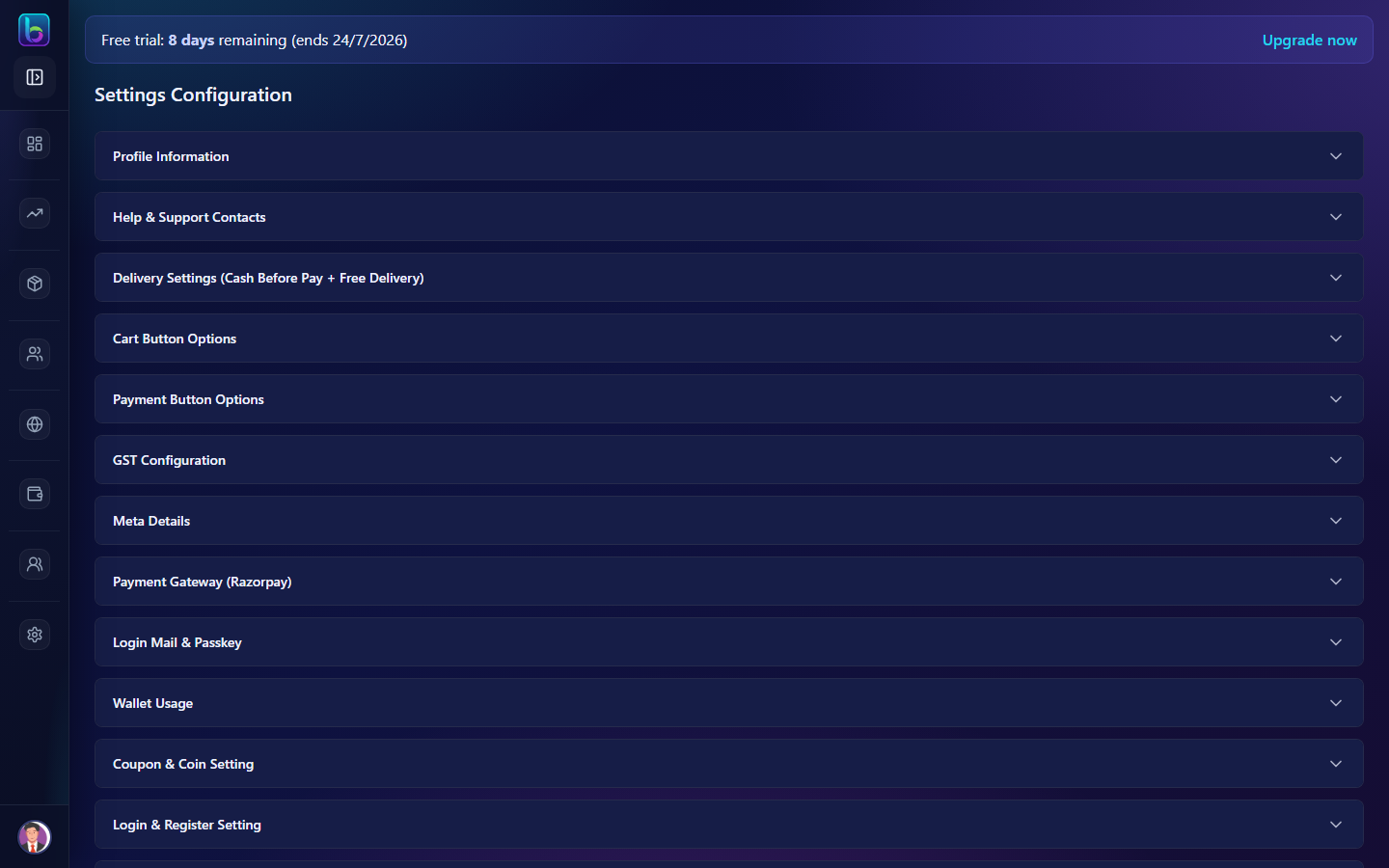 Settings Configuration — scroll to WhatsApp (AiSensy) — Billing
Step 6 — Paste credentials (field by field)
Use the screenshot at the top of this page and paste values into the matching boxes. Do not add extra spaces.
| Field in Beentara | What to paste | Where you copied it |
|---|---|---|
| AiSensy API key | API campaign key | AiSensy → Manage / Developer → API Key |
| AiSensy username (email) | Login email for that AiSensy account | The email you use at app.aisensy.com |
| Invoice WhatsApp campaign | Live API campaign name | AiSensy → Campaigns (invoice template) |
| Quotation WhatsApp campaign | Live API campaign name | AiSensy → Campaigns (quote template) |
| Receipt WhatsApp campaign | Live API campaign name (or leave blank) | AiSensy → Campaigns (receipt template) |
| Credit note WhatsApp campaign | Live API campaign name (or leave blank) | AiSensy → Campaigns (credit note template) |
API key field: If a key is already saved, the box stays empty and shows Saved — paste new key to replace. Paste a new key only when you want to change it.
Campaign names must match the Live API campaign name, not the WhatsApp template name, unless they are identical.
Step 7 — Save
Click Save (the save button appears after you change a field).
Wait for the success toast. If you leave the page without saving, the values are not stored.
Step 8 — Send a test WhatsApp
- Confirm the test customer has a valid mobile number (with country code if needed).
- Open Invoices, Quotes, or Auto-billing (Run now on a Published schedule with WhatsApp ticked).
- Publish a small document (or Resend an already published one).
- Enable WhatsApp on the send options.
- Check the customer’s WhatsApp.
Drafts are never sent
Draft invoices and quotes stay inside Beentara. WhatsApp is sent only when you Publish or Resend.
For invoices, configure Razorpay so customers can pay inside the portal. The PDF is attached to email, not WhatsApp.
Already submitted a template that says “payment link”?
4 is now the portal URL, not the Razorpay checkout URL. Submit a new TEXT template using the sample bodies above (or edit if Meta has not approved yet), then attach it to your Live API campaign.
Auto-billing (recurring invoices)
Auto-billing does not need a separate AiSensy campaign. Each scheduled run creates a normal invoice and, if WhatsApp is on, uses the same Invoice WhatsApp campaign and the same five body variables as Publish invoice.
In Beentara: Sales → Auto-billing (/recurring-invoices) → New schedule (/recurring-invoices/new)
Turn on WhatsApp on a schedule
- Complete AiSensy Settings (API key, username, Invoice WhatsApp campaign).
- Open New schedule or Edit an existing one.
- Set Generated invoice status to Published (Draft invoices are never sent on WhatsApp).
- Tick Email invoice and pay link to customer when generated (published only).
- Tick Also send invoice via WhatsApp when generated. This checkbox stays disabled until email is ticked.
- The customer must have a phone number. Save the schedule.
Beentara then sends WhatsApp when:
- The daily job runs at 8:00 AM IST, or
- You click Run now / Catch up / Process due
The schedule detail drawer shows delivery as Email + WhatsApp sent or WhatsApp sent after a successful run.
What auto-billing does not send on WhatsApp
| Option on the schedule | Channel |
|---|---|
| Also send invoice via WhatsApp when generated | WhatsApp (invoice campaign) |
| Email customer one day before the scheduled invoice date | Email only (6:00 PM IST the day before) |
| Send automated payment reminders | Email only |
You do not create extra templates named beentara_autobilling or similar. Reuse beentara_invoice (or whichever Live invoice campaign you pasted in Settings).
Email must be on first
On the schedule form, WhatsApp is offered only after email delivery is enabled. Both can still send; email is the gate in the UI.
Full schedule setup: Auto-billing
Common mistakes
| Mistake | Fix |
|---|---|
| Template Type is IMAGE, DOCUMENT, or anything except TEXT | Select TEXT — Beentara only sends body text variables |
| Template Format cannot start or end with a parameter | Do not start the body with 1 or end it with 5. End with normal words after the last variable |
| Too many variable parameters relative to the message length | Paste the full sample body from this guide. Do not shorten it. Five variables need a long message |
| Spaces in the template name | Use underscores only, e.g. beentara_invoice |
Interactive Actions set to Quick Replies or dynamic URL 6 | Use None, or static Call to Actions only. Dynamic URL buttons need a sixth param that default Beentara sends do not include |
| Variables in the footer | Keep the footer empty or static (max 60 characters); put 1–5 only in Template Format |
| Campaign name typed from memory | Copy-paste the Live API campaign name from AiSensy. Platform defaults are beentara_invoice, beentara_quote, beentara_receipt, beentara_credit_note |
| Used a Broadcast campaign | Create an API Campaign and set it Live |
| Template still pending Meta approval | Wait until the template is approved, then attach it to the API campaign |
| Campaign does not exist | The name Beentara sends is not a Live API campaign on that AiSensy project. Create it (or paste the real Live name in Settings). Template name alone is not enough |
Wrong number of | Use five body variables in Template Format, in the order in this guide |
| API key from a different AiSensy project | Use the key from the project that owns the Live campaigns |
| WhatsApp works in CRM but not billing | Configure WhatsApp (AiSensy) — Billing on /setting — CRM is separate |
| Customer has no phone | Add phone on the customer record, then Resend |
| Customer portal OTP fails after WhatsApp | Customer email must match the portal login. WhatsApp carries the link; OTP still goes to email (Customer portal) |
| Auto-billing ran but no WhatsApp | Set invoice status to Published, tick email then Also send invoice via WhatsApp, and confirm the customer has a phone. Uses the invoice campaign — see Auto-billing |
More help: Troubleshooting — Email or WhatsApp not sending
Related guides
| Feature | Guide |
|---|---|
| All Settings accordions | Settings |
| Send invoices | Invoices |
| Send quotes | Quotes |
| Payment receipts | Receipts |
| Auto-billing | Auto-billing |
| Customer portal | Customer portal |
| Credit notes | Credit Notes |
| Quote → invoice → payment | Quote to cash |
| Email SMTP | Settings — Login Mail & Passkey |
Frequently asked questions
Where do I paste my AiSensy API key in Beentara?
Profile menu → Settings (/setting) → expand WhatsApp (AiSensy) — Billing → AiSensy API key.
Do I have to fill every campaign field?
No. Invoice and quotation are the usual pair. Receipt and credit note are optional. Empty fields fall back to the platform default (if your account uses one).
Why did WhatsApp fail after I saved the key?
The campaign must be an API Campaign in Live status, the template must be TEXT and approved, Interactive Actions must be None or static Call to Actions (no extra 6), and the campaign name in Beentara must match AiSensy exactly. The customer needs a valid phone number.
Why does Beentara say “Campaign does not exist”?
AiSensy only sends from a Live API campaign. Creating the WhatsApp template (beentara_invoice) is not enough. Launch an API campaign with that exact name, set it Live, then retry. If you used a different campaign name, paste it in Settings → WhatsApp (AiSensy) — Billing.
Is billing WhatsApp the same as CRM WhatsApp?
No. Billing uses this WhatsApp (AiSensy) — Billing section. CRM messaging is configured separately.
Why does AiSensy say “Template Format cannot start or end with a parameter”?
The body must not begin or end with 1 / 5. Use the sample texts in this guide — they start with Hello and end with a full sentence after 5.
Why does AiSensy say the template has too many variable parameters?
WhatsApp compares the number of to the word count. Five variables in a short body are rejected. Paste the long sample for that document type from this page without deleting sentences. Do not remove variables — Beentara always sends five values.
Can the template name have spaces?
No. Use lowercase letters, numbers, and underscores only — for example beentara_invoice. Spaces are rejected.
Does WhatsApp include the invoice PDF?
No. WhatsApp sends a TEXT message with a short customer portal link in 4. The PDF is attached to email. In the portal, the customer can download or print the PDF and pay the invoice. (PDF-on-WhatsApp is an optional DOCUMENT campaign on the server, not the default.)
Do I need a separate AiSensy campaign for Auto-billing?
No. Auto-billing uses the Invoice WhatsApp campaign. Enable Also send invoice via WhatsApp when generated on the schedule (email must be on first), and set generated invoices to Published.
What Template Type should I select in AiSensy?
TEXT. Keep DOCUMENT only if your host has enabled PDF media on WhatsApp. Do not use IMAGE, VIDEO, LOCATION, CAROUSEL, or LIMITED TIME OFFER for Beentara billing.
What should I choose for Interactive Actions?
None, or Call to Actions with a static portal URL / support phone only. Leave Template Footer empty or use a short static line (max 60 characters). Put all five variables only in Template Format.
Why does 1 show only the first name?
WhatsApp reads more naturally with a first name. The full name is still stored on the AiSensy contact (userName). Existing templates that say Hello 1 do not need to be resubmitted.
Can I add a View portal button on the template?
Yes — use a static URL button pointing at your customer portal login (same URL for every customer). Do not add a dynamic 6 button unless the server flag for a sixth parameter is on.
Can I replace a saved API key?
Yes. Paste the new key into AiSensy API key. The field is masked. If a key is already stored, the placeholder reads Saved — paste new key to replace.