
Appearance
Customer Portal
 portal guide
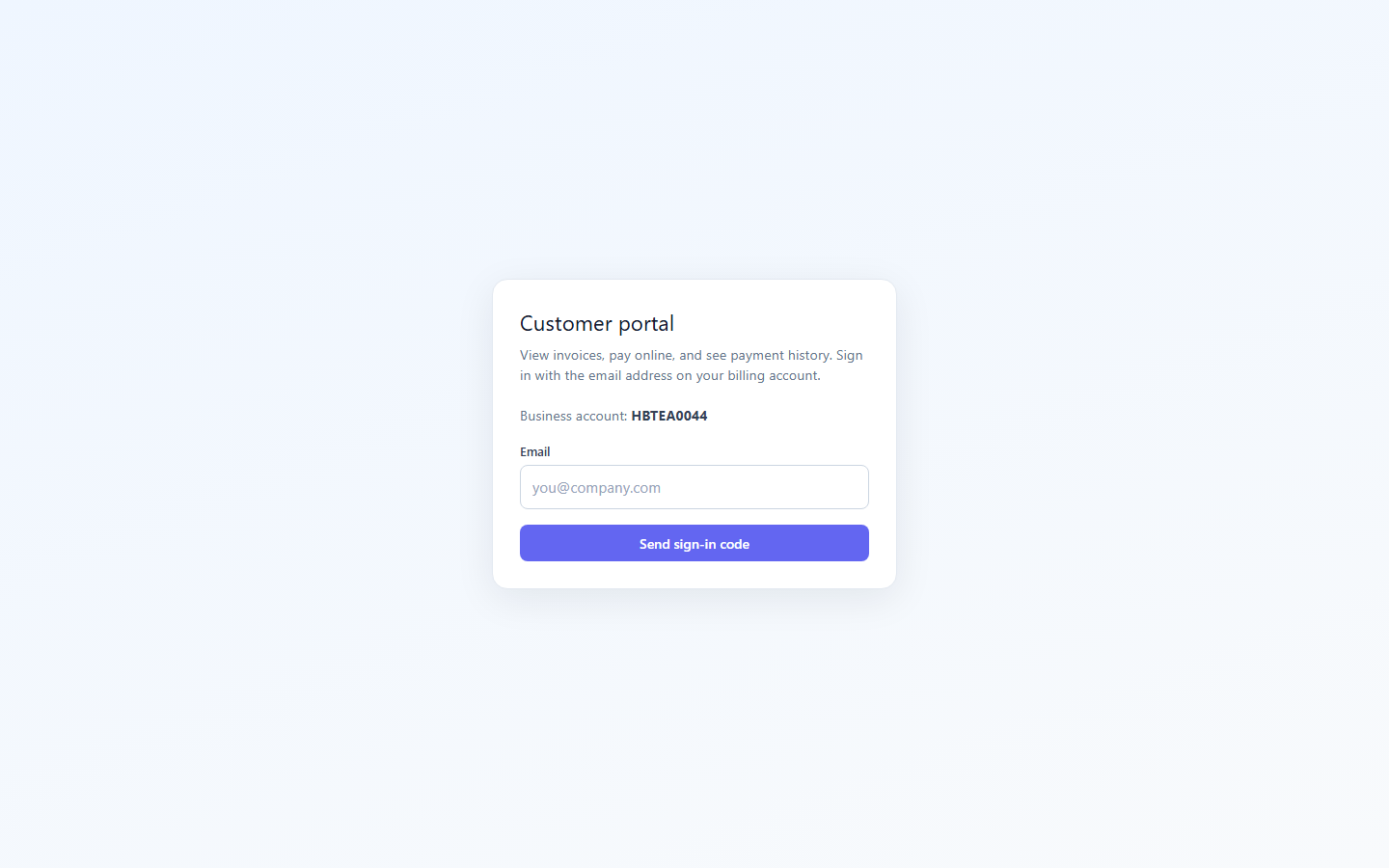
The customer portal lets your customers view invoices, quotations, and receipts without admin access. They log in with email OTP on your business storefront link.
Typical routes (storefront): /portal/login, /portal/invoices, /portal/quotes, /portal/receipts, and quote detail /portal/quotes/:id.
Admin vs portal
Admin and Staff apps are for your team. The portal is for customers — separate login, read-only billing views, and quote option selection.
Share the portal link
- Open Sales → Invoices (
/invoice) in admin. - Click the overflow menu (⋮) in the toolbar.
- Choose Portal link (tenant-specific URL for your business).
- Send the link to customers.
For quotations, include the link from the quote email (Choose options online) or append ?tenant=YOUR_TENANT_ID on local/dev storefronts so OTP targets the correct business.
Published invoices and quotes sent via WhatsApp also include this portal link in the message (4 in the AiSensy template). See WhatsApp (AiSensy).
You must be logged into admin to copy the portal link from the Invoices menu.
How customers log in
- Customer opens your portal link (or a quote deep link from email).
- Login shows your business name (from admin profile), not an internal tenant code.
- Customer enters the email address registered for billing/portal.
- Receives a verification code (OTP) by email (requires SMTP in Settings).
- Enters OTP → lands on Invoices, or returns to a quote if they started from a quote link.
OTP not received
- Email must match a customer or quote delivery email on file.
- Resend quote from admin once so the customer email is saved on the billing profile.
- Check SMTP and spam folder — the portal shows a clear message if OTP was not sent.
Quote deep links
Quote emails can link to /portal/quotes/:id. If login is required, the customer returns to that quote after OTP. Use the tenant query param on multi-tenant dev setups when the link has no tenant.
What customers can do
| Action | Portal |
|---|---|
| View published invoices | Yes — /portal/invoices |
| View published quotes | Yes — /portal/quotes |
| Choose package options on a quote | Yes — alternatives (pick one) and optional add-ons |
| Save my choices | Updates quote total and notifies your team |
| Download PDF / Print quote | Yes — PDF reflects selected lines and total only |
| View receipts | Yes — /portal/receipts (where enabled) |
| Download invoice/receipt PDF | Yes |
| Pay online | Pay link on invoice (Razorpay) |
| Edit your business data | No — read-only |
Draft invoices and quotes are not visible in the portal.
Quotes in the portal
When a quote has option groups (customer picks one of several packages) or optional add-ons:
- Customer opens the quote in the portal.
- Reads the note from you (formatted text, readable on screen).
- Sees standard line items and each option group (choose one radio option per group).
- Optionally toggles optional add-ons.
- Included in your total lists only lines counted toward the estimated total (not unselected alternatives).
- Clicks Save my choices — quote status updates; you get notified.
- Download PDF or Print — document matches current selections (unselected alternatives are omitted).
Grand total on the quote follows one choice per option group, not the sum of every alternative line.
Admin guide: Quotes — package options
PDFs customers receive
- Quotes, invoices, and receipts use the same professional PDF layout as admin.
- Customer notes on PDFs use dark, readable text (Quill formatting is simplified for print).
- Quote PDFs from the portal use the customer’s current package selection, including before Save when downloading from the quote page.
Admin actions connected to portal
| Admin action | Portal effect |
|---|---|
| Publish invoice | Invoice appears after login |
| Send / publish quote | Quote appears; email can include portal link |
| Customer saves quote options | Totals and customer_confirmed status update |
| Record payment | Balance updates; receipt available when configured |
| Resend invoice / quote | Customer gets email with portal access |
Troubleshooting portal login
| Problem | Fix |
|---|---|
| OTP never arrives | Customer email on file; SMTP in Settings; see OTP message on login screen |
| Wrong business on login | Use portal URL with correct tenant; quote links should include ?tenant= in dev |
| Quote 404 after login | Use storefront app routes (/portal/quotes/...), not admin URL |
| Invoice not listed | Must be Published |
| PDF shows all alternatives | Regenerate PDF from portal after selecting options; restart backend if self-hosted |
Guide: Troubleshooting — Portal
Related guides
Frequently asked questions
Where do I find my portal URL?
Invoices page → overflow menu (⋮) → copy portal link (admin login required).
Can customers approve a quote in the portal?
They select options and Save my choices. You still convert to invoice in admin when ready.
Is the portal included in all plans?
Portal availability follows your Beentara subscription — contact support if the link option is missing.