
Appearance
Auto-billing (Recurring Invoices)
Auto-billing lets you set up recurring invoice schedules for customers. Beentara creates and optionally sends invoices automatically on the schedule you define — daily at 8:00 AM IST, or manually when you choose.
In Beentara:
- List: Sales → Auto-billing (
/recurring-invoices) - Create: New schedule →
/recurring-invoices/new - Edit: Edit on a row →
/recurring-invoices/edit/:id
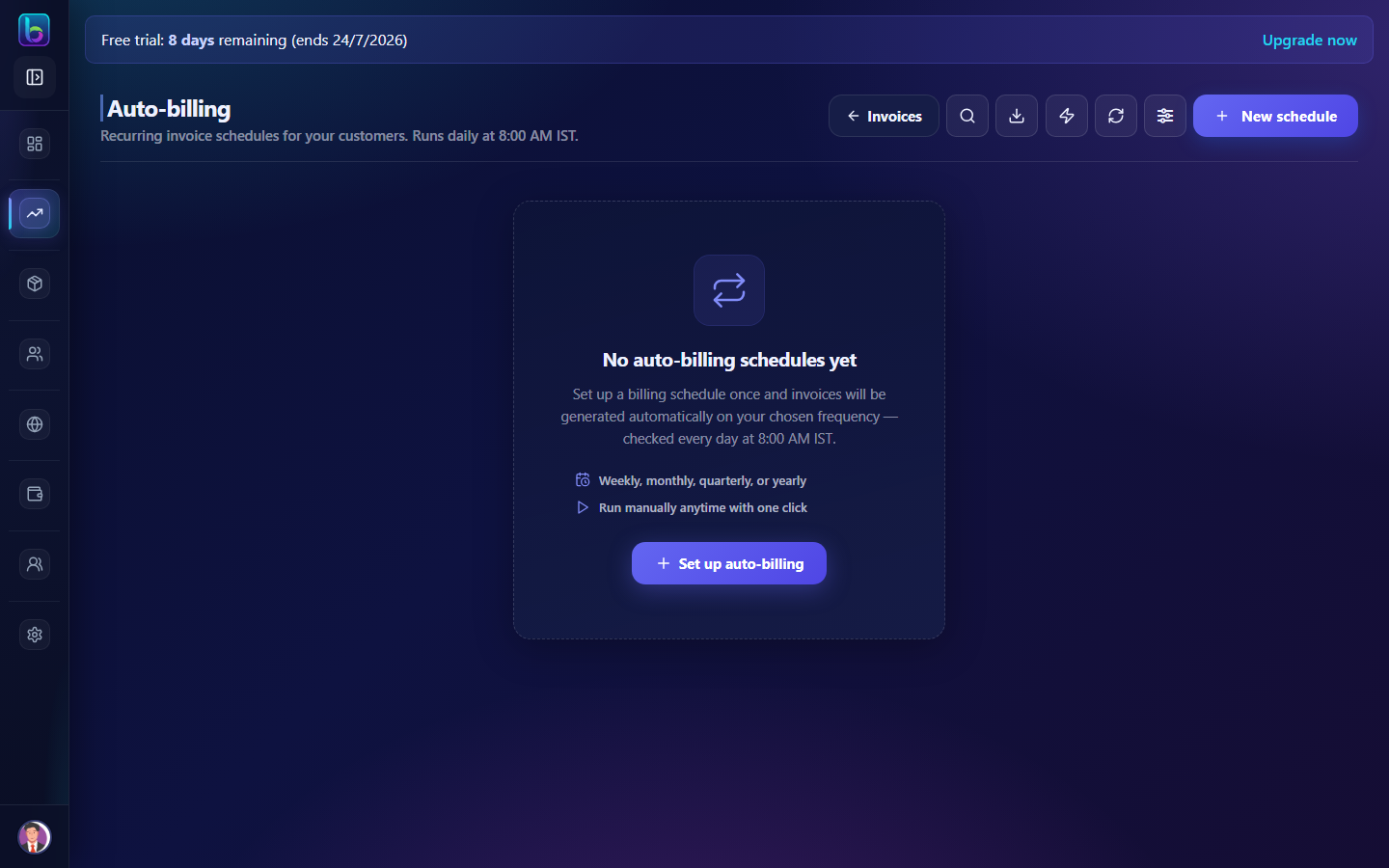 Schedule list with summary metrics, status tabs, table view, and New schedule
Opening Auto-billing
- Open the sidebar under Sales → Auto-billing.
- Or go to
/recurring-invoices. - You can also reach it from the Invoices page overflow menu.
You need billing.read permission (admins always have access).
Page layout
| Area | What it does |
|---|---|
| Summary metrics | Active schedules, monthly value, due this week, needs attention |
| Status tabs | Filter by All, Active, Paused, Completed, Needs attention |
| Table / Calendar | Switch between list and calendar views |
| Schedule rows | Each row is one billing schedule with actions |
| Detail drawer | Side panel with full schedule info and generation history |
| Filter drawer | Customer, frequency, date range, sort options |
Header actions
| Action | Purpose |
|---|---|
| Invoices | Back to main invoice list (/invoice) |
| Search | Find schedules by name, customer, or invoice number |
| Export CSV | Download filtered schedules (up to 500 rows) |
| Process due (lightning icon) | Run all schedules that are due today or earlier |
| Refresh | Reload schedule data |
| Filters | Open advanced filter drawer |
| New schedule | Create at /recurring-invoices/new |
Summary metrics
 KPI cards with period filter: Today, This week, This month, All Time
| Metric | Meaning |
|---|---|
| Active schedules | Schedules currently running |
| Monthly value | Total recurring amount across active schedules |
| Due this week | Schedules with next run in the current week |
| Needs attention | Missed runs, blocked schedules, or overdue dates |
Use the period tabs to change the time window for summary numbers.
When schedules need attention, a banner appears with a View all link to the Needs attention tab.
Status tabs
 All, Active, Paused, Completed, and Needs attention tabs
| Tab | Shows |
|---|---|
| All | Every schedule |
| Active | Running on schedule |
| Paused | Temporarily stopped |
| Completed | Finished (e.g. end date reached) |
| Needs attention | Missed runs, unpaid blocks, or overdue next run |
Waiting for payment appears when a schedule is blocked because the previous invoice is still unpaid (if Skip if previous unpaid is enabled).
Table view
Each schedule row shows:
| Column | Description |
|---|---|
| Schedule name | Your label for this billing schedule |
| Customer | Who gets invoiced |
| Frequency | Weekly, monthly, quarterly, etc. |
| Next run | When the next invoice will be generated |
| Amount | Recurring invoice total |
| Status | Active, Paused, Completed, or attention states |
| Last invoice | Link to the most recently generated invoice |
Row actions
| Action | Purpose |
|---|---|
| Run now | Generate an invoice immediately |
| Pause / Resume | Stop or restart automatic runs |
| Catch up | Generate missed invoices (up to 12 overdue runs) |
| Edit | Open /recurring-invoices/edit/:id |
| Delete | Remove the schedule (existing invoices are kept) |
Click a row to open the detail drawer with full history and the same actions.
Bulk actions
Select rows with checkboxes, then Pause, Resume, or Delete selected schedules.
Calendar view
Switch to Calendar to see projected invoice runs on a month grid. Click a day or event to inspect schedules due on that date.
Create a schedule (/recurring-invoices/new)
 Schedule settings, invoice details, line items, and automation options
Opening the form
| Entry point | Path |
|---|---|
| New schedule button | /recurring-invoices/new |
| Empty state | /recurring-invoices/new |
Header actions
| Button | Purpose |
|---|---|
| Cancel | Return to /recurring-invoices |
| Create schedule | Save the new schedule |
When editing, the button reads Update schedule.
1. Schedule
| Field | Description |
|---|---|
| Schedule name | Label shown in the list (e.g. "Monthly retainer - Acme") |
| Frequency | Weekly, every 2 weeks, monthly, quarterly, yearly, or custom interval |
| Custom interval | Days between runs (2–365) when frequency is Custom |
| Next run date | First date Beentara generates an invoice |
| End date | Optional — schedule completes after this date |
2. Invoice details
| Field | Description |
|---|---|
| Customer | Who receives each generated invoice |
| Payment terms | 15-net, 30-net, end of month, etc. |
| P.O. number | Optional reference on each invoice |
| Generated invoice status | Published (send automatically) or Draft (create only) |
3. Line items
Add products or services with quantity, rate, discount, and tax — same as a regular invoice.
4. Notes and totals
- Customer note — appears on each generated invoice.
- Shipping charge — added to every run.
- Review subtotal, tax, and grand total.
5. Automation options
| Option | Purpose |
|---|---|
| Email invoice to customer | Send PDF by email after each run (required before WhatsApp can be ticked) |
| Also send invoice via WhatsApp | Send the generated published invoice on WhatsApp using your AiSensy invoice campaign |
| Pre-run notification | Email the customer one day before the run (email only — not WhatsApp) |
| Refresh prices from catalog | Use latest product prices on each run |
| Payment reminders | Send reminders for unpaid invoices |
| Skip if previous unpaid | Block the next run until the last invoice is paid |
WhatsApp on auto-billing
WhatsApp uses the same Invoice campaign you set in Settings → WhatsApp (AiSensy) — Billing. There is no extra auto-billing template. Setup: WhatsApp (AiSensy).
On the form, tick Email invoice… first, then Also send invoice via WhatsApp when generated. Generated invoice status must be Published. The customer needs a phone number. Pre-run notices and payment reminders stay on email only.
Edit a schedule
- Click Edit on a row or in the detail drawer.
- Opens
/recurring-invoices/edit/:idwith the same form pre-filled. - Click Update schedule to save.
Run, pause, and catch up
Automatic runs
Beentara processes due schedules daily at 8:00 AM IST. No action needed for normal operation.
Run now
Generate an invoice immediately without waiting for the scheduled time. Useful for testing or one-off early billing.
Process due (header lightning button)
Runs all schedules that are due today or earlier in one batch. Shows how many were checked, generated, or skipped.
Pause and resume
- Pause — stops automatic runs; no new invoices until resumed.
- Resume — reactivates the schedule.
Catch up
If a schedule missed runs (e.g. server downtime), Catch up generates up to 12 overdue invoices in one action.
Detail drawer and history
Click any schedule row to open the side drawer:
- Full schedule metadata and automation flags
- Generation history — up to 50 past invoices with links to
/invoice-detail/:id - Footer actions: Run now, Pause/Resume, Catch up, Edit, Delete
Deep link: /recurring-invoices?schedule={id} opens the drawer directly (also used from invoice detail pages).
Relationship to regular invoices
| Topic | How it works |
|---|---|
| Generation | Each run creates a normal invoice in your invoice list |
| Link back | Generated invoices store recurring_template_id linking to the schedule |
| From invoice detail | Invoices from a schedule show an Auto-billing link back to the schedule |
| Delete schedule | Removes the schedule only — existing invoices are not deleted |
| Customer delete | Customers with active schedules cannot be deleted until schedules are removed |
Daily workflow tips
- Check Needs attention each morning — resolve blocked or missed schedules first.
- Use Draft invoice status while testing a new schedule, then switch to Published.
- Enable Skip if previous unpaid to avoid stacking unpaid invoices.
- Use Calendar view to plan cash flow for the month ahead.
- Export CSV for accounting or subscription reporting.
Related guides
| Feature | Guide |
|---|---|
| Dashboard | How to use the Dashboard |
| Quotes | How to use Quotes |
| Invoices | How to use Invoices |
| WhatsApp billing | WhatsApp (AiSensy) |