
Appearance
Invoices
The Invoices page is your billing hub — create invoices, track who has paid, follow up on overdue amounts, and connect to receipts, quotes, and auto-billing.
In Beentara:
- Invoice list: Sales → Invoices (
/invoice) - Create invoice: Create Invoice button →
/new-invoice - Invoice detail: View on a card →
/invoice-detail/:id
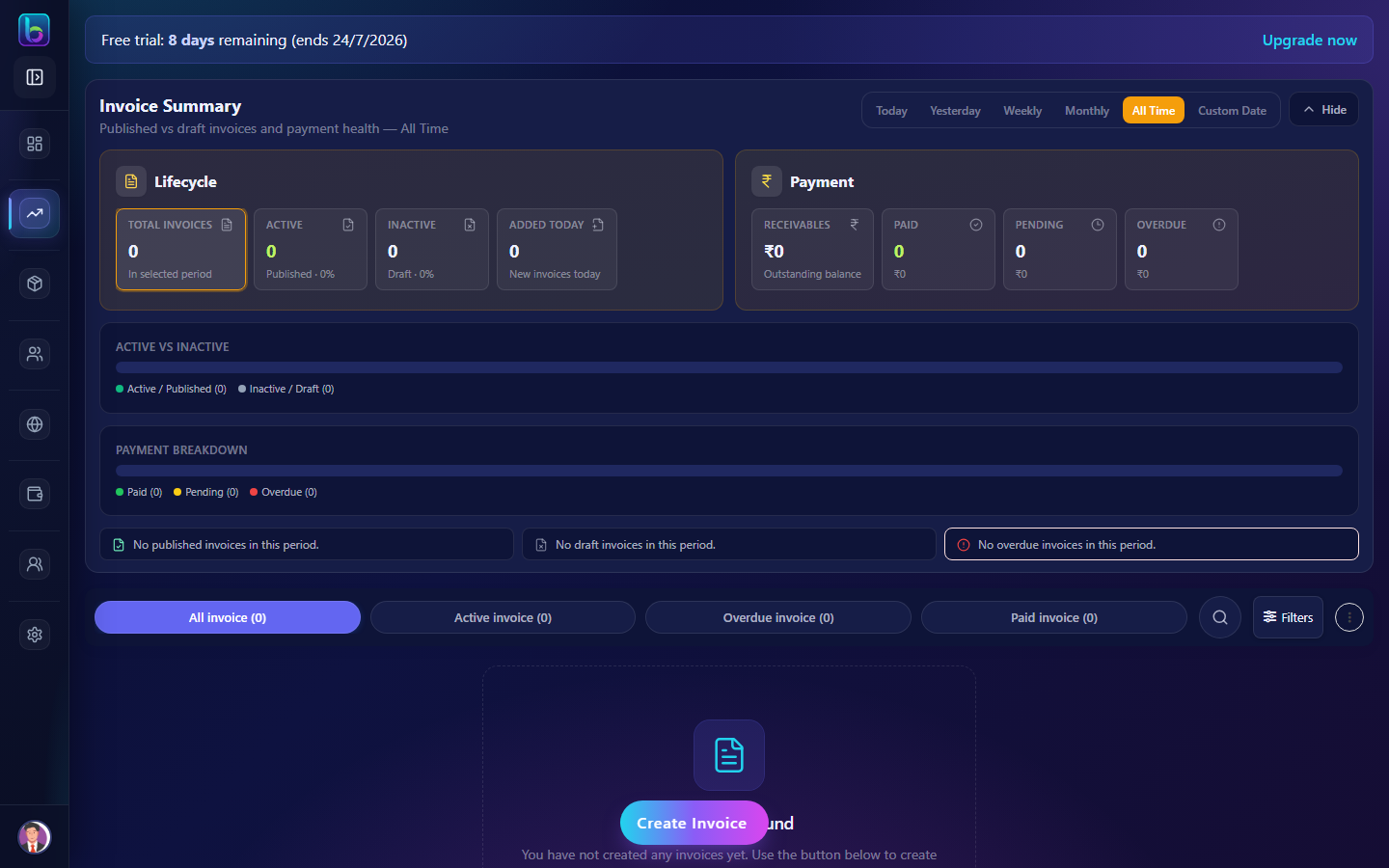 Invoice Summary, payment tabs, invoice cards, and Create Invoice button
Opening the Invoices page
- Open the sidebar under Sales → Invoices.
- Or go to
/invoice.
You need billing.read permission (admins always have access).
Page layout
| Area | What it does |
|---|---|
| Invoice Summary | Published vs draft counts, payment health, and revenue metrics |
| Payment tabs | Filter by All, Active, Overdue, or Paid |
| Invoice cards | One card per invoice with amounts and quick actions |
| Toolbar | Search, filters, bulk delete, overflow menu |
| Create Invoice | Fixed button at the bottom to add a new invoice |
Invoice Summary
At the top, Invoice Summary shows how your billing is performing for the selected period.
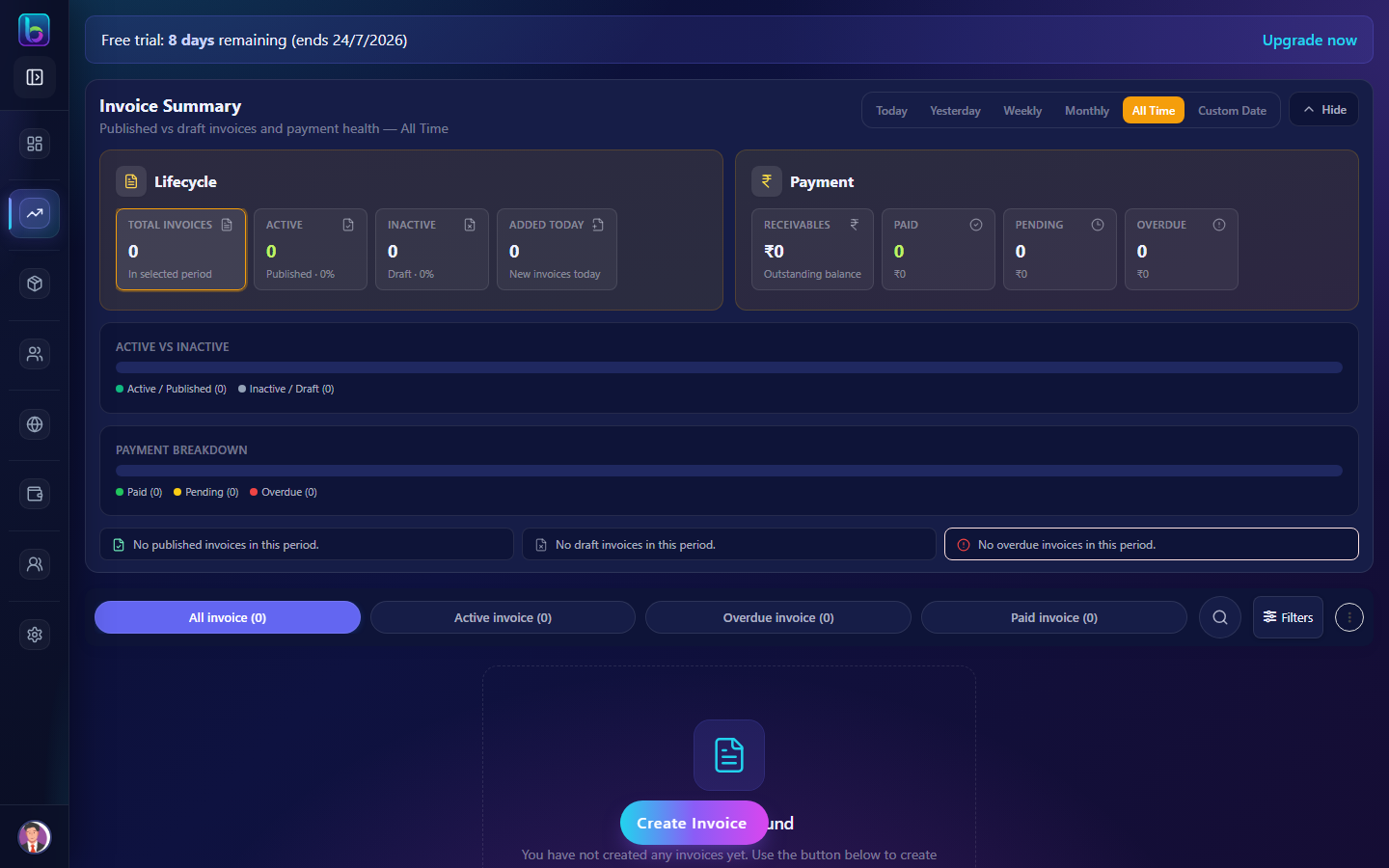 Lifecycle filters, payment breakdown bar, and KPI cards
Period filter
| Filter | Shows data for |
|---|---|
| Today | Current day |
| Yesterday | Previous day |
| Weekly | Last 7 days |
| Monthly | Current calendar month |
| All Time | All invoices |
| Custom Date | Pick From and To, then Apply |
Lifecycle filter
Click summary metrics to filter the list:
| Filter | Shows |
|---|---|
| All | Every invoice |
| Active (Published) | Sent invoices (dpstatus = Published) |
| Inactive (Draft) | Unpublished drafts |
Payment health
The colored bar breaks down invoices by payment state:
| Status | Meaning |
|---|---|
| Paid | Nothing outstanding |
| Pending | Balance due, not yet overdue |
| Overdue | Balance due and past the due date |
Click a segment to jump to the matching payment tab below.
Use Hide / Show to collapse the summary — your preference is saved per account.
Payment tabs
Below the summary, tabs filter invoices by payment status:
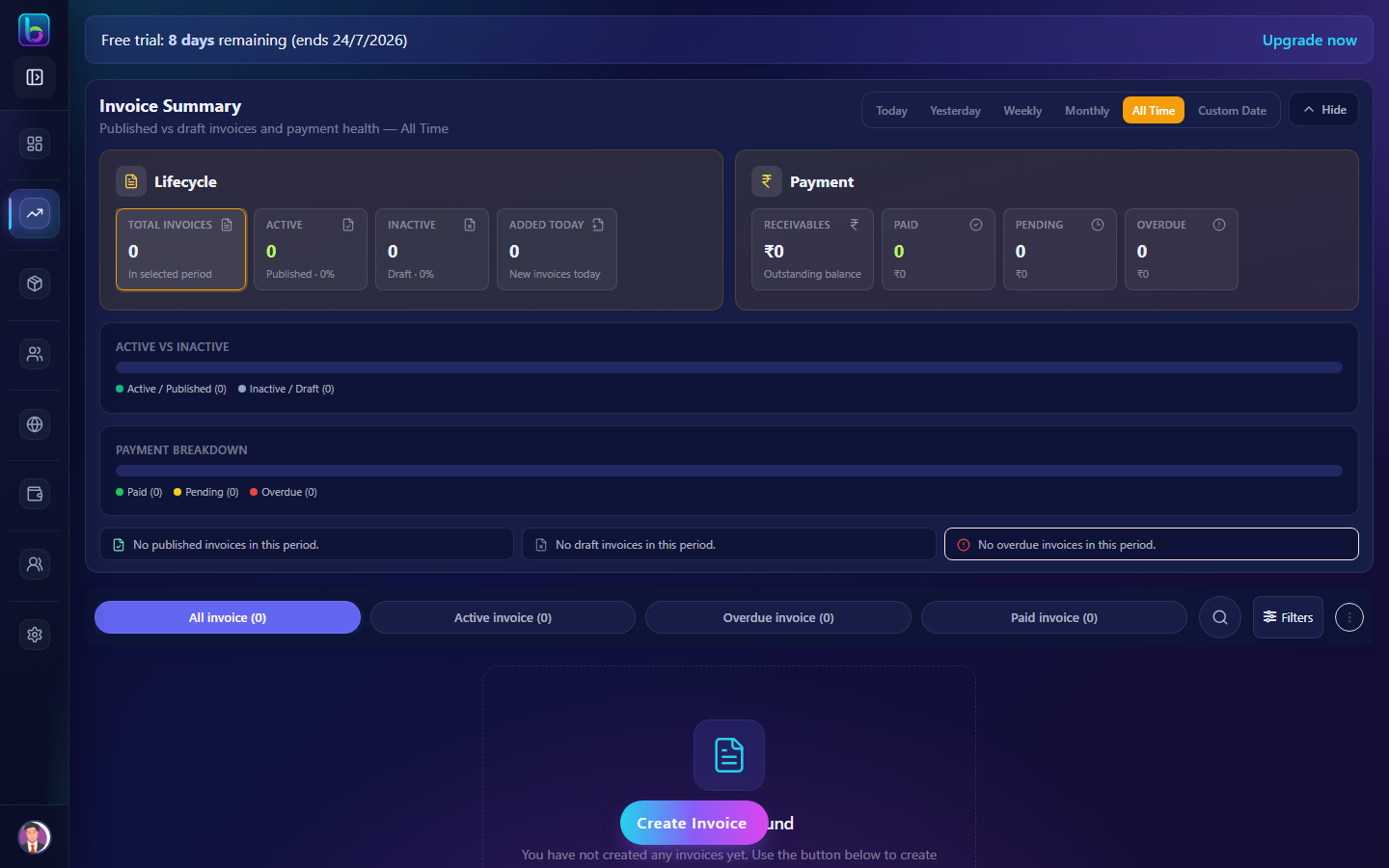 All invoice, Active, Overdue, and Paid tabs with counts
| Tab | Shows |
|---|---|
| All invoice | Every invoice |
| Active invoice | Outstanding balance, not overdue |
| Overdue invoice | Past due date with balance remaining |
| Paid invoice | Fully paid |
Invoice cards
Each invoice appears as a card showing:
| Field | Description |
|---|---|
| Invoice number | Prefix INVE + number |
| Dates | Invoice date and due date |
| Customer | Customer name |
| Grand total | Full invoice amount |
| Due amount | Outstanding balance (if any) |
| Bad Debt | Label when money is still owed |
Card actions
| Action | Purpose |
|---|---|
| Click card | Open all invoices for that customer (/individual-invoice/:customer_id) |
| View | Open invoice detail (/invoice-detail/:id) |
| Resend | Email and/or WhatsApp the invoice again (published invoices only) |
Select checkboxes to Delete selected in bulk.
Toolbar and overflow menu
| Control | Purpose |
|---|---|
| Search | Find invoices by number, customer, or order ID |
| Filter drawer | Date range, sort order, entries per page |
| Overflow menu (⋮) | Portal link, Auto-billing, Import, Export, Bad Debt, sample file, Refresh |
Related pages from the menu
| Menu item | Opens |
|---|---|
| Auto-billing | /recurring-invoices — recurring invoice schedules |
| Import | /invoice-import — bulk CSV import |
| Export | /export — download invoice data |
| Bad Debt | /bad-debt — overdue analytics |
Create an invoice (/new-invoice)
Tap Create Invoice at the bottom of the list (or go to /new-invoice).
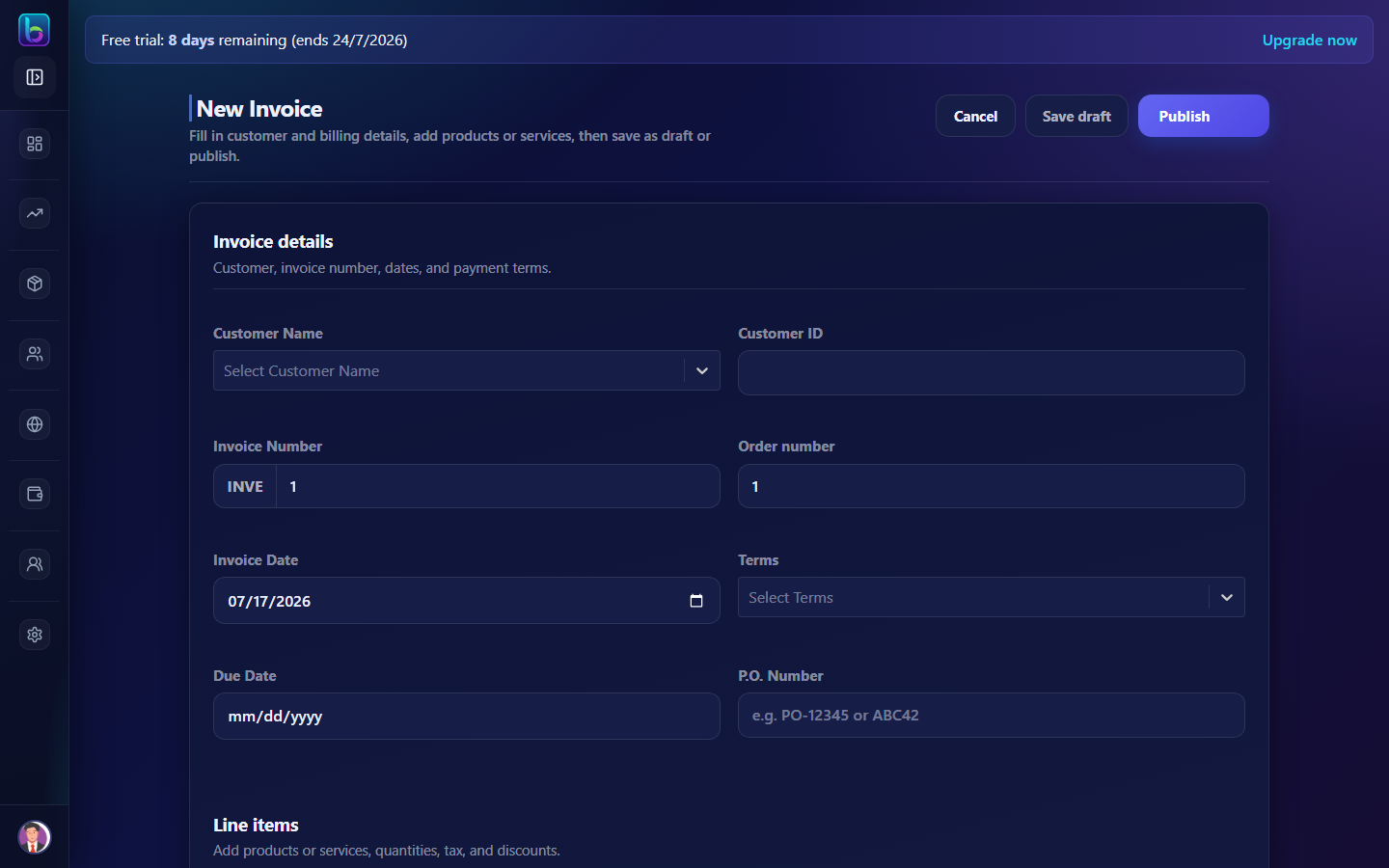 Customer, line items, totals, and Publish button
Header actions
| Button | Purpose |
|---|---|
| Cancel | Return to /invoice |
| Save draft | Save without sending (dpstatus = Draft) |
| Publish | Send the invoice (optional email/WhatsApp) |
When editing, Publish becomes Update.
Form sections
1. Invoice details
- Customer (existing customer or add new)
- Invoice number (auto-generated
INVEprefix) - Invoice date and payment terms (15-net, 30-net, etc.)
- P.O. number
2. Line items
- Add products or services with quantity, rate, discount, and tax
3. Notes and totals
- Customer note, shipping charge, advance payment
- Review subtotal, tax, grand total, and pending balance
4. Delivery options (when publishing)
- Email invoice PDF to customer
- Send via WhatsApp (includes the customer portal link; PDF stays on email)
Edit an invoice (/edit-invoice/:id)
- Open invoice detail and click Edit, or navigate to
/edit-invoice/:id. - Update line items, dates, or customer details.
- Save draft or Update to republish.
Draft invoices can be edited freely. Use care when editing published invoices that customers have already received.
Invoice detail (/invoice-detail/:id)
The detail page shows the full document and advanced actions:
| Action | Purpose |
|---|---|
| Resend | Email/WhatsApp the invoice again |
| Record payment | Jump to Receipts with prefilled payment data |
| Issue credit note | Reduce balance with a linked credit note |
| Download PDF | Save or print the invoice |
| Edit | Open the edit form |
| Delete | Remove the invoice |
| Auto-billing link | Appears if invoice was generated from a recurring schedule |
For quotes opened on this page, you will also see Convert to invoice.
Record a payment
When a customer pays outside the online link:
- Open invoice detail.
- Click Record payment.
- Beentara opens Receipts with customer and amount prefilled.
- Save the receipt — the invoice pending balance updates.
Related billing features
| Feature | Guide | Path |
|---|---|---|
| Quotes | Quotes guide | /quotes — convert approved quotes to invoices |
| Auto-billing | Auto-billing guide | /recurring-invoices — automatic recurring invoices |
| Receipts | Receipts guide | /receipt — record payments |
| Credit notes | Credit notes guide | /credit-notes — issue from invoice detail |
Daily workflow tips
- Start with Overdue invoice tab — chase payments due today.
- Save draft while preparing; Publish when ready to send.
- Use Resend for customers who did not receive the first email.
- Record payment as soon as money arrives — keeps balances accurate.
- Link Auto-billing for subscription or retainer clients.
- Share the customer portal link from the overflow menu for self-service invoice access.
Customer portal
Give customers read-only access to their invoices without admin login.
| Step | Action |
|---|---|
| 1 | On Invoices, open overflow menu (⋮) |
| 2 | Copy Portal link — tenant-specific URL |
| 3 | Send link to customer — they log in with email OTP |
Customers see published invoices and published quotes (not drafts). Quote option selection and PDF download are covered in the portal guide.
Full guide: Customer portal
Related guides
| Feature | Guide |
|---|---|
| Dashboard | How to use the Dashboard |
| Quotes | How to use Quotes |
| Auto-billing | How to use Auto-billing |
| Receipts | How to use Receipts |
| WhatsApp billing | WhatsApp (AiSensy) |
| Orders | How to use Orders |