
Appearance
CRM
The CRM page is your lead pipeline — capture enquiries, assign staff, set reminders, and move deals from New to Converted.
Also known as: CRM Enquiries (page title)
In Beentara:
- CRM list: Customers → CRM (
/crm) - Permission:
crm.read - Staff view: assigned leads only (admins see all leads)
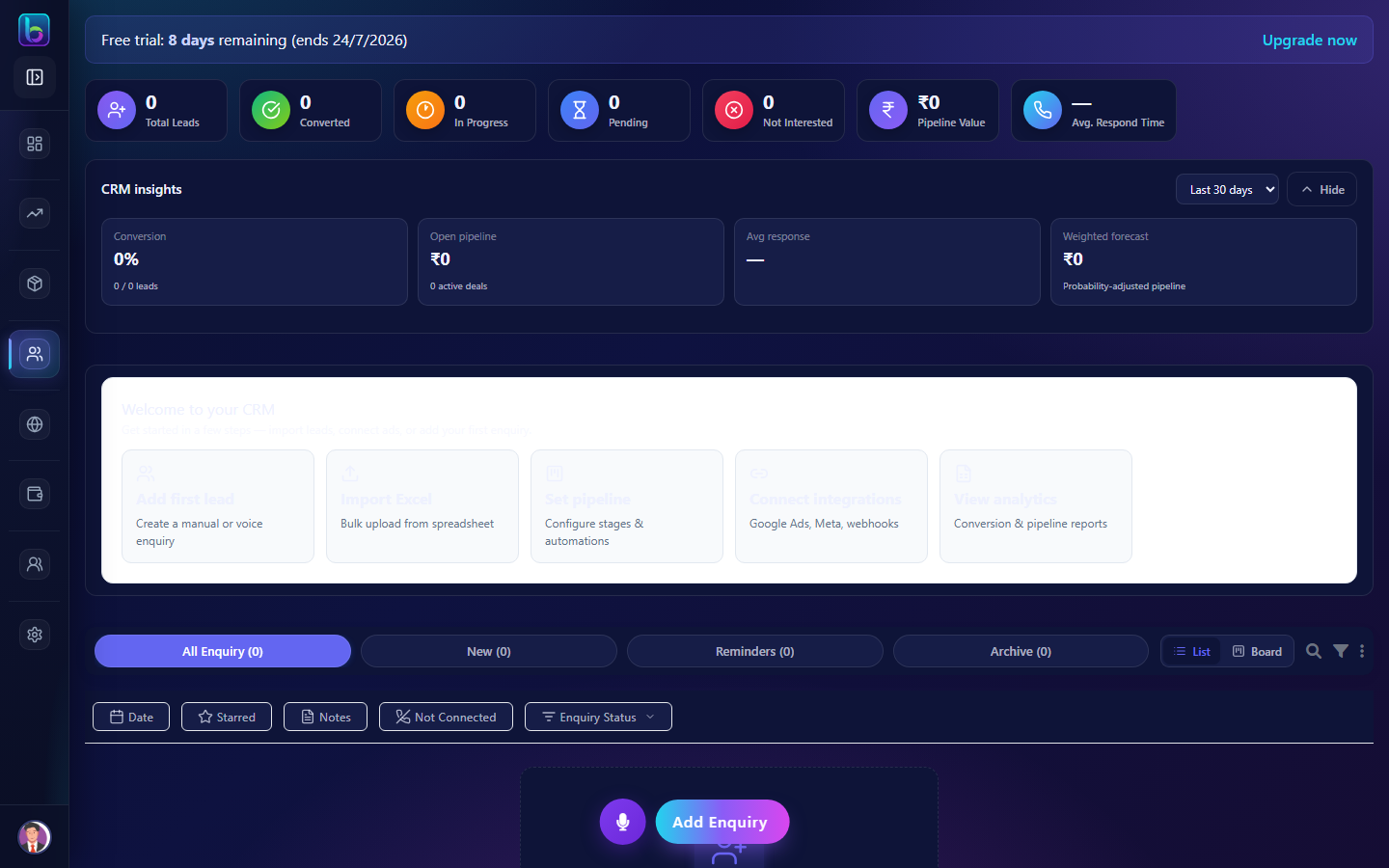 CRM Enquiries — metric cards, tabs, list/board toggle, and toolbar
Staff vs Admin
Staff users fetch assigned leads only. Admins see the full company pipeline and bulk assign tools. See Staff onboarding.
Opening the CRM page
- Open the sidebar: Customers → CRM.
- Or go to
/crm.
You need crm.read permission.
Page layout
| Area | What it does |
|---|---|
| Metric cards | Click to filter by status — New, In Progress, Converted, etc. |
| Tabs | All Enquiry, New, Reminders, Archive |
| View toggle | List or Board (Kanban pipeline) |
| Toolbar | Add Enquiry, Voice Enquiry, search, filters, overflow menu |
| Lead cards / board columns | Individual enquiries with quick actions |
| Bulk actions bar | Assign, archive, export when rows are selected |
Tabs
| Tab | Shows |
|---|---|
| All Enquiry | Every active lead (respecting filters) |
| New | Leads not yet contacted |
| Reminders | Leads with due reminders — check this daily |
| Archive | Closed/archived leads |
List vs Board view
| View | Best for |
|---|---|
| List | Searching, bulk assign, Excel import |
| Board | Drag-and-drop between pipeline stages |
Toggle with the List / Board icons in the toolbar. Board stages come from your CRM platform settings.
Add an enquiry
Manual entry
- Click Add Enquiry in the toolbar.
- Fill customer details, service, source, and notes.
- Save — the lead appears on the active tab.
Voice Enquiry
Quick-capture mode for phone enquiries — opens the same modal optimized for fast entry.
Excel import
- Overflow menu (⋮) → Upload excel.
- Use the sample format from the upload modal.
- Skipped rows can be reviewed in the skipped-enquiries dialog.
Assign leads to staff
- Select lead checkboxes (or use bulk select).
- Click Assign in the bulk actions bar.
- Choose one or more staff members.
- Staff see assigned leads on their CRM home.
Reminders
- Open the Reminders tab for due follow-ups.
- Set reminders on individual leads from the lead detail drawer.
- Allow browser notifications when Beentara prompts — reminders can notify you on due time.
Daily tip: Start with Daily admin routine.
Filter and search
| Control | Purpose |
|---|---|
| Metric cards | One-click status filter |
| Filter drawer | Date range, service, enquiry type, starred |
| Search | Name, phone, email, product |
| Global CRM search | Keyboard shortcut opens global lead search |
Clear filters to return to the full list.
Archive and export
| Action | How |
|---|---|
| Archive | Select leads → Archive (moves to Archive tab) |
| Export CSV | Overflow menu → export filtered leads |
| Restore | Open Archive tab and unarchive individual leads |
Convert a lead
When a deal is won:
- Open the lead and update status to Converted.
- Optionally create a quote or invoice from linked actions.
- Converted leads feed CRM metrics on the Dashboard.
CRM Analytics
Advanced automation, reports, and integrations live under Customers → CRM Analytics (/crm-analytics) — separate from day-to-day enquiry handling.
Guide: CRM Analytics
Common mistakes
| Mistake | Fix |
|---|---|
| Staff cannot see a lead | Admin must assign the lead to that staff member |
| Reminder did not notify | Enable browser notifications; check Reminders tab |
| Lead missing after import | Review skipped enquiries dialog after Excel upload |
| Wrong pipeline stage on board | Drag card to correct column or edit status in list view |
Related guides
| Feature | Guide |
|---|---|
| Customers | Customers |
| CRM Analytics | CRM Analytics |
| Quotes | Quotes |
| Daily routine | Daily admin routine |
Frequently asked questions
How do I add an enquiry in Beentara CRM?
Open /crm and click Add Enquiry, or use Voice Enquiry for quick phone capture.
Does Beentara CRM have a Kanban board?
Yes — toggle Board view to drag leads between pipeline stages.
Why does my staff member see fewer leads?
Staff CRM shows assigned leads only. Admins see the full pipeline at /crm.